# Get version
Source: https://docs.ollama.com/api-reference/get-version
/openapi.yaml get /api/version
Retrieve the version of the Ollama
# Show model details
Source: https://docs.ollama.com/api-reference/show-model-details
/openapi.yaml post /api/show
# Anthropic compatibility
Source: https://docs.ollama.com/api/anthropic-compatibility
Ollama provides compatibility with the [Anthropic Messages API](https://docs.anthropic.com/en/api/messages) to help connect existing applications to Ollama, including tools like Claude Code.
## Usage
### Environment variables
To use Ollama with tools that expect the Anthropic API (like Claude Code), set these environment variables:
```shell theme={"system"}
export ANTHROPIC_AUTH_TOKEN=ollama # required but ignored
export ANTHROPIC_BASE_URL=http://localhost:11434
```
### Simple `/v1/messages` example
```python basic.py theme={"system"}
import anthropic
client = anthropic.Anthropic(
base_url='http://localhost:11434',
api_key='ollama', # required but ignored
)
message = client.messages.create(
model='qwen3-coder',
max_tokens=1024,
messages=[
{'role': 'user', 'content': 'Hello, how are you?'}
]
)
print(message.content[0].text)
```
```javascript basic.js theme={"system"}
import Anthropic from "@anthropic-ai/sdk";
const anthropic = new Anthropic({
baseURL: "http://localhost:11434",
apiKey: "ollama", // required but ignored
});
const message = await anthropic.messages.create({
model: "qwen3-coder",
max_tokens: 1024,
messages: [{ role: "user", content: "Hello, how are you?" }],
});
console.log(message.content[0].text);
```
```shell basic.sh theme={"system"}
curl -X POST http://localhost:11434/v1/messages \
-H "Content-Type: application/json" \
-H "x-api-key: ollama" \
-H "anthropic-version: 2023-06-01" \
-d '{
"model": "qwen3-coder",
"max_tokens": 1024,
"messages": [{ "role": "user", "content": "Hello, how are you?" }]
}'
```
### Streaming example
```python streaming.py theme={"system"}
import anthropic
client = anthropic.Anthropic(
base_url='http://localhost:11434',
api_key='ollama',
)
with client.messages.stream(
model='qwen3-coder',
max_tokens=1024,
messages=[{'role': 'user', 'content': 'Count from 1 to 10'}]
) as stream:
for text in stream.text_stream:
print(text, end='', flush=True)
```
```javascript streaming.js theme={"system"}
import Anthropic from "@anthropic-ai/sdk";
const anthropic = new Anthropic({
baseURL: "http://localhost:11434",
apiKey: "ollama",
});
const stream = await anthropic.messages.stream({
model: "qwen3-coder",
max_tokens: 1024,
messages: [{ role: "user", content: "Count from 1 to 10" }],
});
for await (const event of stream) {
if (
event.type === "content_block_delta" &&
event.delta.type === "text_delta"
) {
process.stdout.write(event.delta.text);
}
}
```
```shell streaming.sh theme={"system"}
curl -X POST http://localhost:11434/v1/messages \
-H "Content-Type: application/json" \
-d '{
"model": "qwen3-coder",
"max_tokens": 1024,
"stream": true,
"messages": [{ "role": "user", "content": "Count from 1 to 10" }]
}'
```
### Tool calling example
```python tools.py theme={"system"}
import anthropic
client = anthropic.Anthropic(
base_url='http://localhost:11434',
api_key='ollama',
)
message = client.messages.create(
model='qwen3-coder',
max_tokens=1024,
tools=[
{
'name': 'get_weather',
'description': 'Get the current weather in a location',
'input_schema': {
'type': 'object',
'properties': {
'location': {
'type': 'string',
'description': 'The city and state, e.g. San Francisco, CA'
}
},
'required': ['location']
}
}
],
messages=[{'role': 'user', 'content': "What's the weather in San Francisco?"}]
)
for block in message.content:
if block.type == 'tool_use':
print(f'Tool: {block.name}')
print(f'Input: {block.input}')
```
```javascript tools.js theme={"system"}
import Anthropic from "@anthropic-ai/sdk";
const anthropic = new Anthropic({
baseURL: "http://localhost:11434",
apiKey: "ollama",
});
const message = await anthropic.messages.create({
model: "qwen3-coder",
max_tokens: 1024,
tools: [
{
name: "get_weather",
description: "Get the current weather in a location",
input_schema: {
type: "object",
properties: {
location: {
type: "string",
description: "The city and state, e.g. San Francisco, CA",
},
},
required: ["location"],
},
},
],
messages: [{ role: "user", content: "What's the weather in San Francisco?" }],
});
for (const block of message.content) {
if (block.type === "tool_use") {
console.log("Tool:", block.name);
console.log("Input:", block.input);
}
}
```
```shell tools.sh theme={"system"}
curl -X POST http://localhost:11434/v1/messages \
-H "Content-Type: application/json" \
-d '{
"model": "qwen3-coder",
"max_tokens": 1024,
"tools": [
{
"name": "get_weather",
"description": "Get the current weather in a location",
"input_schema": {
"type": "object",
"properties": {
"location": {
"type": "string",
"description": "The city and state"
}
},
"required": ["location"]
}
}
],
"messages": [{ "role": "user", "content": "What is the weather in San Francisco?" }]
}'
```
## Using with Claude Code
[Claude Code](https://code.claude.com/docs/en/overview) can be configured to use Ollama as its backend.
### Recommended models
For coding use cases, models like `glm-4.7`, `minimax-m2.1`, and `qwen3-coder` are recommended.
Download a model before use:
```shell theme={"system"}
ollama pull qwen3-coder
```
> Note: Qwen 3 coder is a 30B parameter model requiring at least 24GB of VRAM to run smoothly. More is required for longer context lengths.
```shell theme={"system"}
ollama pull glm-4.7:cloud
```
### Quick setup
```shell theme={"system"}
ollama launch claude
```
This will prompt you to select a model, configure Claude Code automatically, and launch it. To configure without launching:
```shell theme={"system"}
ollama launch claude --config
```
### Manual setup
Set the environment variables and run Claude Code:
```shell theme={"system"}
ANTHROPIC_AUTH_TOKEN=ollama ANTHROPIC_BASE_URL=http://localhost:11434 claude --model qwen3-coder
```
Or set the environment variables in your shell profile:
```shell theme={"system"}
export ANTHROPIC_AUTH_TOKEN=ollama
export ANTHROPIC_BASE_URL=http://localhost:11434
```
Then run Claude Code with any Ollama model:
```shell theme={"system"}
claude --model qwen3-coder
```
## Endpoints
### `/v1/messages`
#### Supported features
* [x] Messages
* [x] Streaming
* [x] System prompts
* [x] Multi-turn conversations
* [x] Vision (images)
* [x] Tools (function calling)
* [x] Tool results
* [x] Thinking/extended thinking
#### Supported request fields
* [x] `model`
* [x] `max_tokens`
* [x] `messages`
* [x] Text `content`
* [x] Image `content` (base64)
* [x] Array of content blocks
* [x] `tool_use` blocks
* [x] `tool_result` blocks
* [x] `thinking` blocks
* [x] `system` (string or array)
* [x] `stream`
* [x] `temperature`
* [x] `top_p`
* [x] `top_k`
* [x] `stop_sequences`
* [x] `tools`
* [x] `thinking`
* [ ] `tool_choice`
* [ ] `metadata`
#### Supported response fields
* [x] `id`
* [x] `type`
* [x] `role`
* [x] `model`
* [x] `content` (text, tool\_use, thinking blocks)
* [x] `stop_reason` (end\_turn, max\_tokens, tool\_use)
* [x] `usage` (input\_tokens, output\_tokens)
#### Streaming events
* [x] `message_start`
* [x] `content_block_start`
* [x] `content_block_delta` (text\_delta, input\_json\_delta, thinking\_delta)
* [x] `content_block_stop`
* [x] `message_delta`
* [x] `message_stop`
* [x] `ping`
* [x] `error`
## Models
Ollama supports both local and cloud models.
### Local models
Pull a local model before use:
```shell theme={"system"}
ollama pull qwen3-coder
```
Recommended local models:
* `qwen3-coder` - Excellent for coding tasks
* `gpt-oss:20b` - Strong general-purpose model
### Cloud models
Cloud models are available immediately without pulling:
* `glm-4.7:cloud` - High-performance cloud model
* `minimax-m2.1:cloud` - Fast cloud model
### Default model names
For tooling that relies on default Anthropic model names such as `claude-3-5-sonnet`, use `ollama cp` to copy an existing model name:
```shell theme={"system"}
ollama cp qwen3-coder claude-3-5-sonnet
```
Afterwards, this new model name can be specified in the `model` field:
```shell theme={"system"}
curl http://localhost:11434/v1/messages \
-H "Content-Type: application/json" \
-d '{
"model": "claude-3-5-sonnet",
"max_tokens": 1024,
"messages": [
{
"role": "user",
"content": "Hello!"
}
]
}'
```
## Differences from the Anthropic API
### Behavior differences
* API key is accepted but not validated
* `anthropic-version` header is accepted but not used
* Token counts are approximations based on the underlying model's tokenizer
### Not supported
The following Anthropic API features are not currently supported:
| Feature | Description |
| --------------------------- | ----------------------------------------------------------- |
| `/v1/messages/count_tokens` | Token counting endpoint |
| `tool_choice` | Forcing specific tool use or disabling tools |
| `metadata` | Request metadata (user\_id) |
| Prompt caching | `cache_control` blocks for caching prefixes |
| Batches API | `/v1/messages/batches` for async batch processing |
| Citations | `citations` content blocks |
| PDF support | `document` content blocks with PDF files |
| Server-sent errors | `error` events during streaming (errors return HTTP status) |
### Partial support
| Feature | Status |
| ----------------- | -------------------------------------------------------- |
| Image content | Base64 images supported; URL images not supported |
| Extended thinking | Basic support; `budget_tokens` accepted but not enforced |
# Authentication
Source: https://docs.ollama.com/api/authentication
No authentication is required when accessing Ollama's API locally via `http://localhost:11434`.
Authentication is required for the following:
* Running cloud models via ollama.com
* Publishing models
* Downloading private models
Ollama supports two authentication methods:
* **Signing in**: sign in from your local installation, and Ollama will automatically take care of authenticating requests to ollama.com when running commands
* **API keys**: API keys for programmatic access to ollama.com's API
## Signing in
To sign in to ollama.com from your local installation of Ollama, run:
```
ollama signin
```
Once signed in, Ollama will automatically authenticate commands as required:
```
ollama run gpt-oss:120b-cloud
```
Similarly, when accessing a local API endpoint that requires cloud access, Ollama will automatically authenticate the request:
```shell theme={"system"}
curl http://localhost:11434/api/generate -d '{
"model": "gpt-oss:120b-cloud",
"prompt": "Why is the sky blue?"
}'
```
## API keys
For direct access to ollama.com's API served at `https://ollama.com/api`, authentication via API keys is required.
First, create an [API key](https://ollama.com/settings/keys), then set the `OLLAMA_API_KEY` environment variable:
```shell theme={"system"}
export OLLAMA_API_KEY=your_api_key
```
Then use the API key in the Authorization header:
```shell theme={"system"}
curl https://ollama.com/api/generate \
-H "Authorization: Bearer $OLLAMA_API_KEY" \
-d '{
"model": "gpt-oss:120b",
"prompt": "Why is the sky blue?",
"stream": false
}'
```
API keys don't currently expire, however you can revoke them at any time in your [API keys settings](https://ollama.com/settings/keys).
# Generate a chat message
Source: https://docs.ollama.com/api/chat
/openapi.yaml post /api/chat
Generate the next chat message in a conversation between a user and an assistant.
# Copy a model
Source: https://docs.ollama.com/api/copy
/openapi.yaml post /api/copy
# Create a model
Source: https://docs.ollama.com/api/create
/openapi.yaml post /api/create
# Delete a model
Source: https://docs.ollama.com/api/delete
/openapi.yaml delete /api/delete
# Generate embeddings
Source: https://docs.ollama.com/api/embed
/openapi.yaml post /api/embed
Creates vector embeddings representing the input text
# Errors
Source: https://docs.ollama.com/api/errors
## Status codes
Endpoints return appropriate HTTP status codes based on the success or failure of the request in the HTTP status line (e.g. `HTTP/1.1 200 OK` or `HTTP/1.1 400 Bad Request`). Common status codes are:
* `200`: Success
* `400`: Bad Request (missing parameters, invalid JSON, etc.)
* `404`: Not Found (model doesn't exist, etc.)
* `429`: Too Many Requests (e.g. when a rate limit is exceeded)
* `500`: Internal Server Error
* `502`: Bad Gateway (e.g. when a cloud model cannot be reached)
## Error messages
Errors are returned in the `application/json` format with the following structure, with the error message in the `error` property:
```json theme={"system"}
{
"error": "the model failed to generate a response"
}
```
## Errors that occur while streaming
If an error occurs mid-stream, the error will be returned as an object in the `application/x-ndjson` format with an `error` property. Since the response has already started, the status code of the response will not be changed.
```json theme={"system"}
{"model":"gemma3","created_at":"2025-10-26T17:21:21.196249Z","response":" Yes","done":false}
{"model":"gemma3","created_at":"2025-10-26T17:21:21.207235Z","response":".","done":false}
{"model":"gemma3","created_at":"2025-10-26T17:21:21.219166Z","response":"I","done":false}
{"model":"gemma3","created_at":"2025-10-26T17:21:21.231094Z","response":"can","done":false}
{"error":"an error was encountered while running the model"}
```
# Generate a response
Source: https://docs.ollama.com/api/generate
/openapi.yaml post /api/generate
Generates a response for the provided prompt
# Introduction
Source: https://docs.ollama.com/api/introduction
Ollama's API allows you to run and interact with models programatically.
## Get started
If you're just getting started, follow the [quickstart](/quickstart) documentation to get up and running with Ollama's API.
## Base URL
After installation, Ollama's API is served by default at:
```
http://localhost:11434/api
```
For running cloud models on **ollama.com**, the same API is available with the following base URL:
```
https://ollama.com/api
```
## Example request
Once Ollama is running, its API is automatically available and can be accessed via `curl`:
```shell theme={"system"}
curl http://localhost:11434/api/generate -d '{
"model": "gemma3",
"prompt": "Why is the sky blue?"
}'
```
## Libraries
Ollama has official libraries for Python and JavaScript:
* [Python](https://github.com/ollama/ollama-python)
* [JavaScript](https://github.com/ollama/ollama-js)
Several community-maintained libraries are available for Ollama. For a full list, see the [Ollama GitHub repository](https://github.com/ollama/ollama?tab=readme-ov-file#libraries-1).
## Versioning
Ollama's API isn't strictly versioned, but the API is expected to be stable and backwards compatible. Deprecations are rare and will be announced in the [release notes](https://github.com/ollama/ollama/releases).
# OpenAI compatibility
Source: https://docs.ollama.com/api/openai-compatibility
Ollama provides compatibility with parts of the [OpenAI API](https://platform.openai.com/docs/api-reference) to help connect existing applications to Ollama.
## Usage
### Simple `/v1/chat/completions` example
```python basic.py theme={"system"}
from openai import OpenAI
client = OpenAI(
base_url='http://localhost:11434/v1/',
api_key='ollama', # required but ignored
)
chat_completion = client.chat.completions.create(
messages=[
{
'role': 'user',
'content': 'Say this is a test',
}
],
model='gpt-oss:20b',
)
print(chat_completion.choices[0].message.content)
```
```javascript basic.js theme={"system"}
import OpenAI from "openai";
const openai = new OpenAI({
baseURL: "http://localhost:11434/v1/",
apiKey: "ollama", // required but ignored
});
const chatCompletion = await openai.chat.completions.create({
messages: [{ role: "user", content: "Say this is a test" }],
model: "gpt-oss:20b",
});
console.log(chatCompletion.choices[0].message.content);
```
```shell basic.sh theme={"system"}
curl -X POST http://localhost:11434/v1/chat/completions \
-H "Content-Type: application/json" \
-d '{
"model": "gpt-oss:20b",
"messages": [{ "role": "user", "content": "Say this is a test" }]
}'
```
### Simple `/v1/responses` example
```python responses.py theme={"system"}
from openai import OpenAI
client = OpenAI(
base_url='http://localhost:11434/v1/',
api_key='ollama', # required but ignored
)
responses_result = client.responses.create(
model='qwen3:8b',
input='Write a short poem about the color blue',
)
print(responses_result.output_text)
```
```javascript responses.js theme={"system"}
import OpenAI from "openai";
const openai = new OpenAI({
baseURL: "http://localhost:11434/v1/",
apiKey: "ollama", // required but ignored
});
const responsesResult = await openai.responses.create({
model: "qwen3:8b",
input: "Write a short poem about the color blue",
});
console.log(responsesResult.output_text);
```
```shell responses.sh theme={"system"}
curl -X POST http://localhost:11434/v1/responses \
-H "Content-Type: application/json" \
-d '{
"model": "qwen3:8b",
"input": "Write a short poem about the color blue"
}'
```
### `/v1/chat/completions` with vision example
```python vision.py theme={"system"}
from openai import OpenAI
client = OpenAI(
base_url='http://localhost:11434/v1/',
api_key='ollama', # required but ignored
)
response = client.chat.completions.create(
model='qwen3-vl:8b',
messages=[
{
'role': 'user',
'content': [
{'type': 'text', 'text': "What's in this image?"},
{
'type': 'image_url',
'image_url': 'data:image/png;base64,iVBORw0KGgoAAAANSUhEUgAAAG0AAABmCAYAAADBPx+VAAAACXBIWXMAAAsTAAALEwEAmpwYAAAAAXNSR0IArs4c6QAAAARnQU1BAACxjwv8YQUAAA3VSURBVHgB7Z27r0zdG8fX743i1bi1ikMoFMQloXRpKFFIqI7LH4BEQ+NWIkjQuSWCRIEoULk0gsK1kCBI0IhrQVT7tz/7zZo888yz1r7MnDl7z5xvsjkzs2fP3uu71nNfa7lkAsm7d++Sffv2JbNmzUqcc8m0adOSzZs3Z+/XES4ZckAWJEGWPiCxjsQNLWmQsWjRIpMseaxcuTKpG/7HP27I8P79e7dq1ars/yL4/v27S0ejqwv+cUOGEGGpKHR37tzJCEpHV9tnT58+dXXCJDdECBE2Ojrqjh071hpNECjx4cMHVycM1Uhbv359B2F79+51586daxN/+pyRkRFXKyRDAqxEp4yMlDDzXG1NPnnyJKkThoK0VFd1ELZu3TrzXKxKfW7dMBQ6bcuWLW2v0VlHjx41z717927ba22U9APcw7Nnz1oGEPeL3m3p2mTAYYnFmMOMXybPPXv2bNIPpFZr1NHn4HMw0KRBjg9NuRw95s8PEcz/6DZELQd/09C9QGq5RsmSRybqkwHGjh07OsJSsYYm3ijPpyHzoiacg35MLdDSIS/O1yM778jOTwYUkKNHWUzUWaOsylE00MyI0fcnOwIdjvtNdW/HZwNLGg+sR1kMepSNJXmIwxBZiG8tDTpEZzKg0GItNsosY8USkxDhD0Rinuiko2gfL/RbiD2LZAjU9zKQJj8RDR0vJBR1/Phx9+PHj9Z7REF4nTZkxzX4LCXHrV271qXkBAPGfP/atWvu/PnzHe4C97F48eIsRLZ9+3a3f/9+87dwP1JxaF7/3r17ba+5l4EcaVo0lj3SBq5kGTJSQmLWMjgYNei2GPT1MuMqGTDEFHzeQSP2wi/jGnkmPJ/nhccs44jvDAxpVcxnq0F6eT8h4ni/iIWpR5lPyA6ETkNXoSukvpJAD3AsXLiwpZs49+fPn5ke4j10TqYvegSfn0OnafC+Tv9ooA/JPkgQysqQNBzagXY55nO/oa1F7qvIPWkRL12WRpMWUvpVDYmxAPehxWSe8ZEXL20sadYIozfmNch4QJPAfeJgW3rNsnzphBKNJM2KKODo1rVOMRYik5ETy3ix4qWNI81qAAirizgMIc+yhTytx0JWZuNI03qsrgWlGtwjoS9XwgUhWGyhUaRZZQNNIEwCiXD16tXcAHUs79co0vSD8rrJCIW98pzvxpAWyyo3HYwqS0+H0BjStClcZJT5coMm6D2LOF8TolGJtK9fvyZpyiC5ePFi9nc/oJU4eiEP0jVoAnHa9wyJycITMP78+eMeP37sXrx44d6+fdt6f82aNdkx1pg9e3Zb5W+RSRE+n+VjksQWifvVaTKFhn5O8my63K8Qabdv33b379/PiAP//vuvW7BggZszZ072/+TJk91YgkafPn166zXB1rQHFvouAWHq9z3SEevSUerqCn2/dDCeta2jxYbr69evk4MHDyY7d+7MjhMnTiTPnz9Pfv/+nfQT2ggpO2dMF8cghuoM7Ygj5iWCqRlGFml0QC/ftGmTmzt3rmsaKDsgBSPh0/8yPeLLBihLkOKJc0jp8H8vUzcxIA1k6QJ/c78tWEyj5P3o4u9+jywNPdJi5rAH9x0KHcl4Hg570eQp3+vHXGyrmEeigzQsQsjavXt38ujRo44LQuDDhw+TW7duRS1HGgMxhNXHgflaNTOsHyKvHK5Ijo2jbFjJBQK9YwFd6RVMzfgRBmEfP37suBBm/p49e1qjEP2mwTViNRo0VJWH1deMXcNK08uUjVUu7s/zRaL+oLNxz1bpANco4npUgX4G2eFbpDFyQoQxojBCpEGSytmOH8qrH5Q9vuzD6ofQylkCUmh8DBAr+q8JCyVNtWQIidKQE9wNtLSQnS4jDSsxNHogzFuQBw4cyM61UKVsjfr3ooBkPSqqQHesUPWVtzi9/vQi1T+rJj7WiTz4Pt/l3LxUkr5P2VYZaZ4URpsE+st/dujQoaBBYokbrz/8TJNQYLSonrPS9kUaSkPeZyj1AWSj+d+VBoy1pIWVNed8P0Ll/ee5HdGRhrHhR5GGN0r4LGZBaj8oFDJitBTJzIZgFcmU0Y8ytWMZMzJOaXUSrUs5RxKnrxmbb5YXO9VGUhtpXldhEUogFr3IzIsvlpmdosVcGVGXFWp2oU9kLFL3dEkSz6NHEY1sjSRdIuDFWEhd8KxFqsRi1uM/nz9/zpxnwlESONdg6dKlbsaMGS4EHFHtjFIDHwKOo46l4TxSuxgDzi+rE2jg+BaFruOX4HXa0Nnf1lwAPufZeF8/r6zD97WK2qFnGjBxTw5qNGPxT+5T/r7/7RawFC3j4vTp09koCxkeHjqbHJqArmH5UrFKKksnxrK7FuRIs8STfBZv+luugXZ2pR/pP9Ois4z+TiMzUUkUjD0iEi1fzX8GmXyuxUBRcaUfykV0YZnlJGKQpOiGB76x5GeWkWWJc3mOrK6S7xdND+W5N6XyaRgtWJFe13GkaZnKOsYqGdOVVVbGupsyA/l7emTLHi7vwTdirNEt0qxnzAvBFcnQF16xh/TMpUuXHDowhlA9vQVraQhkudRdzOnK+04ZSP3DUhVSP61YsaLtd/ks7ZgtPcXqPqEafHkdqa84X6aCeL7YWlv6edGFHb+ZFICPlljHhg0bKuk0CSvVznWsotRu433alNdFrqG45ejoaPCaUkWERpLXjzFL2Rpllp7PJU2a/v7Ab8N05/9t27Z16KUqoFGsxnI9EosS2niSYg9SpU6B4JgTrvVW1flt1sT+0ADIJU2maXzcUTraGCRaL1Wp9rUMk16PMom8QhruxzvZIegJjFU7LLCePfS8uaQdPny4jTTL0dbee5mYokQsXTIWNY46kuMbnt8Kmec+LGWtOVIl9cT1rCB0V8WqkjAsRwta93TbwNYoGKsUSChN44lgBNCoHLHzquYKrU6qZ8lolCIN0Rh6cP0Q3U6I6IXILYOQI513hJaSKAorFpuHXJNfVlpRtmYBk1Su1obZr5dnKAO+L10Hrj3WZW+E3qh6IszE37F6EB+68mGpvKm4eb9bFrlzrok7fvr0Kfv727dvWRmdVTJHw0qiiCUSZ6wCK+7XL/AcsgNyL74DQQ730sv78Su7+t/A36MdY0sW5o40ahslXr58aZ5HtZB8GH64m9EmMZ7FpYw4T6QnrZfgenrhFxaSiSGXtPnz57e9TkNZLvTjeqhr734CNtrK41L40sUQckmj1lGKQ0rC37x544r8eNXRpnVE3ZZY7zXo8NomiO0ZUCj2uHz58rbXoZ6gc0uA+F6ZeKS/jhRDUq8MKrTho9fEkihMmhxtBI1DxKFY9XLpVcSkfoi8JGnToZO5sU5aiDQIW716ddt7ZLYtMQlhECdBGXZZMWldY5BHm5xgAroWj4C0hbYkSc/jBmggIrXJWlZM6pSETsEPGqZOndr2uuuR5rF169a2HoHPdurUKZM4CO1WTPqaDaAd+GFGKdIQkxAn9RuEWcTRyN2KSUgiSgF5aWzPTeA/lN5rZubMmR2bE4SIC4nJoltgAV/dVefZm72AtctUCJU2CMJ327hxY9t7EHbkyJFseq+EJSY16RPo3Dkq1kkr7+q0bNmyDuLQcZBEPYmHVdOBiJyIlrRDq41YPWfXOxUysi5fvtyaj+2BpcnsUV/oSoEMOk2CQGlr4ckhBwaetBhjCwH0ZHtJROPJkyc7UjcYLDjmrH7ADTEBXFfOYmB0k9oYBOjJ8b4aOYSe7QkKcYhFlq3QYLQhSidNmtS2RATwy8YOM3EQJsUjKiaWZ+vZToUQgzhkHXudb/PW5YMHD9yZM2faPsMwoc7RciYJXbGuBqJ1UIGKKLv915jsvgtJxCZDubdXr165mzdvtr1Hz5LONA8jrUwKPqsmVesKa49S3Q4WxmRPUEYdTjgiUcfUwLx589ySJUva3oMkP6IYddq6HMS4o55xBJBUeRjzfa4Zdeg56QZ43LhxoyPo7Lf1kNt7oO8wWAbNwaYjIv5lhyS7kRf96dvm5Jah8vfvX3flyhX35cuX6HfzFHOToS1H4BenCaHvO8pr8iDuwoUL7tevX+b5ZdbBair0xkFIlFDlW4ZknEClsp/TzXyAKVOmmHWFVSbDNw1l1+4f90U6IY/q4V27dpnE9bJ+v87QEydjqx/UamVVPRG+mwkNTYN+9tjkwzEx+atCm/X9WvWtDtAb68Wy9LXa1UmvCDDIpPkyOQ5ZwSzJ4jMrvFcr0rSjOUh+GcT4LSg5ugkW1Io0/SCDQBojh0hPlaJdah+tkVYrnTZowP8iq1F1TgMBBauufyB33x1v+NWFYmT5KmppgHC+NkAgbmRkpD3yn9QIseXymoTQFGQmIOKTxiZIWpvAatenVqRVXf2nTrAWMsPnKrMZHz6bJq5jvce6QK8J1cQNgKxlJapMPdZSR64/UivS9NztpkVEdKcrs5alhhWP9NeqlfWopzhZScI6QxseegZRGeg5a8C3Re1Mfl1ScP36ddcUaMuv24iOJtz7sbUjTS4qBvKmstYJoUauiuD3k5qhyr7QdUHMeCgLa1Ear9NquemdXgmum4fvJ6w1lqsuDhNrg1qSpleJK7K3TF0Q2jSd94uSZ60kK1e3qyVpQK6PVWXp2/FC3mp6jBhKKOiY2h3gtUV64TWM6wDETRPLDfSakXmH3w8g9Jlug8ZtTt4kVF0kLUYYmCCtD/DrQ5YhMGbA9L3ucdjh0y8kOHW5gU/VEEmJTcL4Pz/f7mgoAbYkAAAAAElFTkSuQmCC',
},
],
}
],
max_tokens=300,
)
print(response.choices[0].message.content)
```
```javascript vision.js theme={"system"}
import OpenAI from "openai";
const openai = new OpenAI({
baseURL: "http://localhost:11434/v1/",
apiKey: "ollama", // required but ignored
});
const response = await openai.chat.completions.create({
model: "qwen3-vl:8b",
messages: [
{
role: "user",
content: [
{ type: "text", text: "What's in this image?" },
{
type: "image_url",
image_url:
"data:image/png;base64,iVBORw0KGgoAAAANSUhEUgAAAG0AAABmCAYAAADBPx+VAAAACXBIWXMAAAsTAAALEwEAmpwYAAAAAXNSR0IArs4c6QAAAARnQU1BAACxjwv8YQUAAA3VSURBVHgB7Z27r0zdG8fX743i1bi1ikMoFMQloXRpKFFIqI7LH4BEQ+NWIkjQuSWCRIEoULk0gsK1kCBI0IhrQVT7tz/7zZo888yz1r7MnDl7z5xvsjkzs2fP3uu71nNfa7lkAsm7d++Sffv2JbNmzUqcc8m0adOSzZs3Z+/XES4ZckAWJEGWPiCxjsQNLWmQsWjRIpMseaxcuTKpG/7HP27I8P79e7dq1ars/yL4/v27S0ejqwv+cUOGEGGpKHR37tzJCEpHV9tnT58+dXXCJDdECBE2Ojrqjh071hpNECjx4cMHVycM1Uhbv359B2F79+51586daxN/+pyRkRFXKyRDAqxEp4yMlDDzXG1NPnnyJKkThoK0VFd1ELZu3TrzXKxKfW7dMBQ6bcuWLW2v0VlHjx41z717927ba22U9APcw7Nnz1oGEPeL3m3p2mTAYYnFmMOMXybPPXv2bNIPpFZr1NHn4HMw0KRBjg9NuRw95s8PEcz/6DZELQd/09C9QGq5RsmSRybqkwHGjh07OsJSsYYm3ijPpyHzoiacg35MLdDSIS/O1yM778jOTwYUkKNHWUzUWaOsylE00MyI0fcnOwIdjvtNdW/HZwNLGg+sR1kMepSNJXmIwxBZiG8tDTpEZzKg0GItNsosY8USkxDhD0Rinuiko2gfL/RbiD2LZAjU9zKQJj8RDR0vJBR1/Phx9+PHj9Z7REF4nTZkxzX4LCXHrV271qXkBAPGfP/atWvu/PnzHe4C97F48eIsRLZ9+3a3f/9+87dwP1JxaF7/3r17ba+5l4EcaVo0lj3SBq5kGTJSQmLWMjgYNei2GPT1MuMqGTDEFHzeQSP2wi/jGnkmPJ/nhccs44jvDAxpVcxnq0F6eT8h4ni/iIWpR5lPyA6ETkNXoSukvpJAD3AsXLiwpZs49+fPn5ke4j10TqYvegSfn0OnafC+Tv9ooA/JPkgQysqQNBzagXY55nO/oa1F7qvIPWkRL12WRpMWUvpVDYmxAPehxWSe8ZEXL20sadYIozfmNch4QJPAfeJgW3rNsnzphBKNJM2KKODo1rVOMRYik5ETy3ix4qWNI81qAAirizgMIc+yhTytx0JWZuNI03qsrgWlGtwjoS9XwgUhWGyhUaRZZQNNIEwCiXD16tXcAHUs79co0vSD8rrJCIW98pzvxpAWyyo3HYwqS0+H0BjStClcZJT5coMm6D2LOF8TolGJtK9fvyZpyiC5ePFi9nc/oJU4eiEP0jVoAnHa9wyJycITMP78+eMeP37sXrx44d6+fdt6f82aNdkx1pg9e3Zb5W+RSRE+n+VjksQWifvVaTKFhn5O8my63K8Qabdv33b379/PiAP//vuvW7BggZszZ072/+TJk91YgkafPn166zXB1rQHFvouAWHq9z3SEevSUerqCn2/dDCeta2jxYbr69evk4MHDyY7d+7MjhMnTiTPnz9Pfv/+nfQT2ggpO2dMF8cghuoM7Ygj5iWCqRlGFml0QC/ftGmTmzt3rmsaKDsgBSPh0/8yPeLLBihLkOKJc0jp8H8vUzcxIA1k6QJ/c78tWEyj5P3o4u9+jywNPdJi5rAH9x0KHcl4Hg570eQp3+vHXGyrmEeigzQsQsjavXt38ujRo44LQuDDhw+TW7duRS1HGgMxhNXHgflaNTOsHyKvHK5Ijo2jbFjJBQK9YwFd6RVMzfgRBmEfP37suBBm/p49e1qjEP2mwTViNRo0VJWH1deMXcNK08uUjVUu7s/zRaL+oLNxz1bpANco4npUgX4G2eFbpDFyQoQxojBCpEGSytmOH8qrH5Q9vuzD6ofQylkCUmh8DBAr+q8JCyVNtWQIidKQE9wNtLSQnS4jDSsxNHogzFuQBw4cyM61UKVsjfr3ooBkPSqqQHesUPWVtzi9/vQi1T+rJj7WiTz4Pt/l3LxUkr5P2VYZaZ4URpsE+st/dujQoaBBYokbrz/8TJNQYLSonrPS9kUaSkPeZyj1AWSj+d+VBoy1pIWVNed8P0Ll/ee5HdGRhrHhR5GGN0r4LGZBaj8oFDJitBTJzIZgFcmU0Y8ytWMZMzJOaXUSrUs5RxKnrxmbb5YXO9VGUhtpXldhEUogFr3IzIsvlpmdosVcGVGXFWp2oU9kLFL3dEkSz6NHEY1sjSRdIuDFWEhd8KxFqsRi1uM/nz9/zpxnwlESONdg6dKlbsaMGS4EHFHtjFIDHwKOo46l4TxSuxgDzi+rE2jg+BaFruOX4HXa0Nnf1lwAPufZeF8/r6zD97WK2qFnGjBxTw5qNGPxT+5T/r7/7RawFC3j4vTp09koCxkeHjqbHJqArmH5UrFKKksnxrK7FuRIs8STfBZv+luugXZ2pR/pP9Ois4z+TiMzUUkUjD0iEi1fzX8GmXyuxUBRcaUfykV0YZnlJGKQpOiGB76x5GeWkWWJc3mOrK6S7xdND+W5N6XyaRgtWJFe13GkaZnKOsYqGdOVVVbGupsyA/l7emTLHi7vwTdirNEt0qxnzAvBFcnQF16xh/TMpUuXHDowhlA9vQVraQhkudRdzOnK+04ZSP3DUhVSP61YsaLtd/ks7ZgtPcXqPqEafHkdqa84X6aCeL7YWlv6edGFHb+ZFICPlljHhg0bKuk0CSvVznWsotRu433alNdFrqG45ejoaPCaUkWERpLXjzFL2Rpllp7PJU2a/v7Ab8N05/9t27Z16KUqoFGsxnI9EosS2niSYg9SpU6B4JgTrvVW1flt1sT+0ADIJU2maXzcUTraGCRaL1Wp9rUMk16PMom8QhruxzvZIegJjFU7LLCePfS8uaQdPny4jTTL0dbee5mYokQsXTIWNY46kuMbnt8Kmec+LGWtOVIl9cT1rCB0V8WqkjAsRwta93TbwNYoGKsUSChN44lgBNCoHLHzquYKrU6qZ8lolCIN0Rh6cP0Q3U6I6IXILYOQI513hJaSKAorFpuHXJNfVlpRtmYBk1Su1obZr5dnKAO+L10Hrj3WZW+E3qh6IszE37F6EB+68mGpvKm4eb9bFrlzrok7fvr0Kfv727dvWRmdVTJHw0qiiCUSZ6wCK+7XL/AcsgNyL74DQQ730sv78Su7+t/A36MdY0sW5o40ahslXr58aZ5HtZB8GH64m9EmMZ7FpYw4T6QnrZfgenrhFxaSiSGXtPnz57e9TkNZLvTjeqhr734CNtrK41L40sUQckmj1lGKQ0rC37x544r8eNXRpnVE3ZZY7zXo8NomiO0ZUCj2uHz58rbXoZ6gc0uA+F6ZeKS/jhRDUq8MKrTho9fEkihMmhxtBI1DxKFY9XLpVcSkfoi8JGnToZO5sU5aiDQIW716ddt7ZLYtMQlhECdBGXZZMWldY5BHm5xgAroWj4C0hbYkSc/jBmggIrXJWlZM6pSETsEPGqZOndr2uuuR5rF169a2HoHPdurUKZM4CO1WTPqaDaAd+GFGKdIQkxAn9RuEWcTRyN2KSUgiSgF5aWzPTeA/lN5rZubMmR2bE4SIC4nJoltgAV/dVefZm72AtctUCJU2CMJ327hxY9t7EHbkyJFseq+EJSY16RPo3Dkq1kkr7+q0bNmyDuLQcZBEPYmHVdOBiJyIlrRDq41YPWfXOxUysi5fvtyaj+2BpcnsUV/oSoEMOk2CQGlr4ckhBwaetBhjCwH0ZHtJROPJkyc7UjcYLDjmrH7ADTEBXFfOYmB0k9oYBOjJ8b4aOYSe7QkKcYhFlq3QYLQhSidNmtS2RATwy8YOM3EQJsUjKiaWZ+vZToUQgzhkHXudb/PW5YMHD9yZM2faPsMwoc7RciYJXbGuBqJ1UIGKKLv915jsvgtJxCZDubdXr165mzdvtr1Hz5LONA8jrUwKPqsmVesKa49S3Q4WxmRPUEYdTjgiUcfUwLx589ySJUva3oMkP6IYddq6HMS4o55xBJBUeRjzfa4Zdeg56QZ43LhxoyPo7Lf1kNt7oO8wWAbNwaYjIv5lhyS7kRf96dvm5Jah8vfvX3flyhX35cuX6HfzFHOToS1H4BenCaHvO8pr8iDuwoUL7tevX+b5ZdbBair0xkFIlFDlW4ZknEClsp/TzXyAKVOmmHWFVSbDNw1l1+4f90U6IY/q4V27dpnE9bJ+v87QEydjqx/UamVVPRG+mwkNTYN+9tjkwzEx+atCm/X9WvWtDtAb68Wy9LXa1UmvCDDIpPkyOQ5ZwSzJ4jMrvFcr0rSjOUh+GcT4LSg5ugkW1Io0/SCDQBojh0hPlaJdah+tkVYrnTZowP8iq1F1TgMBBauufyB33x1v+NWFYmT5KmppgHC+NkAgbmRkpD3yn9QIseXymoTQFGQmIOKTxiZIWpvAatenVqRVXf2nTrAWMsPnKrMZHz6bJq5jvce6QK8J1cQNgKxlJapMPdZSR64/UivS9NztpkVEdKcrs5alhhWP9NeqlfWopzhZScI6QxseegZRGeg5a8C3Re1Mfl1ScP36ddcUaMuv24iOJtz7sbUjTS4qBvKmstYJoUauiuD3k5qhyr7QdUHMeCgLa1Ear9NquemdXgmum4fvJ6w1lqsuDhNrg1qSpleJK7K3TF0Q2jSd94uSZ60kK1e3qyVpQK6PVWXp2/FC3mp6jBhKKOiY2h3gtUV64TWM6wDETRPLDfSakXmH3w8g9Jlug8ZtTt4kVF0kLUYYmCCtD/DrQ5YhMGbA9L3ucdjh0y8kOHW5gU/VEEmJTcL4Pz/f7mgoAbYkAAAAAElFTkSuQmCC",
},
],
},
],
});
console.log(response.choices[0].message.content);
```
```shell vision.sh theme={"system"}
curl -X POST http://localhost:11434/v1/chat/completions \
-H "Content-Type: application/json" \
-d '{
"model": "qwen3-vl:8b",
"messages": [{ "role": "user", "content": [{"type": "text", "text": "What is this an image of?"}, {"type": "image_url", "image_url": "data:image/png;base64,iVBORw0KGgoAAAANSUhEUgAAAG0AAABmCAYAAADBPx+VAAAACXBIWXMAAAsTAAALEwEAmpwYAAAAAXNSR0IArs4c6QAAAARnQU1BAACxjwv8YQUAAA3VSURBVHgB7Z27r0zdG8fX743i1bi1ikMoFMQloXRpKFFIqI7LH4BEQ+NWIkjQuSWCRIEoULk0gsK1kCBI0IhrQVT7tz/7zZo888yz1r7MnDl7z5xvsjkzs2fP3uu71nNfa7lkAsm7d++Sffv2JbNmzUqcc8m0adOSzZs3Z+/XES4ZckAWJEGWPiCxjsQNLWmQsWjRIpMseaxcuTKpG/7HP27I8P79e7dq1ars/yL4/v27S0ejqwv+cUOGEGGpKHR37tzJCEpHV9tnT58+dXXCJDdECBE2Ojrqjh071hpNECjx4cMHVycM1Uhbv359B2F79+51586daxN/+pyRkRFXKyRDAqxEp4yMlDDzXG1NPnnyJKkThoK0VFd1ELZu3TrzXKxKfW7dMBQ6bcuWLW2v0VlHjx41z717927ba22U9APcw7Nnz1oGEPeL3m3p2mTAYYnFmMOMXybPPXv2bNIPpFZr1NHn4HMw0KRBjg9NuRw95s8PEcz/6DZELQd/09C9QGq5RsmSRybqkwHGjh07OsJSsYYm3ijPpyHzoiacg35MLdDSIS/O1yM778jOTwYUkKNHWUzUWaOsylE00MyI0fcnOwIdjvtNdW/HZwNLGg+sR1kMepSNJXmIwxBZiG8tDTpEZzKg0GItNsosY8USkxDhD0Rinuiko2gfL/RbiD2LZAjU9zKQJj8RDR0vJBR1/Phx9+PHj9Z7REF4nTZkxzX4LCXHrV271qXkBAPGfP/atWvu/PnzHe4C97F48eIsRLZ9+3a3f/9+87dwP1JxaF7/3r17ba+5l4EcaVo0lj3SBq5kGTJSQmLWMjgYNei2GPT1MuMqGTDEFHzeQSP2wi/jGnkmPJ/nhccs44jvDAxpVcxnq0F6eT8h4ni/iIWpR5lPyA6ETkNXoSukvpJAD3AsXLiwpZs49+fPn5ke4j10TqYvegSfn0OnafC+Tv9ooA/JPkgQysqQNBzagXY55nO/oa1F7qvIPWkRL12WRpMWUvpVDYmxAPehxWSe8ZEXL20sadYIozfmNch4QJPAfeJgW3rNsnzphBKNJM2KKODo1rVOMRYik5ETy3ix4qWNI81qAAirizgMIc+yhTytx0JWZuNI03qsrgWlGtwjoS9XwgUhWGyhUaRZZQNNIEwCiXD16tXcAHUs79co0vSD8rrJCIW98pzvxpAWyyo3HYwqS0+H0BjStClcZJT5coMm6D2LOF8TolGJtK9fvyZpyiC5ePFi9nc/oJU4eiEP0jVoAnHa9wyJycITMP78+eMeP37sXrx44d6+fdt6f82aNdkx1pg9e3Zb5W+RSRE+n+VjksQWifvVaTKFhn5O8my63K8Qabdv33b379/PiAP//vuvW7BggZszZ072/+TJk91YgkafPn166zXB1rQHFvouAWHq9z3SEevSUerqCn2/dDCeta2jxYbr69evk4MHDyY7d+7MjhMnTiTPnz9Pfv/+nfQT2ggpO2dMF8cghuoM7Ygj5iWCqRlGFml0QC/ftGmTmzt3rmsaKDsgBSPh0/8yPeLLBihLkOKJc0jp8H8vUzcxIA1k6QJ/c78tWEyj5P3o4u9+jywNPdJi5rAH9x0KHcl4Hg570eQp3+vHXGyrmEeigzQsQsjavXt38ujRo44LQuDDhw+TW7duRS1HGgMxhNXHgflaNTOsHyKvHK5Ijo2jbFjJBQK9YwFd6RVMzfgRBmEfP37suBBm/p49e1qjEP2mwTViNRo0VJWH1deMXcNK08uUjVUu7s/zRaL+oLNxz1bpANco4npUgX4G2eFbpDFyQoQxojBCpEGSytmOH8qrH5Q9vuzD6ofQylkCUmh8DBAr+q8JCyVNtWQIidKQE9wNtLSQnS4jDSsxNHogzFuQBw4cyM61UKVsjfr3ooBkPSqqQHesUPWVtzi9/vQi1T+rJj7WiTz4Pt/l3LxUkr5P2VYZaZ4URpsE+st/dujQoaBBYokbrz/8TJNQYLSonrPS9kUaSkPeZyj1AWSj+d+VBoy1pIWVNed8P0Ll/ee5HdGRhrHhR5GGN0r4LGZBaj8oFDJitBTJzIZgFcmU0Y8ytWMZMzJOaXUSrUs5RxKnrxmbb5YXO9VGUhtpXldhEUogFr3IzIsvlpmdosVcGVGXFWp2oU9kLFL3dEkSz6NHEY1sjSRdIuDFWEhd8KxFqsRi1uM/nz9/zpxnwlESONdg6dKlbsaMGS4EHFHtjFIDHwKOo46l4TxSuxgDzi+rE2jg+BaFruOX4HXa0Nnf1lwAPufZeF8/r6zD97WK2qFnGjBxTw5qNGPxT+5T/r7/7RawFC3j4vTp09koCxkeHjqbHJqArmH5UrFKKksnxrK7FuRIs8STfBZv+luugXZ2pR/pP9Ois4z+TiMzUUkUjD0iEi1fzX8GmXyuxUBRcaUfykV0YZnlJGKQpOiGB76x5GeWkWWJc3mOrK6S7xdND+W5N6XyaRgtWJFe13GkaZnKOsYqGdOVVVbGupsyA/l7emTLHi7vwTdirNEt0qxnzAvBFcnQF16xh/TMpUuXHDowhlA9vQVraQhkudRdzOnK+04ZSP3DUhVSP61YsaLtd/ks7ZgtPcXqPqEafHkdqa84X6aCeL7YWlv6edGFHb+ZFICPlljHhg0bKuk0CSvVznWsotRu433alNdFrqG45ejoaPCaUkWERpLXjzFL2Rpllp7PJU2a/v7Ab8N05/9t27Z16KUqoFGsxnI9EosS2niSYg9SpU6B4JgTrvVW1flt1sT+0ADIJU2maXzcUTraGCRaL1Wp9rUMk16PMom8QhruxzvZIegJjFU7LLCePfS8uaQdPny4jTTL0dbee5mYokQsXTIWNY46kuMbnt8Kmec+LGWtOVIl9cT1rCB0V8WqkjAsRwta93TbwNYoGKsUSChN44lgBNCoHLHzquYKrU6qZ8lolCIN0Rh6cP0Q3U6I6IXILYOQI513hJaSKAorFpuHXJNfVlpRtmYBk1Su1obZr5dnKAO+L10Hrj3WZW+E3qh6IszE37F6EB+68mGpvKm4eb9bFrlzrok7fvr0Kfv727dvWRmdVTJHw0qiiCUSZ6wCK+7XL/AcsgNyL74DQQ730sv78Su7+t/A36MdY0sW5o40ahslXr58aZ5HtZB8GH64m9EmMZ7FpYw4T6QnrZfgenrhFxaSiSGXtPnz57e9TkNZLvTjeqhr734CNtrK41L40sUQckmj1lGKQ0rC37x544r8eNXRpnVE3ZZY7zXo8NomiO0ZUCj2uHz58rbXoZ6gc0uA+F6ZeKS/jhRDUq8MKrTho9fEkihMmhxtBI1DxKFY9XLpVcSkfoi8JGnToZO5sU5aiDQIW716ddt7ZLYtMQlhECdBGXZZMWldY5BHm5xgAroWj4C0hbYkSc/jBmggIrXJWlZM6pSETsEPGqZOndr2uuuR5rF169a2HoHPdurUKZM4CO1WTPqaDaAd+GFGKdIQkxAn9RuEWcTRyN2KSUgiSgF5aWzPTeA/lN5rZubMmR2bE4SIC4nJoltgAV/dVefZm72AtctUCJU2CMJ327hxY9t7EHbkyJFseq+EJSY16RPo3Dkq1kkr7+q0bNmyDuLQcZBEPYmHVdOBiJyIlrRDq41YPWfXOxUysi5fvtyaj+2BpcnsUV/oSoEMOk2CQGlr4ckhBwaetBhjCwH0ZHtJROPJkyc7UjcYLDjmrH7ADTEBXFfOYmB0k9oYBOjJ8b4aOYSe7QkKcYhFlq3QYLQhSidNmtS2RATwy8YOM3EQJsUjKiaWZ+vZToUQgzhkHXudb/PW5YMHD9yZM2faPsMwoc7RciYJXbGuBqJ1UIGKKLv915jsvgtJxCZDubdXr165mzdvtr1Hz5LONA8jrUwKPqsmVesKa49S3Q4WxmRPUEYdTjgiUcfUwLx589ySJUva3oMkP6IYddq6HMS4o55xBJBUeRjzfa4Zdeg56QZ43LhxoyPo7Lf1kNt7oO8wWAbNwaYjIv5lhyS7kRf96dvm5Jah8vfvX3flyhX35cuX6HfzFHOToS1H4BenCaHvO8pr8iDuwoUL7tevX+b5ZdbBair0xkFIlFDlW4ZknEClsp/TzXyAKVOmmHWFVSbDNw1l1+4f90U6IY/q4V27dpnE9bJ+v87QEydjqx/UamVVPRG+mwkNTYN+9tjkwzEx+atCm/X9WvWtDtAb68Wy9LXa1UmvCDDIpPkyOQ5ZwSzJ4jMrvFcr0rSjOUh+GcT4LSg5ugkW1Io0/SCDQBojh0hPlaJdah+tkVYrnTZowP8iq1F1TgMBBauufyB33x1v+NWFYmT5KmppgHC+NkAgbmRkpD3yn9QIseXymoTQFGQmIOKTxiZIWpvAatenVqRVXf2nTrAWMsPnKrMZHz6bJq5jvce6QK8J1cQNgKxlJapMPdZSR64/UivS9NztpkVEdKcrs5alhhWP9NeqlfWopzhZScI6QxseegZRGeg5a8C3Re1Mfl1ScP36ddcUaMuv24iOJtz7sbUjTS4qBvKmstYJoUauiuD3k5qhyr7QdUHMeCgLa1Ear9NquemdXgmum4fvJ6w1lqsuDhNrg1qSpleJK7K3TF0Q2jSd94uSZ60kK1e3qyVpQK6PVWXp2/FC3mp6jBhKKOiY2h3gtUV64TWM6wDETRPLDfSakXmH3w8g9Jlug8ZtTt4kVF0kLUYYmCCtD/DrQ5YhMGbA9L3ucdjh0y8kOHW5gU/VEEmJTcL4Pz/f7mgoAbYkAAAAAElFTkSuQmCC"}]}]
}'
```
## Endpoints
### `/v1/chat/completions`
#### Supported features
* [x] Chat completions
* [x] Streaming
* [x] JSON mode
* [x] Reproducible outputs
* [x] Vision
* [x] Tools
* [x] Reasoning/thinking control (for thinking models)
* [ ] Logprobs
#### Supported request fields
* [x] `model`
* [x] `messages`
* [x] Text `content`
* [x] Image `content`
* [x] Base64 encoded image
* [ ] Image URL
* [x] Array of `content` parts
* [x] `frequency_penalty`
* [x] `presence_penalty`
* [x] `response_format`
* [x] `seed`
* [x] `stop`
* [x] `stream`
* [x] `stream_options`
* [x] `include_usage`
* [x] `temperature`
* [x] `top_p`
* [x] `max_tokens`
* [x] `tools`
* [x] `reasoning_effort` (`"high"`, `"medium"`, `"low"`, `"none"`)
* [x] `reasoning`
* [x] `effort` (`"high"`, `"medium"`, `"low"`, `"none"`)
* [ ] `tool_choice`
* [ ] `logit_bias`
* [ ] `user`
* [ ] `n`
### `/v1/completions`
#### Supported features
* [x] Completions
* [x] Streaming
* [x] JSON mode
* [x] Reproducible outputs
* [ ] Logprobs
#### Supported request fields
* [x] `model`
* [x] `prompt`
* [x] `frequency_penalty`
* [x] `presence_penalty`
* [x] `seed`
* [x] `stop`
* [x] `stream`
* [x] `stream_options`
* [x] `include_usage`
* [x] `temperature`
* [x] `top_p`
* [x] `max_tokens`
* [x] `suffix`
* [ ] `best_of`
* [ ] `echo`
* [ ] `logit_bias`
* [ ] `user`
* [ ] `n`
#### Notes
* `prompt` currently only accepts a string
### `/v1/models`
#### Notes
* `created` corresponds to when the model was last modified
* `owned_by` corresponds to the ollama username, defaulting to `"library"`
### `/v1/models/{model}`
#### Notes
* `created` corresponds to when the model was last modified
* `owned_by` corresponds to the ollama username, defaulting to `"library"`
### `/v1/embeddings`
#### Supported request fields
* [x] `model`
* [x] `input`
* [x] string
* [x] array of strings
* [ ] array of tokens
* [ ] array of token arrays
* [x] `encoding format`
* [x] `dimensions`
* [ ] `user`
### `/v1/images/generations` (experimental)
> Note: This endpoint is experimental and may change or be removed in future versions.
Generate images using image generation models.
```python images.py theme={"system"}
from openai import OpenAI
client = OpenAI(
base_url='http://localhost:11434/v1/',
api_key='ollama', # required but ignored
)
response = client.images.generate(
model='x/z-image-turbo',
prompt='A cute robot learning to paint',
size='1024x1024',
response_format='b64_json',
)
print(response.data[0].b64_json[:50] + '...')
```
```javascript images.js theme={"system"}
import OpenAI from "openai";
const openai = new OpenAI({
baseURL: "http://localhost:11434/v1/",
apiKey: "ollama", // required but ignored
});
const response = await openai.images.generate({
model: "x/z-image-turbo",
prompt: "A cute robot learning to paint",
size: "1024x1024",
response_format: "b64_json",
});
console.log(response.data[0].b64_json.slice(0, 50) + "...");
```
```shell images.sh theme={"system"}
curl -X POST http://localhost:11434/v1/images/generations \
-H "Content-Type: application/json" \
-d '{
"model": "x/z-image-turbo",
"prompt": "A cute robot learning to paint",
"size": "1024x1024",
"response_format": "b64_json"
}'
```
#### Supported request fields
* [x] `model`
* [x] `prompt`
* [x] `size` (e.g. "1024x1024")
* [x] `response_format` (only `b64_json` supported)
* [ ] `n`
* [ ] `quality`
* [ ] `style`
* [ ] `user`
### `/v1/responses`
> Note: Added in Ollama v0.13.3
Ollama supports the [OpenAI Responses API](https://platform.openai.com/docs/api-reference/responses). Only the non-stateful flavor is supported (i.e., there is no `previous_response_id` or `conversation` support).
#### Supported features
* [x] Streaming
* [x] Tools (function calling)
* [x] Reasoning summaries (for thinking models)
* [ ] Stateful requests
#### Supported request fields
* [x] `model`
* [x] `input`
* [x] `instructions`
* [x] `tools`
* [x] `stream`
* [x] `temperature`
* [x] `top_p`
* [x] `max_output_tokens`
* [ ] `previous_response_id` (stateful v1/responses not supported)
* [ ] `conversation` (stateful v1/responses not supported)
* [ ] `truncation`
## Models
Before using a model, pull it locally `ollama pull`:
```shell theme={"system"}
ollama pull llama3.2
```
### Default model names
For tooling that relies on default OpenAI model names such as `gpt-3.5-turbo`, use `ollama cp` to copy an existing model name to a temporary name:
```shell theme={"system"}
ollama cp llama3.2 gpt-3.5-turbo
```
Afterwards, this new model name can be specified the `model` field:
```shell theme={"system"}
curl http://localhost:11434/v1/chat/completions \
-H "Content-Type: application/json" \
-d '{
"model": "gpt-3.5-turbo",
"messages": [
{
"role": "user",
"content": "Hello!"
}
]
}'
```
### Setting the context size
The OpenAI API does not have a way of setting the context size for a model. If you need to change the context size, create a `Modelfile` which looks like:
```
FROM
PARAMETER num_ctx
```
Use the `ollama create mymodel` command to create a new model with the updated context size. Call the API with the updated model name:
```shell theme={"system"}
curl http://localhost:11434/v1/chat/completions \
-H "Content-Type: application/json" \
-d '{
"model": "mymodel",
"messages": [
{
"role": "user",
"content": "Hello!"
}
]
}'
```
# List running models
Source: https://docs.ollama.com/api/ps
/openapi.yaml get /api/ps
Retrieve a list of models that are currently running
# Pull a model
Source: https://docs.ollama.com/api/pull
/openapi.yaml post /api/pull
# Push a model
Source: https://docs.ollama.com/api/push
/openapi.yaml post /api/push
# Streaming
Source: https://docs.ollama.com/api/streaming
Certain API endpoints stream responses by default, such as `/api/generate`. These responses are provided in the newline-delimited JSON format (i.e. the `application/x-ndjson` content type). For example:
```json theme={"system"}
{"model":"gemma3","created_at":"2025-10-26T17:15:24.097767Z","response":"That","done":false}
{"model":"gemma3","created_at":"2025-10-26T17:15:24.109172Z","response":"'","done":false}
{"model":"gemma3","created_at":"2025-10-26T17:15:24.121485Z","response":"s","done":false}
{"model":"gemma3","created_at":"2025-10-26T17:15:24.132802Z","response":" a","done":false}
{"model":"gemma3","created_at":"2025-10-26T17:15:24.143931Z","response":" fantastic","done":false}
{"model":"gemma3","created_at":"2025-10-26T17:15:24.155176Z","response":" question","done":false}
{"model":"gemma3","created_at":"2025-10-26T17:15:24.166576Z","response":"!","done":true, "done_reason": "stop"}
```
## Disabling streaming
Streaming can be disabled by providing `{"stream": false}` in the request body for any endpoint that support streaming. This will cause responses to be returned in the `application/json` format instead:
```json theme={"system"}
{"model":"gemma3","created_at":"2025-10-26T17:15:24.166576Z","response":"That's a fantastic question!","done":true}
```
## When to use streaming vs non-streaming
**Streaming (default)**:
* Real-time response generation
* Lower perceived latency
* Better for long generations
**Non-streaming**:
* Simpler to process
* Better for short responses, or structured outputs
* Easier to handle in some applications
# List models
Source: https://docs.ollama.com/api/tags
/openapi.yaml get /api/tags
Fetch a list of models and their details
# Usage
Source: https://docs.ollama.com/api/usage
Ollama's API responses include metrics that can be used for measuring performance and model usage:
* `total_duration`: How long the response took to generate
* `load_duration`: How long the model took to load
* `prompt_eval_count`: How many input tokens were processed
* `prompt_eval_duration`: How long it took to evaluate the prompt
* `eval_count`: How many output tokens were processes
* `eval_duration`: How long it took to generate the output tokens
All timing values are measured in nanoseconds.
## Example response
For endpoints that return usage metrics, the response body will include the usage fields. For example, a non-streaming call to `/api/generate` may return the following response:
```json theme={"system"}
{
"model": "gemma3",
"created_at": "2025-10-17T23:14:07.414671Z",
"response": "Hello! How can I help you today?",
"done": true,
"done_reason": "stop",
"total_duration": 174560334,
"load_duration": 101397084,
"prompt_eval_count": 11,
"prompt_eval_duration": 13074791,
"eval_count": 18,
"eval_duration": 52479709
}
```
For endpoints that return **streaming responses**, usage fields are included as part of the final chunk, where `done` is `true`.
# Embeddings
Source: https://docs.ollama.com/capabilities/embeddings
Generate text embeddings for semantic search, retrieval, and RAG.
Embeddings turn text into numeric vectors you can store in a vector database, search with cosine similarity, or use in RAG pipelines. The vector length depends on the model (typically 384–1024 dimensions).
## Recommended models
* [embeddinggemma](https://ollama.com/library/embeddinggemma)
* [qwen3-embedding](https://ollama.com/library/qwen3-embedding)
* [all-minilm](https://ollama.com/library/all-minilm)
## Generate embeddings
Generate embeddings directly from the command line:
```shell theme={"system"}
ollama run embeddinggemma "Hello world"
```
You can also pipe text to generate embeddings:
```shell theme={"system"}
echo "Hello world" | ollama run embeddinggemma
```
Output is a JSON array.
```shell theme={"system"}
curl -X POST http://localhost:11434/api/embed \
-H "Content-Type: application/json" \
-d '{
"model": "embeddinggemma",
"input": "The quick brown fox jumps over the lazy dog."
}'
```
```python theme={"system"}
import ollama
single = ollama.embed(
model='embeddinggemma',
input='The quick brown fox jumps over the lazy dog.'
)
print(len(single['embeddings'][0])) # vector length
```
```javascript theme={"system"}
import ollama from 'ollama'
const single = await ollama.embed({
model: 'embeddinggemma',
input: 'The quick brown fox jumps over the lazy dog.',
})
console.log(single.embeddings[0].length) // vector length
```
The `/api/embed` endpoint returns L2‑normalized (unit‑length) vectors.
## Generate a batch of embeddings
Pass an array of strings to `input`.
```shell theme={"system"}
curl -X POST http://localhost:11434/api/embed \
-H "Content-Type: application/json" \
-d '{
"model": "embeddinggemma",
"input": [
"First sentence",
"Second sentence",
"Third sentence"
]
}'
```
```python theme={"system"}
import ollama
batch = ollama.embed(
model='embeddinggemma',
input=[
'The quick brown fox jumps over the lazy dog.',
'The five boxing wizards jump quickly.',
'Jackdaws love my big sphinx of quartz.',
]
)
print(len(batch['embeddings'])) # number of vectors
```
```javascript theme={"system"}
import ollama from 'ollama'
const batch = await ollama.embed({
model: 'embeddinggemma',
input: [
'The quick brown fox jumps over the lazy dog.',
'The five boxing wizards jump quickly.',
'Jackdaws love my big sphinx of quartz.',
],
})
console.log(batch.embeddings.length) // number of vectors
```
## Tips
* Use cosine similarity for most semantic search use cases.
* Use the same embedding model for both indexing and querying.
# Streaming
Source: https://docs.ollama.com/capabilities/streaming
Streaming allows you to render text as it is produced by the model.
Streaming is enabled by default through the REST API, but disabled by default in the SDKs.
To enable streaming in the SDKs, set the `stream` parameter to `True`.
## Key streaming concepts
1. Chatting: Stream partial assistant messages. Each chunk includes the `content` so you can render messages as they arrive.
2. Thinking: Thinking-capable models emit a `thinking` field alongside regular content in each chunk. Detect this field in streaming chunks to show or hide reasoning traces before the final answer arrives.
3. Tool calling: Watch for streamed `tool_calls` in each chunk, execute the requested tool, and append tool outputs back into the conversation.
## Handling streamed chunks
It is necessary to accumulate the partial fields in order to maintain the history of the conversation. This is particularly important for tool calling where the thinking, tool call from the model, and the executed tool result must be passed back to the model in the next request.
```python theme={"system"}
from ollama import chat
stream = chat(
model='qwen3',
messages=[{'role': 'user', 'content': 'What is 17 × 23?'}],
stream=True,
)
in_thinking = False
content = ''
thinking = ''
for chunk in stream:
if chunk.message.thinking:
if not in_thinking:
in_thinking = True
print('Thinking:\n', end='', flush=True)
print(chunk.message.thinking, end='', flush=True)
# accumulate the partial thinking
thinking += chunk.message.thinking
elif chunk.message.content:
if in_thinking:
in_thinking = False
print('\n\nAnswer:\n', end='', flush=True)
print(chunk.message.content, end='', flush=True)
# accumulate the partial content
content += chunk.message.content
# append the accumulated fields to the messages for the next request
new_messages = [{ role: 'assistant', thinking: thinking, content: content }]
```
```javascript theme={"system"}
import ollama from 'ollama'
async function main() {
const stream = await ollama.chat({
model: 'qwen3',
messages: [{ role: 'user', content: 'What is 17 × 23?' }],
stream: true,
})
let inThinking = false
let content = ''
let thinking = ''
for await (const chunk of stream) {
if (chunk.message.thinking) {
if (!inThinking) {
inThinking = true
process.stdout.write('Thinking:\n')
}
process.stdout.write(chunk.message.thinking)
// accumulate the partial thinking
thinking += chunk.message.thinking
} else if (chunk.message.content) {
if (inThinking) {
inThinking = false
process.stdout.write('\n\nAnswer:\n')
}
process.stdout.write(chunk.message.content)
// accumulate the partial content
content += chunk.message.content
}
}
// append the accumulated fields to the messages for the next request
new_messages = [{ role: 'assistant', thinking: thinking, content: content }]
}
main().catch(console.error)
```
# Structured Outputs
Source: https://docs.ollama.com/capabilities/structured-outputs
Ollama's Cloud currently does not support structured outputs.
Structured outputs let you enforce a JSON schema on model responses so you can reliably extract structured data, describe images, or keep every reply consistent.
## Generating structured JSON
```shell theme={"system"}
curl -X POST http://localhost:11434/api/chat -H "Content-Type: application/json" -d '{
"model": "gpt-oss",
"messages": [{"role": "user", "content": "Tell me about Canada in one line"}],
"stream": false,
"format": "json"
}'
```
```python theme={"system"}
from ollama import chat
response = chat(
model='gpt-oss',
messages=[{'role': 'user', 'content': 'Tell me about Canada.'}],
format='json'
)
print(response.message.content)
```
```javascript theme={"system"}
import ollama from 'ollama'
const response = await ollama.chat({
model: 'gpt-oss',
messages: [{ role: 'user', content: 'Tell me about Canada.' }],
format: 'json'
})
console.log(response.message.content)
```
## Generating structured JSON with a schema
Provide a JSON schema to the `format` field.
It is ideal to also pass the JSON schema as a string in the prompt to ground the model's response.
```shell theme={"system"}
curl -X POST http://localhost:11434/api/chat -H "Content-Type: application/json" -d '{
"model": "gpt-oss",
"messages": [{"role": "user", "content": "Tell me about Canada."}],
"stream": false,
"format": {
"type": "object",
"properties": {
"name": {"type": "string"},
"capital": {"type": "string"},
"languages": {
"type": "array",
"items": {"type": "string"}
}
},
"required": ["name", "capital", "languages"]
}
}'
```
Use Pydantic models and pass `model_json_schema()` to `format`, then validate the response:
```python theme={"system"}
from ollama import chat
from pydantic import BaseModel
class Country(BaseModel):
name: str
capital: str
languages: list[str]
response = chat(
model='gpt-oss',
messages=[{'role': 'user', 'content': 'Tell me about Canada.'}],
format=Country.model_json_schema(),
)
country = Country.model_validate_json(response.message.content)
print(country)
```
Serialize a Zod schema with `zodToJsonSchema()` and parse the structured response:
```javascript theme={"system"}
import ollama from 'ollama'
import { z } from 'zod'
import { zodToJsonSchema } from 'zod-to-json-schema'
const Country = z.object({
name: z.string(),
capital: z.string(),
languages: z.array(z.string()),
})
const response = await ollama.chat({
model: 'gpt-oss',
messages: [{ role: 'user', content: 'Tell me about Canada.' }],
format: zodToJsonSchema(Country),
})
const country = Country.parse(JSON.parse(response.message.content))
console.log(country)
```
## Example: Extract structured data
Define the objects you want returned and let the model populate the fields:
```python theme={"system"}
from ollama import chat
from pydantic import BaseModel
class Pet(BaseModel):
name: str
animal: str
age: int
color: str | None
favorite_toy: str | None
class PetList(BaseModel):
pets: list[Pet]
response = chat(
model='gpt-oss',
messages=[{'role': 'user', 'content': 'I have two cats named Luna and Loki...'}],
format=PetList.model_json_schema(),
)
pets = PetList.model_validate_json(response.message.content)
print(pets)
```
## Example: Vision with structured outputs
Vision models accept the same `format` parameter, enabling deterministic descriptions of images:
```python theme={"system"}
from ollama import chat
from pydantic import BaseModel
from typing import Literal, Optional
class Object(BaseModel):
name: str
confidence: float
attributes: str
class ImageDescription(BaseModel):
summary: str
objects: list[Object]
scene: str
colors: list[str]
time_of_day: Literal['Morning', 'Afternoon', 'Evening', 'Night']
setting: Literal['Indoor', 'Outdoor', 'Unknown']
text_content: Optional[str] = None
response = chat(
model='gemma3',
messages=[{
'role': 'user',
'content': 'Describe this photo and list the objects you detect.',
'images': ['path/to/image.jpg'],
}],
format=ImageDescription.model_json_schema(),
options={'temperature': 0},
)
image_description = ImageDescription.model_validate_json(response.message.content)
print(image_description)
```
## Tips for reliable structured outputs
* Define schemas with Pydantic (Python) or Zod (JavaScript) so they can be reused for validation.
* Lower the temperature (e.g., set it to `0`) for more deterministic completions.
* Structured outputs work through the OpenAI-compatible API via `response_format`
# Thinking
Source: https://docs.ollama.com/capabilities/thinking
Thinking-capable models emit a `thinking` field that separates their reasoning trace from the final answer.
Use this capability to audit model steps, animate the model *thinking* in a UI, or hide the trace entirely when you only need the final response.
## Supported models
* [Qwen 3](https://ollama.com/library/qwen3)
* [GPT-OSS](https://ollama.com/library/gpt-oss) *(use `think` levels: `low`, `medium`, `high` — the trace cannot be fully disabled)*
* [DeepSeek-v3.1](https://ollama.com/library/deepseek-v3.1)
* [DeepSeek R1](https://ollama.com/library/deepseek-r1)
* Browse the latest additions under [thinking models](https://ollama.com/search?c=thinking)
## Enable thinking in API calls
Set the `think` field on chat or generate requests. Most models accept booleans (`true`/`false`).
GPT-OSS instead expects one of `low`, `medium`, or `high` to tune the trace length.
The `message.thinking` (chat endpoint) or `thinking` (generate endpoint) field contains the reasoning trace while `message.content` / `response` holds the final answer.
```shell theme={"system"}
curl http://localhost:11434/api/chat -d '{
"model": "qwen3",
"messages": [{
"role": "user",
"content": "How many letter r are in strawberry?"
}],
"think": true,
"stream": false
}'
```
```python theme={"system"}
from ollama import chat
response = chat(
model='qwen3',
messages=[{'role': 'user', 'content': 'How many letter r are in strawberry?'}],
think=True,
stream=False,
)
print('Thinking:\n', response.message.thinking)
print('Answer:\n', response.message.content)
```
```javascript theme={"system"}
import ollama from 'ollama'
const response = await ollama.chat({
model: 'deepseek-r1',
messages: [{ role: 'user', content: 'How many letter r are in strawberry?' }],
think: true,
stream: false,
})
console.log('Thinking:\n', response.message.thinking)
console.log('Answer:\n', response.message.content)
```
GPT-OSS requires `think` to be set to `"low"`, `"medium"`, or `"high"`. Passing `true`/`false` is ignored for that model.
## Stream the reasoning trace
Thinking streams interleave reasoning tokens before answer tokens. Detect the first `thinking` chunk to render a "thinking" section, then switch to the final reply once `message.content` arrives.
```python theme={"system"}
from ollama import chat
stream = chat(
model='qwen3',
messages=[{'role': 'user', 'content': 'What is 17 × 23?'}],
think=True,
stream=True,
)
in_thinking = False
for chunk in stream:
if chunk.message.thinking and not in_thinking:
in_thinking = True
print('Thinking:\n', end='')
if chunk.message.thinking:
print(chunk.message.thinking, end='')
elif chunk.message.content:
if in_thinking:
print('\n\nAnswer:\n', end='')
in_thinking = False
print(chunk.message.content, end='')
```
```javascript theme={"system"}
import ollama from 'ollama'
async function main() {
const stream = await ollama.chat({
model: 'qwen3',
messages: [{ role: 'user', content: 'What is 17 × 23?' }],
think: true,
stream: true,
})
let inThinking = false
for await (const chunk of stream) {
if (chunk.message.thinking && !inThinking) {
inThinking = true
process.stdout.write('Thinking:\n')
}
if (chunk.message.thinking) {
process.stdout.write(chunk.message.thinking)
} else if (chunk.message.content) {
if (inThinking) {
process.stdout.write('\n\nAnswer:\n')
inThinking = false
}
process.stdout.write(chunk.message.content)
}
}
}
main()
```
## CLI quick reference
* Enable thinking for a single run: `ollama run deepseek-r1 --think "Where should I visit in Lisbon?"`
* Disable thinking: `ollama run deepseek-r1 --think=false "Summarize this article"`
* Hide the trace while still using a thinking model: `ollama run deepseek-r1 --hidethinking "Is 9.9 bigger or 9.11?"`
* Inside interactive sessions, toggle with `/set think` or `/set nothink`.
* GPT-OSS only accepts levels: `ollama run gpt-oss --think=low "Draft a headline"` (replace `low` with `medium` or `high` as needed).
Thinking is enabled by default in the CLI and API for supported models.
# Tool calling
Source: https://docs.ollama.com/capabilities/tool-calling
Ollama supports tool calling (also known as function calling) which allows a model to invoke tools and incorporate their results into its replies.
## Calling a single tool
Invoke a single tool and include its response in a follow-up request.
Also known as "single-shot" tool calling.
```shell theme={"system"}
curl -s http://localhost:11434/api/chat -H "Content-Type: application/json" -d '{
"model": "qwen3",
"messages": [{"role": "user", "content": "What is the temperature in New York?"}],
"stream": false,
"tools": [
{
"type": "function",
"function": {
"name": "get_temperature",
"description": "Get the current temperature for a city",
"parameters": {
"type": "object",
"required": ["city"],
"properties": {
"city": {"type": "string", "description": "The name of the city"}
}
}
}
}
]
}'
```
**Generate a response with a single tool result**
```shell theme={"system"}
curl -s http://localhost:11434/api/chat -H "Content-Type: application/json" -d '{
"model": "qwen3",
"messages": [
{"role": "user", "content": "What is the temperature in New York?"},
{
"role": "assistant",
"tool_calls": [
{
"type": "function",
"function": {
"index": 0,
"name": "get_temperature",
"arguments": {"city": "New York"}
}
}
]
},
{"role": "tool", "tool_name": "get_temperature", "content": "22°C"}
],
"stream": false
}'
```
Install the Ollama Python SDK:
```bash theme={"system"}
# with pip
pip install ollama -U
# with uv
uv add ollama
```
```python theme={"system"}
from ollama import chat
def get_temperature(city: str) -> str:
"""Get the current temperature for a city
Args:
city: The name of the city
Returns:
The current temperature for the city
"""
temperatures = {
"New York": "22°C",
"London": "15°C",
"Tokyo": "18°C",
}
return temperatures.get(city, "Unknown")
messages = [{"role": "user", "content": "What is the temperature in New York?"}]
# pass functions directly as tools in the tools list or as a JSON schema
response = chat(model="qwen3", messages=messages, tools=[get_temperature], think=True)
messages.append(response.message)
if response.message.tool_calls:
# only recommended for models which only return a single tool call
call = response.message.tool_calls[0]
result = get_temperature(**call.function.arguments)
# add the tool result to the messages
messages.append({"role": "tool", "tool_name": call.function.name, "content": str(result)})
final_response = chat(model="qwen3", messages=messages, tools=[get_temperature], think=True)
print(final_response.message.content)
```
Install the Ollama JavaScript library:
```bash theme={"system"}
# with npm
npm i ollama
# with bun
bun i ollama
```
```typescript theme={"system"}
import ollama from 'ollama'
function getTemperature(city: string): string {
const temperatures: Record = {
'New York': '22°C',
'London': '15°C',
'Tokyo': '18°C',
}
return temperatures[city] ?? 'Unknown'
}
const tools = [
{
type: 'function',
function: {
name: 'get_temperature',
description: 'Get the current temperature for a city',
parameters: {
type: 'object',
required: ['city'],
properties: {
city: { type: 'string', description: 'The name of the city' },
},
},
},
},
]
const messages = [{ role: 'user', content: "What is the temperature in New York?" }]
const response = await ollama.chat({
model: 'qwen3',
messages,
tools,
think: true,
})
messages.push(response.message)
if (response.message.tool_calls?.length) {
// only recommended for models which only return a single tool call
const call = response.message.tool_calls[0]
const args = call.function.arguments as { city: string }
const result = getTemperature(args.city)
// add the tool result to the messages
messages.push({ role: 'tool', tool_name: call.function.name, content: result })
// generate the final response
const finalResponse = await ollama.chat({ model: 'qwen3', messages, tools, think: true })
console.log(finalResponse.message.content)
}
```
## Parallel tool calling
Request multiple tool calls in parallel, then send all tool responses back to the model.
```shell theme={"system"}
curl -s http://localhost:11434/api/chat -H "Content-Type: application/json" -d '{
"model": "qwen3",
"messages": [{"role": "user", "content": "What are the current weather conditions and temperature in New York and London?"}],
"stream": false,
"tools": [
{
"type": "function",
"function": {
"name": "get_temperature",
"description": "Get the current temperature for a city",
"parameters": {
"type": "object",
"required": ["city"],
"properties": {
"city": {"type": "string", "description": "The name of the city"}
}
}
}
},
{
"type": "function",
"function": {
"name": "get_conditions",
"description": "Get the current weather conditions for a city",
"parameters": {
"type": "object",
"required": ["city"],
"properties": {
"city": {"type": "string", "description": "The name of the city"}
}
}
}
}
]
}'
```
**Generate a response with multiple tool results**
```shell theme={"system"}
curl -s http://localhost:11434/api/chat -H "Content-Type: application/json" -d '{
"model": "qwen3",
"messages": [
{"role": "user", "content": "What are the current weather conditions and temperature in New York and London?"},
{
"role": "assistant",
"tool_calls": [
{
"type": "function",
"function": {
"index": 0,
"name": "get_temperature",
"arguments": {"city": "New York"}
}
},
{
"type": "function",
"function": {
"index": 1,
"name": "get_conditions",
"arguments": {"city": "New York"}
}
},
{
"type": "function",
"function": {
"index": 2,
"name": "get_temperature",
"arguments": {"city": "London"}
}
},
{
"type": "function",
"function": {
"index": 3,
"name": "get_conditions",
"arguments": {"city": "London"}
}
}
]
},
{"role": "tool", "tool_name": "get_temperature", "content": "22°C"},
{"role": "tool", "tool_name": "get_conditions", "content": "Partly cloudy"},
{"role": "tool", "tool_name": "get_temperature", "content": "15°C"},
{"role": "tool", "tool_name": "get_conditions", "content": "Rainy"}
],
"stream": false
}'
```
```python theme={"system"}
from ollama import chat
def get_temperature(city: str) -> str:
"""Get the current temperature for a city
Args:
city: The name of the city
Returns:
The current temperature for the city
"""
temperatures = {
"New York": "22°C",
"London": "15°C",
"Tokyo": "18°C"
}
return temperatures.get(city, "Unknown")
def get_conditions(city: str) -> str:
"""Get the current weather conditions for a city
Args:
city: The name of the city
Returns:
The current weather conditions for the city
"""
conditions = {
"New York": "Partly cloudy",
"London": "Rainy",
"Tokyo": "Sunny"
}
return conditions.get(city, "Unknown")
messages = [{'role': 'user', 'content': 'What are the current weather conditions and temperature in New York and London?'}]
# The python client automatically parses functions as a tool schema so we can pass them directly
# Schemas can be passed directly in the tools list as well
response = chat(model='qwen3', messages=messages, tools=[get_temperature, get_conditions], think=True)
# add the assistant message to the messages
messages.append(response.message)
if response.message.tool_calls:
# process each tool call
for call in response.message.tool_calls:
# execute the appropriate tool
if call.function.name == 'get_temperature':
result = get_temperature(**call.function.arguments)
elif call.function.name == 'get_conditions':
result = get_conditions(**call.function.arguments)
else:
result = 'Unknown tool'
# add the tool result to the messages
messages.append({'role': 'tool', 'tool_name': call.function.name, 'content': str(result)})
# generate the final response
final_response = chat(model='qwen3', messages=messages, tools=[get_temperature, get_conditions], think=True)
print(final_response.message.content)
```
```typescript theme={"system"}
import ollama from 'ollama'
function getTemperature(city: string): string {
const temperatures: { [key: string]: string } = {
"New York": "22°C",
"London": "15°C",
"Tokyo": "18°C"
}
return temperatures[city] || "Unknown"
}
function getConditions(city: string): string {
const conditions: { [key: string]: string } = {
"New York": "Partly cloudy",
"London": "Rainy",
"Tokyo": "Sunny"
}
return conditions[city] || "Unknown"
}
const tools = [
{
type: 'function',
function: {
name: 'get_temperature',
description: 'Get the current temperature for a city',
parameters: {
type: 'object',
required: ['city'],
properties: {
city: { type: 'string', description: 'The name of the city' },
},
},
},
},
{
type: 'function',
function: {
name: 'get_conditions',
description: 'Get the current weather conditions for a city',
parameters: {
type: 'object',
required: ['city'],
properties: {
city: { type: 'string', description: 'The name of the city' },
},
},
},
}
]
const messages = [{ role: 'user', content: 'What are the current weather conditions and temperature in New York and London?' }]
const response = await ollama.chat({
model: 'qwen3',
messages,
tools,
think: true
})
// add the assistant message to the messages
messages.push(response.message)
if (response.message.tool_calls) {
// process each tool call
for (const call of response.message.tool_calls) {
// execute the appropriate tool
let result: string
if (call.function.name === 'get_temperature') {
const args = call.function.arguments as { city: string }
result = getTemperature(args.city)
} else if (call.function.name === 'get_conditions') {
const args = call.function.arguments as { city: string }
result = getConditions(args.city)
} else {
result = 'Unknown tool'
}
// add the tool result to the messages
messages.push({ role: 'tool', tool_name: call.function.name, content: result })
}
// generate the final response
const finalResponse = await ollama.chat({ model: 'qwen3', messages, tools, think: true })
console.log(finalResponse.message.content)
}
```
## Multi-turn tool calling (Agent loop)
An agent loop allows the model to decide when to invoke tools and incorporate their results into its replies.
It also might help to tell the model that it is in a loop and can make multiple tool calls.
```python theme={"system"}
from ollama import chat, ChatResponse
def add(a: int, b: int) -> int:
"""Add two numbers"""
"""
Args:
a: The first number
b: The second number
Returns:
The sum of the two numbers
"""
return a + b
def multiply(a: int, b: int) -> int:
"""Multiply two numbers"""
"""
Args:
a: The first number
b: The second number
Returns:
The product of the two numbers
"""
return a * b
available_functions = {
'add': add,
'multiply': multiply,
}
messages = [{'role': 'user', 'content': 'What is (11434+12341)*412?'}]
while True:
response: ChatResponse = chat(
model='qwen3',
messages=messages,
tools=[add, multiply],
think=True,
)
messages.append(response.message)
print("Thinking: ", response.message.thinking)
print("Content: ", response.message.content)
if response.message.tool_calls:
for tc in response.message.tool_calls:
if tc.function.name in available_functions:
print(f"Calling {tc.function.name} with arguments {tc.function.arguments}")
result = available_functions[tc.function.name](**tc.function.arguments)
print(f"Result: {result}")
# add the tool result to the messages
messages.append({'role': 'tool', 'tool_name': tc.function.name, 'content': str(result)})
else:
# end the loop when there are no more tool calls
break
# continue the loop with the updated messages
```
```typescript theme={"system"}
import ollama from 'ollama'
type ToolName = 'add' | 'multiply'
function add(a: number, b: number): number {
return a + b
}
function multiply(a: number, b: number): number {
return a * b
}
const availableFunctions: Record number> = {
add,
multiply,
}
const tools = [
{
type: 'function',
function: {
name: 'add',
description: 'Add two numbers',
parameters: {
type: 'object',
required: ['a', 'b'],
properties: {
a: { type: 'integer', description: 'The first number' },
b: { type: 'integer', description: 'The second number' },
},
},
},
},
{
type: 'function',
function: {
name: 'multiply',
description: 'Multiply two numbers',
parameters: {
type: 'object',
required: ['a', 'b'],
properties: {
a: { type: 'integer', description: 'The first number' },
b: { type: 'integer', description: 'The second number' },
},
},
},
},
]
async function agentLoop() {
const messages = [{ role: 'user', content: 'What is (11434+12341)*412?' }]
while (true) {
const response = await ollama.chat({
model: 'qwen3',
messages,
tools,
think: true,
})
messages.push(response.message)
console.log('Thinking:', response.message.thinking)
console.log('Content:', response.message.content)
const toolCalls = response.message.tool_calls ?? []
if (toolCalls.length) {
for (const call of toolCalls) {
const fn = availableFunctions[call.function.name as ToolName]
if (!fn) {
continue
}
const args = call.function.arguments as { a: number; b: number }
console.log(`Calling ${call.function.name} with arguments`, args)
const result = fn(args.a, args.b)
console.log(`Result: ${result}`)
messages.push({ role: 'tool', tool_name: call.function.name, content: String(result) })
}
} else {
break
}
}
}
agentLoop().catch(console.error)
```
## Tool calling with streaming
When streaming, gather every chunk of `thinking`, `content`, and `tool_calls`, then return those fields together with any tool results in the follow-up request.
```python theme={"system"}
from ollama import chat
def get_temperature(city: str) -> str:
"""Get the current temperature for a city
Args:
city: The name of the city
Returns:
The current temperature for the city
"""
temperatures = {
'New York': '22°C',
'London': '15°C',
}
return temperatures.get(city, 'Unknown')
messages = [{'role': 'user', 'content': "What is the temperature in New York?"}]
while True:
stream = chat(
model='qwen3',
messages=messages,
tools=[get_temperature],
stream=True,
think=True,
)
thinking = ''
content = ''
tool_calls = []
done_thinking = False
# accumulate the partial fields
for chunk in stream:
if chunk.message.thinking:
thinking += chunk.message.thinking
print(chunk.message.thinking, end='', flush=True)
if chunk.message.content:
if not done_thinking:
done_thinking = True
print('\n')
content += chunk.message.content
print(chunk.message.content, end='', flush=True)
if chunk.message.tool_calls:
tool_calls.extend(chunk.message.tool_calls)
print(chunk.message.tool_calls)
# append accumulated fields to the messages
if thinking or content or tool_calls:
messages.append({'role': 'assistant', 'thinking': thinking, 'content': content, 'tool_calls': tool_calls})
if not tool_calls:
break
for call in tool_calls:
if call.function.name == 'get_temperature':
result = get_temperature(**call.function.arguments)
else:
result = 'Unknown tool'
messages.append({'role': 'tool', 'tool_name': call.function.name, 'content': result})
```
```typescript theme={"system"}
import ollama from 'ollama'
function getTemperature(city: string): string {
const temperatures: Record = {
'New York': '22°C',
'London': '15°C',
}
return temperatures[city] ?? 'Unknown'
}
const getTemperatureTool = {
type: 'function',
function: {
name: 'get_temperature',
description: 'Get the current temperature for a city',
parameters: {
type: 'object',
required: ['city'],
properties: {
city: { type: 'string', description: 'The name of the city' },
},
},
},
}
async function agentLoop() {
const messages = [{ role: 'user', content: "What is the temperature in New York?" }]
while (true) {
const stream = await ollama.chat({
model: 'qwen3',
messages,
tools: [getTemperatureTool],
stream: true,
think: true,
})
let thinking = ''
let content = ''
const toolCalls: any[] = []
let doneThinking = false
for await (const chunk of stream) {
if (chunk.message.thinking) {
thinking += chunk.message.thinking
process.stdout.write(chunk.message.thinking)
}
if (chunk.message.content) {
if (!doneThinking) {
doneThinking = true
process.stdout.write('\n')
}
content += chunk.message.content
process.stdout.write(chunk.message.content)
}
if (chunk.message.tool_calls?.length) {
toolCalls.push(...chunk.message.tool_calls)
console.log(chunk.message.tool_calls)
}
}
if (thinking || content || toolCalls.length) {
messages.push({ role: 'assistant', thinking, content, tool_calls: toolCalls } as any)
}
if (!toolCalls.length) {
break
}
for (const call of toolCalls) {
if (call.function.name === 'get_temperature') {
const args = call.function.arguments as { city: string }
const result = getTemperature(args.city)
messages.push({ role: 'tool', tool_name: call.function.name, content: result } )
} else {
messages.push({ role: 'tool', tool_name: call.function.name, content: 'Unknown tool' } )
}
}
}
}
agentLoop().catch(console.error)
```
This loop streams the assistant response, accumulates partial fields, passes them back together, and appends the tool results so the model can complete its answer.
## Using functions as tools with Ollama Python SDK
The Python SDK automatically parses functions as a tool schema so we can pass them directly.
Schemas can still be passed if needed.
```python theme={"system"}
from ollama import chat
def get_temperature(city: str) -> str:
"""Get the current temperature for a city
Args:
city: The name of the city
Returns:
The current temperature for the city
"""
temperatures = {
'New York': '22°C',
'London': '15°C',
}
return temperatures.get(city, 'Unknown')
available_functions = {
'get_temperature': get_temperature,
}
# directly pass the function as part of the tools list
response = chat(model='qwen3', messages=messages, tools=available_functions.values(), think=True)
```
# Vision
Source: https://docs.ollama.com/capabilities/vision
Vision models accept images alongside text so the model can describe, classify, and answer questions about what it sees.
## Quick start
```shell theme={"system"}
ollama run gemma3 ./image.png whats in this image?
```
## Usage with Ollama's API
Provide an `images` array. SDKs accept file paths, URLs or raw bytes while the REST API expects base64-encoded image data.
```shell theme={"system"}
# 1. Download a sample image
curl -L -o test.jpg "https://upload.wikimedia.org/wikipedia/commons/3/3a/Cat03.jpg"
# 2. Encode the image
IMG=$(base64 < test.jpg | tr -d '\n')
# 3. Send it to Ollama
curl -X POST http://localhost:11434/api/chat \
-H "Content-Type: application/json" \
-d '{
"model": "gemma3",
"messages": [{
"role": "user",
"content": "What is in this image?",
"images": ["'"$IMG"'"]
}],
"stream": false
}'
```
```python theme={"system"}
from ollama import chat
# from pathlib import Path
# Pass in the path to the image
path = input('Please enter the path to the image: ')
# You can also pass in base64 encoded image data
# img = base64.b64encode(Path(path).read_bytes()).decode()
# or the raw bytes
# img = Path(path).read_bytes()
response = chat(
model='gemma3',
messages=[
{
'role': 'user',
'content': 'What is in this image? Be concise.',
'images': [path],
}
],
)
print(response.message.content)
```
```javascript theme={"system"}
import ollama from 'ollama'
const imagePath = '/absolute/path/to/image.jpg'
const response = await ollama.chat({
model: 'gemma3',
messages: [
{ role: 'user', content: 'What is in this image?', images: [imagePath] }
],
stream: false,
})
console.log(response.message.content)
```
# Web search
Source: https://docs.ollama.com/capabilities/web-search
Ollama's web search API can be used to augment models with the latest information to reduce hallucinations and improve accuracy.
Web search is provided as a REST API with deeper tool integrations in the Python and JavaScript libraries. This also enables models like OpenAI’s gpt-oss models to conduct long-running research tasks.
## Authentication
For access to Ollama's web search API, create an [API key](https://ollama.com/settings/keys). A free Ollama account is required.
## Web search API
Performs a web search for a single query and returns relevant results.
### Request
`POST https://ollama.com/api/web_search`
* `query` (string, required): the search query string
* `max_results` (integer, optional): maximum results to return (default 5, max 10)
### Response
Returns an object containing:
* `results` (array): array of search result objects, each containing:
* `title` (string): the title of the web page
* `url` (string): the URL of the web page
* `content` (string): relevant content snippet from the web page
### Examples
Ensure OLLAMA\_API\_KEY is set or it must be passed in the Authorization header.
#### cURL Request
```bash theme={"system"}
curl https://ollama.com/api/web_search \
--header "Authorization: Bearer $OLLAMA_API_KEY" \
-d '{
"query":"what is ollama?"
}'
```
**Response**
```json theme={"system"}
{
"results": [
{
"title": "Ollama",
"url": "https://ollama.com/",
"content": "Cloud models are now available..."
},
{
"title": "What is Ollama? Introduction to the AI model management tool",
"url": "https://www.hostinger.com/tutorials/what-is-ollama",
"content": "Ariffud M. 6min Read..."
},
{
"title": "Ollama Explained: Transforming AI Accessibility and Language ...",
"url": "https://www.geeksforgeeks.org/artificial-intelligence/ollama-explained-transforming-ai-accessibility-and-language-processing/",
"content": "Data Science Data Science Projects Data Analysis..."
}
]
}
```
#### Python library
```python theme={"system"}
import ollama
response = ollama.web_search("What is Ollama?")
print(response)
```
**Example output**
```python theme={"system"}
results = [
{
"title": "Ollama",
"url": "https://ollama.com/",
"content": "Cloud models are now available in Ollama..."
},
{
"title": "What is Ollama? Features, Pricing, and Use Cases - Walturn",
"url": "https://www.walturn.com/insights/what-is-ollama-features-pricing-and-use-cases",
"content": "Our services..."
},
{
"title": "Complete Ollama Guide: Installation, Usage & Code Examples",
"url": "https://collabnix.com/complete-ollama-guide-installation-usage-code-examples",
"content": "Join our Discord Server..."
}
]
```
More Ollama [Python example](https://github.com/ollama/ollama-python/blob/main/examples/web-search.py)
#### JavaScript Library
```tsx theme={"system"}
import { Ollama } from "ollama";
const client = new Ollama();
const results = await client.webSearch("what is ollama?");
console.log(JSON.stringify(results, null, 2));
```
**Example output**
```json theme={"system"}
{
"results": [
{
"title": "Ollama",
"url": "https://ollama.com/",
"content": "Cloud models are now available..."
},
{
"title": "What is Ollama? Introduction to the AI model management tool",
"url": "https://www.hostinger.com/tutorials/what-is-ollama",
"content": "Ollama is an open-source tool..."
},
{
"title": "Ollama Explained: Transforming AI Accessibility and Language Processing",
"url": "https://www.geeksforgeeks.org/artificial-intelligence/ollama-explained-transforming-ai-accessibility-and-language-processing/",
"content": "Ollama is a groundbreaking..."
}
]
}
```
More Ollama [JavaScript example](https://github.com/ollama/ollama-js/blob/main/examples/websearch/websearch-tools.ts)
## Web fetch API
Fetches a single web page by URL and returns its content.
### Request
`POST https://ollama.com/api/web_fetch`
* `url` (string, required): the URL to fetch
### Response
Returns an object containing:
* `title` (string): the title of the web page
* `content` (string): the main content of the web page
* `links` (array): array of links found on the page
### Examples
#### cURL Request
```python theme={"system"}
curl --request POST \
--url https://ollama.com/api/web_fetch \
--header "Authorization: Bearer $OLLAMA_API_KEY" \
--header 'Content-Type: application/json' \
--data '{
"url": "ollama.com"
}'
```
**Response**
```json theme={"system"}
{
"title": "Ollama",
"content": "[Cloud models](https://ollama.com/blog/cloud-models) are now available in Ollama...",
"links": [
"http://ollama.com/",
"http://ollama.com/models",
"https://github.com/ollama/ollama"
]
```
#### Python SDK
```python theme={"system"}
from ollama import web_fetch
result = web_fetch('https://ollama.com')
print(result)
```
**Result**
```python theme={"system"}
WebFetchResponse(
title='Ollama',
content='[Cloud models](https://ollama.com/blog/cloud-models) are now available in Ollama\n\n**Chat & build
with open models**\n\n[Download](https://ollama.com/download) [Explore
models](https://ollama.com/models)\n\nAvailable for macOS, Windows, and Linux',
links=['https://ollama.com/', 'https://ollama.com/models', 'https://github.com/ollama/ollama']
)
```
#### JavaScript SDK
```tsx theme={"system"}
import { Ollama } from "ollama";
const client = new Ollama();
const fetchResult = await client.webFetch("https://ollama.com");
console.log(JSON.stringify(fetchResult, null, 2));
```
**Result**
```json theme={"system"}
{
"title": "Ollama",
"content": "[Cloud models](https://ollama.com/blog/cloud-models) are now available in Ollama...",
"links": [
"https://ollama.com/",
"https://ollama.com/models",
"https://github.com/ollama/ollama"
]
}
```
## Building a search agent
Use Ollama’s web search API as a tool to build a mini search agent.
This example uses Alibaba’s Qwen 3 model with 4B parameters.
```bash theme={"system"}
ollama pull qwen3:4b
```
```python theme={"system"}
from ollama import chat, web_fetch, web_search
available_tools = {'web_search': web_search, 'web_fetch': web_fetch}
messages = [{'role': 'user', 'content': "what is ollama's new engine"}]
while True:
response = chat(
model='qwen3:4b',
messages=messages,
tools=[web_search, web_fetch],
think=True
)
if response.message.thinking:
print('Thinking: ', response.message.thinking)
if response.message.content:
print('Content: ', response.message.content)
messages.append(response.message)
if response.message.tool_calls:
print('Tool calls: ', response.message.tool_calls)
for tool_call in response.message.tool_calls:
function_to_call = available_tools.get(tool_call.function.name)
if function_to_call:
args = tool_call.function.arguments
result = function_to_call(**args)
print('Result: ', str(result)[:200]+'...')
# Result is truncated for limited context lengths
messages.append({'role': 'tool', 'content': str(result)[:2000 * 4], 'tool_name': tool_call.function.name})
else:
messages.append({'role': 'tool', 'content': f'Tool {tool_call.function.name} not found', 'tool_name': tool_call.function.name})
else:
break
```
**Result**
```
Thinking: Okay, the user is asking about Ollama's new engine. I need to figure out what they're referring to. Ollama is a company that develops large language models, so maybe they've released a new model or an updated version of their existing engine....
Tool calls: [ToolCall(function=Function(name='web_search', arguments={'max_results': 3, 'query': 'Ollama new engine'}))]
Result: results=[WebSearchResult(content='# New model scheduling\n\n## September 23, 2025\n\nOllama now includes a significantly improved model scheduling system. Ahead of running a model, Ollama’s new engine
Thinking: Okay, the user asked about Ollama's new engine. Let me look at the search results.
First result is from September 23, 2025, talking about new model scheduling. It mentions improved memory management, reduced crashes, better GPU utilization, and multi-GPU performance. Examples show speed improvements and accurate memory reporting. Supported models include gemma3, llama4, qwen3, etc...
Content: Ollama has introduced two key updates to its engine, both released in 2025:
1. **Enhanced Model Scheduling (September 23, 2025)**
- **Precision Memory Management**: Exact memory allocation reduces out-of-memory crashes and optimizes GPU utilization.
- **Performance Gains**: Examples show significant speed improvements (e.g., 85.54 tokens/s vs 52.02 tokens/s) and full GPU layer utilization.
- **Multi-GPU Support**: Improved efficiency across multiple GPUs, with accurate memory reporting via tools like `nvidia-smi`.
- **Supported Models**: Includes `gemma3`, `llama4`, `qwen3`, `mistral-small3.2`, and more.
2. **Multimodal Engine (May 15, 2025)**
- **Vision Support**: First-class support for vision models, including `llama4:scout` (109B parameters), `gemma3`, `qwen2.5vl`, and `mistral-small3.1`.
- **Multimodal Tasks**: Examples include identifying animals in multiple images, answering location-based questions from videos, and document scanning.
These updates highlight Ollama's focus on efficiency, performance, and expanded capabilities for both text and vision tasks.
```
### Context length and agents
Web search results can return thousands of tokens. It is recommended to increase the context length of the model to at least \~32000 tokens. Search agents work best with full context length. [Ollama's cloud models](https://docs.ollama.com/cloud) run at the full context length.
## MCP Server
You can enable web search in any MCP client through the [Python MCP server](https://github.com/ollama/ollama-python/blob/main/examples/web-search-mcp.py).
### Cline
Ollama's web search can be integrated with Cline easily using the MCP server configuration.
`Manage MCP Servers` > `Configure MCP Servers` > Add the following configuration:
```json theme={"system"}
{
"mcpServers": {
"web_search_and_fetch": {
"type": "stdio",
"command": "uv",
"args": ["run", "path/to/web-search-mcp.py"],
"env": { "OLLAMA_API_KEY": "your_api_key_here" }
}
}
}
```
![Cline MCP Configuration]() ### Codex
Ollama works well with OpenAI's Codex tool.
Add the following configuration to `~/.codex/config.toml`
```python theme={"system"}
[mcp_servers.web_search]
command = "uv"
args = ["run", "path/to/web-search-mcp.py"]
env = { "OLLAMA_API_KEY" = "your_api_key_here" }
```
### Codex
Ollama works well with OpenAI's Codex tool.
Add the following configuration to `~/.codex/config.toml`
```python theme={"system"}
[mcp_servers.web_search]
command = "uv"
args = ["run", "path/to/web-search-mcp.py"]
env = { "OLLAMA_API_KEY" = "your_api_key_here" }
```
![Codex MCP Configuration]() ### Goose
Ollama can integrate with Goose via its MCP feature.
### Goose
Ollama can integrate with Goose via its MCP feature.
![Goose MCP Configuration 1]()
![Goose MCP Configuration 2]() ### Other integrations
Ollama can be integrated into most of the tools available either through direct integration of Ollama's API, Python / JavaScript libraries, OpenAI compatible API, and MCP server integration.
# CLI Reference
Source: https://docs.ollama.com/cli
### Run a model
```
ollama run gemma3
```
### Launch integrations
```
ollama launch
```
Configure and launch external applications to use Ollama models. This provides an interactive way to set up and start integrations with supported apps.
#### Supported integrations
* **OpenCode** - Open-source coding assistant
* **Claude Code** - Anthropic's agentic coding tool
* **Codex** - OpenAI's coding assistant
* **VS Code** - Microsoft's IDE with built-in AI chat
* **Droid** - Factory's AI coding agent
#### Examples
Launch an integration interactively:
```
ollama launch
```
Launch a specific integration:
```
ollama launch claude
```
Launch with a specific model:
```
ollama launch claude --model qwen3.5
```
Configure without launching:
```
ollama launch droid --config
```
#### Multiline input
For multiline input, you can wrap text with `"""`:
```
>>> """Hello,
... world!
... """
I'm a basic program that prints the famous "Hello, world!" message to the console.
```
#### Multimodal models
```
ollama run gemma3 "What's in this image? /Users/jmorgan/Desktop/smile.png"
```
### Generate embeddings
```
ollama run embeddinggemma "Hello world"
```
Output is a JSON array:
```
echo "Hello world" | ollama run nomic-embed-text
```
### Download a model
```
ollama pull gemma3
```
### Remove a model
```
ollama rm gemma3
```
### List models
```
ollama ls
```
### Sign in to Ollama
```
ollama signin
```
### Sign out of Ollama
```
ollama signout
```
### Create a customized model
First, create a `Modelfile`
```
FROM gemma3
SYSTEM """You are a happy cat."""
```
Then run `ollama create`:
```
ollama create -f Modelfile
```
### List running models
```
ollama ps
```
### Stop a running model
```
ollama stop gemma3
```
### Start Ollama
```
ollama serve
```
To view a list of environment variables that can be set run `ollama serve --help`
# Cloud
Source: https://docs.ollama.com/cloud
## Cloud Models
Ollama's cloud models are a new kind of model in Ollama that can run without a powerful GPU. Instead, cloud models are automatically offloaded to Ollama's cloud service while offering the same capabilities as local models, making it possible to keep using your local tools while running larger models that wouldn't fit on a personal computer.
### Supported models
For a list of supported models, see Ollama's [model library](https://ollama.com/search?c=cloud).
### Running Cloud models
Ollama's cloud models require an account on [ollama.com](https://ollama.com). To sign in or create an account, run:
```
ollama signin
```
To run a cloud model, open the terminal and run:
```
ollama run gpt-oss:120b-cloud
```
First, pull a cloud model so it can be accessed:
```
ollama pull gpt-oss:120b-cloud
```
Next, install [Ollama's Python library](https://github.com/ollama/ollama-python):
```
pip install ollama
```
Next, create and run a simple Python script:
```python theme={"system"}
from ollama import Client
client = Client()
messages = [
{
'role': 'user',
'content': 'Why is the sky blue?',
},
]
for part in client.chat('gpt-oss:120b-cloud', messages=messages, stream=True):
print(part['message']['content'], end='', flush=True)
```
First, pull a cloud model so it can be accessed:
```
ollama pull gpt-oss:120b-cloud
```
Next, install [Ollama's JavaScript library](https://github.com/ollama/ollama-js):
```
npm i ollama
```
Then use the library to run a cloud model:
```typescript theme={"system"}
import { Ollama } from "ollama";
const ollama = new Ollama();
const response = await ollama.chat({
model: "gpt-oss:120b-cloud",
messages: [{ role: "user", content: "Explain quantum computing" }],
stream: true,
});
for await (const part of response) {
process.stdout.write(part.message.content);
}
```
First, pull a cloud model so it can be accessed:
```
ollama pull gpt-oss:120b-cloud
```
Run the following cURL command to run the command via Ollama's API:
```
curl http://localhost:11434/api/chat -d '{
"model": "gpt-oss:120b-cloud",
"messages": [{
"role": "user",
"content": "Why is the sky blue?"
}],
"stream": false
}'
```
## Cloud API access
Cloud models can also be accessed directly on ollama.com's API. In this mode, ollama.com acts as a remote Ollama host.
### Authentication
For direct access to ollama.com's API, first create an [API key](https://ollama.com/settings/keys).
Then, set the `OLLAMA_API_KEY` environment variable to your API key.
```
export OLLAMA_API_KEY=your_api_key
```
### Listing models
For models available directly via Ollama's API, models can be listed via:
```
curl https://ollama.com/api/tags
```
### Generating a response
First, install [Ollama's Python library](https://github.com/ollama/ollama-python)
```
pip install ollama
```
Then make a request
```python theme={"system"}
import os
from ollama import Client
client = Client(
host="https://ollama.com",
headers={'Authorization': 'Bearer ' + os.environ.get('OLLAMA_API_KEY')}
)
messages = [
{
'role': 'user',
'content': 'Why is the sky blue?',
},
]
for part in client.chat('gpt-oss:120b', messages=messages, stream=True):
print(part['message']['content'], end='', flush=True)
```
First, install [Ollama's JavaScript library](https://github.com/ollama/ollama-js):
```
npm i ollama
```
Next, make a request to the model:
```typescript theme={"system"}
import { Ollama } from "ollama";
const ollama = new Ollama({
host: "https://ollama.com",
headers: {
Authorization: "Bearer " + process.env.OLLAMA_API_KEY,
},
});
const response = await ollama.chat({
model: "gpt-oss:120b",
messages: [{ role: "user", content: "Explain quantum computing" }],
stream: true,
});
for await (const part of response) {
process.stdout.write(part.message.content);
}
```
Generate a response via Ollama's chat API:
```
curl https://ollama.com/api/chat \
-H "Authorization: Bearer $OLLAMA_API_KEY" \
-d '{
"model": "gpt-oss:120b",
"messages": [{
"role": "user",
"content": "Why is the sky blue?"
}],
"stream": false
}'
```
## Local only
Ollama can run in local-only mode by [disabling Ollama's cloud](./faq#how-do-i-disable-ollama-cloud) features.
# Context length
Source: https://docs.ollama.com/context-length
Context length is the maximum number of tokens that the model has access to in memory.
Ollama defaults to the following context lengths based on VRAM:
* \< 24 GiB VRAM: 4k context
* 24-48 GiB VRAM: 32k context
* \>= 48 GiB VRAM: 256k context
Tasks which require large context like web search, agents, and coding tools should be set to at least 64000 tokens.
## Setting context length
Setting a larger context length will increase the amount of memory required to run a model. Ensure you have enough VRAM available to increase the context length.
Cloud models are set to their maximum context length by default.
### App
Change the slider in the Ollama app under settings to your desired context length.
### Other integrations
Ollama can be integrated into most of the tools available either through direct integration of Ollama's API, Python / JavaScript libraries, OpenAI compatible API, and MCP server integration.
# CLI Reference
Source: https://docs.ollama.com/cli
### Run a model
```
ollama run gemma3
```
### Launch integrations
```
ollama launch
```
Configure and launch external applications to use Ollama models. This provides an interactive way to set up and start integrations with supported apps.
#### Supported integrations
* **OpenCode** - Open-source coding assistant
* **Claude Code** - Anthropic's agentic coding tool
* **Codex** - OpenAI's coding assistant
* **VS Code** - Microsoft's IDE with built-in AI chat
* **Droid** - Factory's AI coding agent
#### Examples
Launch an integration interactively:
```
ollama launch
```
Launch a specific integration:
```
ollama launch claude
```
Launch with a specific model:
```
ollama launch claude --model qwen3.5
```
Configure without launching:
```
ollama launch droid --config
```
#### Multiline input
For multiline input, you can wrap text with `"""`:
```
>>> """Hello,
... world!
... """
I'm a basic program that prints the famous "Hello, world!" message to the console.
```
#### Multimodal models
```
ollama run gemma3 "What's in this image? /Users/jmorgan/Desktop/smile.png"
```
### Generate embeddings
```
ollama run embeddinggemma "Hello world"
```
Output is a JSON array:
```
echo "Hello world" | ollama run nomic-embed-text
```
### Download a model
```
ollama pull gemma3
```
### Remove a model
```
ollama rm gemma3
```
### List models
```
ollama ls
```
### Sign in to Ollama
```
ollama signin
```
### Sign out of Ollama
```
ollama signout
```
### Create a customized model
First, create a `Modelfile`
```
FROM gemma3
SYSTEM """You are a happy cat."""
```
Then run `ollama create`:
```
ollama create -f Modelfile
```
### List running models
```
ollama ps
```
### Stop a running model
```
ollama stop gemma3
```
### Start Ollama
```
ollama serve
```
To view a list of environment variables that can be set run `ollama serve --help`
# Cloud
Source: https://docs.ollama.com/cloud
## Cloud Models
Ollama's cloud models are a new kind of model in Ollama that can run without a powerful GPU. Instead, cloud models are automatically offloaded to Ollama's cloud service while offering the same capabilities as local models, making it possible to keep using your local tools while running larger models that wouldn't fit on a personal computer.
### Supported models
For a list of supported models, see Ollama's [model library](https://ollama.com/search?c=cloud).
### Running Cloud models
Ollama's cloud models require an account on [ollama.com](https://ollama.com). To sign in or create an account, run:
```
ollama signin
```
To run a cloud model, open the terminal and run:
```
ollama run gpt-oss:120b-cloud
```
First, pull a cloud model so it can be accessed:
```
ollama pull gpt-oss:120b-cloud
```
Next, install [Ollama's Python library](https://github.com/ollama/ollama-python):
```
pip install ollama
```
Next, create and run a simple Python script:
```python theme={"system"}
from ollama import Client
client = Client()
messages = [
{
'role': 'user',
'content': 'Why is the sky blue?',
},
]
for part in client.chat('gpt-oss:120b-cloud', messages=messages, stream=True):
print(part['message']['content'], end='', flush=True)
```
First, pull a cloud model so it can be accessed:
```
ollama pull gpt-oss:120b-cloud
```
Next, install [Ollama's JavaScript library](https://github.com/ollama/ollama-js):
```
npm i ollama
```
Then use the library to run a cloud model:
```typescript theme={"system"}
import { Ollama } from "ollama";
const ollama = new Ollama();
const response = await ollama.chat({
model: "gpt-oss:120b-cloud",
messages: [{ role: "user", content: "Explain quantum computing" }],
stream: true,
});
for await (const part of response) {
process.stdout.write(part.message.content);
}
```
First, pull a cloud model so it can be accessed:
```
ollama pull gpt-oss:120b-cloud
```
Run the following cURL command to run the command via Ollama's API:
```
curl http://localhost:11434/api/chat -d '{
"model": "gpt-oss:120b-cloud",
"messages": [{
"role": "user",
"content": "Why is the sky blue?"
}],
"stream": false
}'
```
## Cloud API access
Cloud models can also be accessed directly on ollama.com's API. In this mode, ollama.com acts as a remote Ollama host.
### Authentication
For direct access to ollama.com's API, first create an [API key](https://ollama.com/settings/keys).
Then, set the `OLLAMA_API_KEY` environment variable to your API key.
```
export OLLAMA_API_KEY=your_api_key
```
### Listing models
For models available directly via Ollama's API, models can be listed via:
```
curl https://ollama.com/api/tags
```
### Generating a response
First, install [Ollama's Python library](https://github.com/ollama/ollama-python)
```
pip install ollama
```
Then make a request
```python theme={"system"}
import os
from ollama import Client
client = Client(
host="https://ollama.com",
headers={'Authorization': 'Bearer ' + os.environ.get('OLLAMA_API_KEY')}
)
messages = [
{
'role': 'user',
'content': 'Why is the sky blue?',
},
]
for part in client.chat('gpt-oss:120b', messages=messages, stream=True):
print(part['message']['content'], end='', flush=True)
```
First, install [Ollama's JavaScript library](https://github.com/ollama/ollama-js):
```
npm i ollama
```
Next, make a request to the model:
```typescript theme={"system"}
import { Ollama } from "ollama";
const ollama = new Ollama({
host: "https://ollama.com",
headers: {
Authorization: "Bearer " + process.env.OLLAMA_API_KEY,
},
});
const response = await ollama.chat({
model: "gpt-oss:120b",
messages: [{ role: "user", content: "Explain quantum computing" }],
stream: true,
});
for await (const part of response) {
process.stdout.write(part.message.content);
}
```
Generate a response via Ollama's chat API:
```
curl https://ollama.com/api/chat \
-H "Authorization: Bearer $OLLAMA_API_KEY" \
-d '{
"model": "gpt-oss:120b",
"messages": [{
"role": "user",
"content": "Why is the sky blue?"
}],
"stream": false
}'
```
## Local only
Ollama can run in local-only mode by [disabling Ollama's cloud](./faq#how-do-i-disable-ollama-cloud) features.
# Context length
Source: https://docs.ollama.com/context-length
Context length is the maximum number of tokens that the model has access to in memory.
Ollama defaults to the following context lengths based on VRAM:
* \< 24 GiB VRAM: 4k context
* 24-48 GiB VRAM: 32k context
* \>= 48 GiB VRAM: 256k context
Tasks which require large context like web search, agents, and coding tools should be set to at least 64000 tokens.
## Setting context length
Setting a larger context length will increase the amount of memory required to run a model. Ensure you have enough VRAM available to increase the context length.
Cloud models are set to their maximum context length by default.
### App
Change the slider in the Ollama app under settings to your desired context length.
![Context length in Ollama app]() ### CLI
If editing the context length for Ollama is not possible, the context length can also be updated when serving Ollama.
```
OLLAMA_CONTEXT_LENGTH=64000 ollama serve
```
### Check allocated context length and model offloading
For best performance, use the maximum context length for a model, and avoid offloading the model to CPU. Verify the split under `PROCESSOR` using `ollama ps`.
```
ollama ps
```
```
NAME ID SIZE PROCESSOR CONTEXT UNTIL
gemma3:latest a2af6cc3eb7f 6.6 GB 100% GPU 65536 2 minutes from now
```
# Docker
Source: https://docs.ollama.com/docker
## CPU only
```shell theme={"system"}
docker run -d -v ollama:/root/.ollama -p 11434:11434 --name ollama ollama/ollama
```
## Nvidia GPU
Install the [NVIDIA Container Toolkit](https://docs.nvidia.com/datacenter/cloud-native/container-toolkit/latest/install-guide.html#installation).
### Install with Apt
1. Configure the repository
```shell theme={"system"}
curl -fsSL https://nvidia.github.io/libnvidia-container/gpgkey \
| sudo gpg --dearmor -o /usr/share/keyrings/nvidia-container-toolkit-keyring.gpg
curl -fsSL https://nvidia.github.io/libnvidia-container/stable/deb/nvidia-container-toolkit.list \
| sed 's#deb https://#deb [signed-by=/usr/share/keyrings/nvidia-container-toolkit-keyring.gpg] https://#g' \
| sudo tee /etc/apt/sources.list.d/nvidia-container-toolkit.list
sudo apt-get update
```
2. Install the NVIDIA Container Toolkit packages
```shell theme={"system"}
sudo apt-get install -y nvidia-container-toolkit
```
### Install with Yum or Dnf
1. Configure the repository
```shell theme={"system"}
curl -fsSL https://nvidia.github.io/libnvidia-container/stable/rpm/nvidia-container-toolkit.repo \
| sudo tee /etc/yum.repos.d/nvidia-container-toolkit.repo
```
2. Install the NVIDIA Container Toolkit packages
```shell theme={"system"}
sudo yum install -y nvidia-container-toolkit
```
### Configure Docker to use Nvidia driver
```shell theme={"system"}
sudo nvidia-ctk runtime configure --runtime=docker
sudo systemctl restart docker
```
### Start the container
```shell theme={"system"}
docker run -d --gpus=all -v ollama:/root/.ollama -p 11434:11434 --name ollama ollama/ollama
```
If you're running on an NVIDIA JetPack system, Ollama can't automatically discover the correct JetPack version.
Pass the environment variable `JETSON_JETPACK=5` or `JETSON_JETPACK=6` to the container to select version 5 or 6.
## AMD GPU
To run Ollama using Docker with AMD GPUs, use the `rocm` tag and the following command:
```shell theme={"system"}
docker run -d --device /dev/kfd --device /dev/dri -v ollama:/root/.ollama -p 11434:11434 --name ollama ollama/ollama:rocm
```
## Vulkan Support
Vulkan is bundled into the `ollama/ollama` image.
```shell theme={"system"}
docker run -d --device /dev/kfd --device /dev/dri -v ollama:/root/.ollama -p 11434:11434 -e OLLAMA_VULKAN=1 --name ollama ollama/ollama
```
## Run model locally
Now you can run a model:
```shell theme={"system"}
docker exec -it ollama ollama run llama3.2
```
## Try different models
More models can be found on the [Ollama library](https://ollama.com/library).
# FAQ
Source: https://docs.ollama.com/faq
## How can I upgrade Ollama?
Ollama on macOS and Windows will automatically download updates. Click on the taskbar or menubar item and then click "Restart to update" to apply the update. Updates can also be installed by downloading the latest version [manually](https://ollama.com/download/).
On Linux, re-run the install script:
```shell theme={"system"}
curl -fsSL https://ollama.com/install.sh | sh
```
## How can I view the logs?
Review the [Troubleshooting](./troubleshooting.mdx) docs for more about using logs.
## Is my GPU compatible with Ollama?
Please refer to the [GPU docs](./gpu.mdx).
## How can I specify the context window size?
By default, Ollama uses a context window size of 4096 tokens.
This can be overridden with the `OLLAMA_CONTEXT_LENGTH` environment variable. For example, to set the default context window to 8K, use:
```shell theme={"system"}
OLLAMA_CONTEXT_LENGTH=8192 ollama serve
```
To change this when using `ollama run`, use `/set parameter`:
```shell theme={"system"}
/set parameter num_ctx 4096
```
When using the API, specify the `num_ctx` parameter:
```shell theme={"system"}
curl http://localhost:11434/api/generate -d '{
"model": "llama3.2",
"prompt": "Why is the sky blue?",
"options": {
"num_ctx": 4096
}
}'
```
## How can I tell if my model was loaded onto the GPU?
Use the `ollama ps` command to see what models are currently loaded into memory.
```shell theme={"system"}
ollama ps
```
**Output**:
```
NAME ID SIZE PROCESSOR UNTIL
llama3:70b bcfb190ca3a7 42 GB 100% GPU 4 minutes from now
```
The `Processor` column will show which memory the model was loaded into:
* `100% GPU` means the model was loaded entirely into the GPU
* `100% CPU` means the model was loaded entirely in system memory
* `48%/52% CPU/GPU` means the model was loaded partially onto both the GPU and into system memory
## How do I configure Ollama server?
Ollama server can be configured with environment variables.
### Setting environment variables on Mac
If Ollama is run as a macOS application, environment variables should be set using `launchctl`:
1. For each environment variable, call `launchctl setenv`.
```bash theme={"system"}
launchctl setenv OLLAMA_HOST "0.0.0.0:11434"
```
2. Restart Ollama application.
### Setting environment variables on Linux
If Ollama is run as a systemd service, environment variables should be set using `systemctl`:
1. Edit the systemd service by calling `systemctl edit ollama.service`. This will open an editor.
2. For each environment variable, add a line `Environment` under section `[Service]`:
```ini theme={"system"}
[Service]
Environment="OLLAMA_HOST=0.0.0.0:11434"
```
3. Save and exit.
4. Reload `systemd` and restart Ollama:
```shell theme={"system"}
systemctl daemon-reload
systemctl restart ollama
```
### Setting environment variables on Windows
On Windows, Ollama inherits your user and system environment variables.
1. First Quit Ollama by clicking on it in the task bar.
2. Start the Settings (Windows 11) or Control Panel (Windows 10) application and search for *environment variables*.
3. Click on *Edit environment variables for your account*.
4. Edit or create a new variable for your user account for `OLLAMA_HOST`, `OLLAMA_MODELS`, etc.
5. Click OK/Apply to save.
6. Start the Ollama application from the Windows Start menu.
## How do I use Ollama behind a proxy?
Ollama pulls models from the Internet and may require a proxy server to access the models. Use `HTTPS_PROXY` to redirect outbound requests through the proxy. Ensure the proxy certificate is installed as a system certificate. Refer to the section above for how to use environment variables on your platform.
Avoid setting `HTTP_PROXY`. Ollama does not use HTTP for model pulls, only
HTTPS. Setting `HTTP_PROXY` may interrupt client connections to the server.
### How do I use Ollama behind a proxy in Docker?
The Ollama Docker container image can be configured to use a proxy by passing `-e HTTPS_PROXY=https://proxy.example.com` when starting the container.
Alternatively, the Docker daemon can be configured to use a proxy. Instructions are available for Docker Desktop on [macOS](https://docs.docker.com/desktop/settings/mac/#proxies), [Windows](https://docs.docker.com/desktop/settings/windows/#proxies), and [Linux](https://docs.docker.com/desktop/settings/linux/#proxies), and Docker [daemon with systemd](https://docs.docker.com/config/daemon/systemd/#httphttps-proxy).
Ensure the certificate is installed as a system certificate when using HTTPS. This may require a new Docker image when using a self-signed certificate.
```dockerfile theme={"system"}
FROM ollama/ollama
COPY my-ca.pem /usr/local/share/ca-certificates/my-ca.crt
RUN update-ca-certificates
```
Build and run this image:
```shell theme={"system"}
docker build -t ollama-with-ca .
docker run -d -e HTTPS_PROXY=https://my.proxy.example.com -p 11434:11434 ollama-with-ca
```
## Does Ollama send my prompts and answers back to ollama.com?
Ollama runs locally. We don't see your prompts or data when you run locally. When using cloud-hosted models, we process your prompts and responses to provide the service but do not store or log that content and never train on it. We collect basic account info and limited usage metadata to provide the service that does not include prompt or response content. We don't sell your data. You can delete your account anytime.
## How do I disable Ollama's cloud features?
Ollama can run in local only mode by disabling Ollama's cloud features. By turning off Ollama's cloud features, you will lose the ability to use Ollama's cloud models and web search.
Set `disable_ollama_cloud` in `~/.ollama/server.json`:
```json theme={"system"}
{
"disable_ollama_cloud": true
}
```
You can also set the environment variable:
```shell theme={"system"}
OLLAMA_NO_CLOUD=1
```
Restart Ollama after changing configuration. Once disabled, Ollama's logs will show `Ollama cloud disabled: true`.
## How can I expose Ollama on my network?
Ollama binds 127.0.0.1 port 11434 by default. Change the bind address with the `OLLAMA_HOST` environment variable.
Refer to the section [above](#how-do-i-configure-ollama-server) for how to set environment variables on your platform.
## How can I use Ollama with a proxy server?
Ollama runs an HTTP server and can be exposed using a proxy server such as Nginx. To do so, configure the proxy to forward requests and optionally set required headers (if not exposing Ollama on the network). For example, with Nginx:
```nginx theme={"system"}
server {
listen 80;
server_name example.com; # Replace with your domain or IP
location / {
proxy_pass http://localhost:11434;
proxy_set_header Host localhost:11434;
}
}
```
## How can I use Ollama with ngrok?
Ollama can be accessed using a range of tunneling apps. For example with Ngrok:
```shell theme={"system"}
ngrok http 11434 --host-header="localhost:11434"
```
## How can I use Ollama with Cloudflare Tunnel?
To use Ollama with Cloudflare Tunnel, use the `--url` and `--http-host-header` flags:
```shell theme={"system"}
cloudflared tunnel --url http://localhost:11434 --http-host-header="localhost:11434"
```
## How can I allow additional web origins to access Ollama?
Ollama allows cross-origin requests from `127.0.0.1` and `0.0.0.0` by default. Additional origins can be configured with `OLLAMA_ORIGINS`.
For browser extensions, you'll need to explicitly allow the extension's origin pattern. Set `OLLAMA_ORIGINS` to include `chrome-extension://*`, `moz-extension://*`, and `safari-web-extension://*` if you wish to allow all browser extensions access, or specific extensions as needed:
```
# Allow all Chrome, Firefox, and Safari extensions
OLLAMA_ORIGINS=chrome-extension://*,moz-extension://*,safari-web-extension://* ollama serve
```
Refer to the section [above](#how-do-i-configure-ollama-server) for how to set environment variables on your platform.
## Where are models stored?
* macOS: `~/.ollama/models`
* Linux: `/usr/share/ollama/.ollama/models`
* Windows: `C:\Users\%username%\.ollama\models`
### How do I set them to a different location?
If a different directory needs to be used, set the environment variable `OLLAMA_MODELS` to the chosen directory.
On Linux using the standard installer, the `ollama` user needs read and write access to the specified directory. To assign the directory to the `ollama` user run `sudo chown -R ollama:ollama `.
Refer to the section [above](#how-do-i-configure-ollama-server) for how to set environment variables on your platform.
## How can I use Ollama in Visual Studio Code?
There is already a large collection of plugins available for VS Code as well as other editors that leverage Ollama. See the list of [extensions & plugins](https://github.com/ollama/ollama#extensions--plugins) at the bottom of the main repository readme.
## How do I use Ollama with GPU acceleration in Docker?
The Ollama Docker container can be configured with GPU acceleration in Linux or Windows (with WSL2). This requires the [nvidia-container-toolkit](https://github.com/NVIDIA/nvidia-container-toolkit). See [ollama/ollama](https://hub.docker.com/r/ollama/ollama) for more details.
GPU acceleration is not available for Docker Desktop in macOS due to the lack of GPU passthrough and emulation.
## Why is networking slow in WSL2 on Windows 10?
This can impact both installing Ollama, as well as downloading models.
Open `Control Panel > Networking and Internet > View network status and tasks` and click on `Change adapter settings` on the left panel. Find the `vEthernet (WSL)` adapter, right click and select `Properties`.
Click on `Configure` and open the `Advanced` tab. Search through each of the properties until you find `Large Send Offload Version 2 (IPv4)` and `Large Send Offload Version 2 (IPv6)`. *Disable* both of these
properties.
## How can I preload a model into Ollama to get faster response times?
If you are using the API you can preload a model by sending the Ollama server an empty request. This works with both the `/api/generate` and `/api/chat` API endpoints.
To preload the mistral model using the generate endpoint, use:
```shell theme={"system"}
curl http://localhost:11434/api/generate -d '{"model": "mistral"}'
```
To use the chat completions endpoint, use:
```shell theme={"system"}
curl http://localhost:11434/api/chat -d '{"model": "mistral"}'
```
To preload a model using the CLI, use the command:
```shell theme={"system"}
ollama run llama3.2 ""
```
## How do I keep a model loaded in memory or make it unload immediately?
By default models are kept in memory for 5 minutes before being unloaded. This allows for quicker response times if you're making numerous requests to the LLM. If you want to immediately unload a model from memory, use the `ollama stop` command:
```shell theme={"system"}
ollama stop llama3.2
```
If you're using the API, use the `keep_alive` parameter with the `/api/generate` and `/api/chat` endpoints to set the amount of time that a model stays in memory. The `keep_alive` parameter can be set to:
* a duration string (such as "10m" or "24h")
* a number in seconds (such as 3600)
* any negative number which will keep the model loaded in memory (e.g. -1 or "-1m")
* '0' which will unload the model immediately after generating a response
For example, to preload a model and leave it in memory use:
```shell theme={"system"}
curl http://localhost:11434/api/generate -d '{"model": "llama3.2", "keep_alive": -1}'
```
To unload the model and free up memory use:
```shell theme={"system"}
curl http://localhost:11434/api/generate -d '{"model": "llama3.2", "keep_alive": 0}'
```
Alternatively, you can change the amount of time all models are loaded into memory by setting the `OLLAMA_KEEP_ALIVE` environment variable when starting the Ollama server. The `OLLAMA_KEEP_ALIVE` variable uses the same parameter types as the `keep_alive` parameter types mentioned above. Refer to the section explaining [how to configure the Ollama server](#how-do-i-configure-ollama-server) to correctly set the environment variable.
The `keep_alive` API parameter with the `/api/generate` and `/api/chat` API endpoints will override the `OLLAMA_KEEP_ALIVE` setting.
## How do I manage the maximum number of requests the Ollama server can queue?
If too many requests are sent to the server, it will respond with a 503 error indicating the server is overloaded. You can adjust how many requests may be queued by setting `OLLAMA_MAX_QUEUE`.
## How does Ollama handle concurrent requests?
Ollama supports two levels of concurrent processing. If your system has sufficient available memory (system memory when using CPU inference, or VRAM for GPU inference) then multiple models can be loaded at the same time. For a given model, if there is sufficient available memory when the model is loaded, it is configured to allow parallel request processing.
If there is insufficient available memory to load a new model request while one or more models are already loaded, all new requests will be queued until the new model can be loaded. As prior models become idle, one or more will be unloaded to make room for the new model. Queued requests will be processed in order. When using GPU inference new models must be able to completely fit in VRAM to allow concurrent model loads.
Parallel request processing for a given model results in increasing the context size by the number of parallel requests. For example, a 2K context with 4 parallel requests will result in an 8K context and additional memory allocation.
The following server settings may be used to adjust how Ollama handles concurrent requests on most platforms:
* `OLLAMA_MAX_LOADED_MODELS` - The maximum number of models that can be loaded concurrently provided they fit in available memory. The default is 3 \* the number of GPUs or 3 for CPU inference.
* `OLLAMA_NUM_PARALLEL` - The maximum number of parallel requests each model will process at the same time, default 1. Required RAM will scale by `OLLAMA_NUM_PARALLEL` \* `OLLAMA_CONTEXT_LENGTH`.
* `OLLAMA_MAX_QUEUE` - The maximum number of requests Ollama will queue when busy before rejecting additional requests. The default is 512
Note: Windows with Radeon GPUs currently default to 1 model maximum due to limitations in ROCm v5.7 for available VRAM reporting. Once ROCm v6.2 is available, Windows Radeon will follow the defaults above. You may enable concurrent model loads on Radeon on Windows, but ensure you don't load more models than will fit into your GPU's VRAM.
## How does Ollama load models on multiple GPUs?
When loading a new model, Ollama evaluates the required VRAM for the model against what is currently available. If the model will entirely fit on any single GPU, Ollama will load the model on that GPU. This typically provides the best performance as it reduces the amount of data transferring across the PCI bus during inference. If the model does not fit entirely on one GPU, then it will be spread across all the available GPUs.
## How can I enable Flash Attention?
Flash Attention is a feature of most modern models that can significantly reduce memory usage as the context size grows. To enable Flash Attention, set the `OLLAMA_FLASH_ATTENTION` environment variable to `1` when starting the Ollama server.
## How can I set the quantization type for the K/V cache?
The K/V context cache can be quantized to significantly reduce memory usage when Flash Attention is enabled.
To use quantized K/V cache with Ollama you can set the following environment variable:
* `OLLAMA_KV_CACHE_TYPE` - The quantization type for the K/V cache. Default is `f16`.
Currently this is a global option - meaning all models will run with the
specified quantization type.
The currently available K/V cache quantization types are:
* `f16` - high precision and memory usage (default).
* `q8_0` - 8-bit quantization, uses approximately 1/2 the memory of `f16` with a very small loss in precision, this usually has no noticeable impact on the model's quality (recommended if not using f16).
* `q4_0` - 4-bit quantization, uses approximately 1/4 the memory of `f16` with a small-medium loss in precision that may be more noticeable at higher context sizes.
How much the cache quantization impacts the model's response quality will depend on the model and the task. Models that have a high GQA count (e.g. Qwen2) may see a larger impact on precision from quantization than models with a low GQA count.
You may need to experiment with different quantization types to find the best balance between memory usage and quality.
## Where can I find my Ollama Public Key?
Your **Ollama Public Key** is the public part of the key pair that lets your local Ollama instance talk to [ollama.com](https://ollama.com).
You'll need it to:
* Push models to Ollama
* Pull private models from Ollama to your machine
* Run models hosted in [Ollama Cloud](https://ollama.com/cloud)
### How to Add the Key
* **Sign-in via the Settings page** in the **Mac** and **Windows App**
* **Sign‑in via CLI**
```shell theme={"system"}
ollama signin
```
* **Manually copy & paste** the key on the **Ollama Keys** page:
[https://ollama.com/settings/keys](https://ollama.com/settings/keys)
### Where the Ollama Public Key lives
| OS | Path to `id_ed25519.pub` |
| :------ | :------------------------------------------- |
| macOS | `~/.ollama/id_ed25519.pub` |
| Linux | `/usr/share/ollama/.ollama/id_ed25519.pub` |
| Windows | `C:\Users\\.ollama\id_ed25519.pub` |
Replace \ with your actual Windows user name.
## How can I stop Ollama from starting when I login to my computer?
Ollama for Windows and macOS register as a login item during installation. You can disable this if you prefer not to have Ollama automatically start. Ollama will respect this setting across upgrades, unless you uninstall the application.
**Windows**
* In `Task Manager` go to the `Startup apps` tab, search for `ollama` then click `Disable`
**MacOS**
* Open `Settings` and search for "Login Items", find the `Ollama` entry under `Allow in the Background`, then click the slider to disable.
# Hardware support
Source: https://docs.ollama.com/gpu
## Nvidia
Ollama supports Nvidia GPUs with compute capability 5.0+ and driver version 531 and newer.
Check your compute compatibility to see if your card is supported:
[https://developer.nvidia.com/cuda-gpus](https://developer.nvidia.com/cuda-gpus)
| Compute Capability | Family | Cards |
| ------------------ | ------------------- | ----------------------------------------------------------------------------------------------------------------------------- |
| 12.1 | NVIDIA | `GB10 (DGX Spark)` |
| 12.0 | GeForce RTX 50xx | `RTX 5060` `RTX 5060 Ti` `RTX 5070` `RTX 5070 Ti` `RTX 5080` `RTX 5090` |
| | NVIDIA Professional | `RTX PRO 4000 Blackwell` `RTX PRO 4500 Blackwell` `RTX PRO 5000 Blackwell` `RTX PRO 6000 Blackwell` |
| 9.0 | NVIDIA | `H200` `H100` |
| 8.9 | GeForce RTX 40xx | `RTX 4090` `RTX 4080 SUPER` `RTX 4080` `RTX 4070 Ti SUPER` `RTX 4070 Ti` `RTX 4070 SUPER` `RTX 4070` `RTX 4060 Ti` `RTX 4060` |
| | NVIDIA Professional | `L4` `L40` `RTX 6000` |
| 8.6 | GeForce RTX 30xx | `RTX 3090 Ti` `RTX 3090` `RTX 3080 Ti` `RTX 3080` `RTX 3070 Ti` `RTX 3070` `RTX 3060 Ti` `RTX 3060` `RTX 3050 Ti` `RTX 3050` |
| | NVIDIA Professional | `A40` `RTX A6000` `RTX A5000` `RTX A4000` `RTX A3000` `RTX A2000` `A10` `A16` `A2` |
| 8.0 | NVIDIA | `A100` `A30` |
| 7.5 | GeForce GTX/RTX | `GTX 1650 Ti` `TITAN RTX` `RTX 2080 Ti` `RTX 2080` `RTX 2070` `RTX 2060` |
| | NVIDIA Professional | `T4` `RTX 5000` `RTX 4000` `RTX 3000` `T2000` `T1200` `T1000` `T600` `T500` |
| | Quadro | `RTX 8000` `RTX 6000` `RTX 5000` `RTX 4000` |
| 7.0 | NVIDIA | `TITAN V` `V100` `Quadro GV100` |
| 6.1 | NVIDIA TITAN | `TITAN Xp` `TITAN X` |
| | GeForce GTX | `GTX 1080 Ti` `GTX 1080` `GTX 1070 Ti` `GTX 1070` `GTX 1060` `GTX 1050 Ti` `GTX 1050` |
| | Quadro | `P6000` `P5200` `P4200` `P3200` `P5000` `P4000` `P3000` `P2200` `P2000` `P1000` `P620` `P600` `P500` `P520` |
| | Tesla | `P40` `P4` |
| 6.0 | NVIDIA | `Tesla P100` `Quadro GP100` |
| 5.2 | GeForce GTX | `GTX TITAN X` `GTX 980 Ti` `GTX 980` `GTX 970` `GTX 960` `GTX 950` |
| | Quadro | `M6000 24GB` `M6000` `M5000` `M5500M` `M4000` `M2200` `M2000` `M620` |
| | Tesla | `M60` `M40` |
| 5.0 | GeForce GTX | `GTX 750 Ti` `GTX 750` `NVS 810` |
| | Quadro | `K2200` `K1200` `K620` `M1200` `M520` `M5000M` `M4000M` `M3000M` `M2000M` `M1000M` `K620M` `M600M` `M500M` |
For building locally to support older GPUs, see [developer](./development#linux-cuda-nvidia)
### GPU Selection
If you have multiple NVIDIA GPUs in your system and want to limit Ollama to use
a subset, you can set `CUDA_VISIBLE_DEVICES` to a comma separated list of GPUs.
Numeric IDs may be used, however ordering may vary, so UUIDs are more reliable.
You can discover the UUID of your GPUs by running `nvidia-smi -L` If you want to
ignore the GPUs and force CPU usage, use an invalid GPU ID (e.g., "-1")
### Linux Suspend Resume
On linux, after a suspend/resume cycle, sometimes Ollama will fail to discover
your NVIDIA GPU, and fallback to running on the CPU. You can workaround this
driver bug by reloading the NVIDIA UVM driver with `sudo rmmod nvidia_uvm &&
sudo modprobe nvidia_uvm`
## AMD Radeon
Ollama supports the following AMD GPUs via the ROCm library:
> **NOTE:**
> Additional AMD GPU support is provided by the Vulkan Library - see below.
### Linux Support
Ollama requires the AMD ROCm v7 driver on Linux. You can install or upgrade
using the `amdgpu-install` utility from
[AMD's ROCm documentation](https://rocm.docs.amd.com/projects/install-on-linux/en/latest/).
| Family | Cards and accelerators |
| ----------------- | ------------------------------------------------------------------------------------------------------------------------------------------------------------------------------------------------------------------------- |
| AMD Radeon RX | `9070 XT` `9070 GRE` `9070` `9060 XT` `9060 XT LP` `9060` `7900 XTX` `7900 XT` `7900 GRE` `7800 XT` `7700 XT` `7700` `7600 XT` `7600` `6950 XT` `6900 XTX` `6900XT` `6800 XT` `6800` `5700 XT` `5700` `5600 XT` `5500 XT` |
| AMD Radeon AI PRO | `R9700` `R9600D` |
| AMD Radeon PRO | `W7900` `W7800` `W7700` `W7600` `W7500` `W6900X` `W6800X Duo` `W6800X` `W6800` `V620` |
| AMD Ryzen AI | `Ryzen AI Max+ 395` `Ryzen AI Max 390` `Ryzen AI Max 385` `Ryzen AI 9 HX 475` `Ryzen AI 9 HX 470` `Ryzen AI 9 465` `Ryzen AI 9 HX 375` `Ryzen AI 9 HX 370` `Ryzen AI 9 365` |
| AMD Instinct | `MI350X` `MI300X` `MI300A` `MI250X` `MI250` `MI210` `MI100` |
### Windows Support
With ROCm v6.1, the following GPUs are supported on Windows.
| Family | Cards and accelerators |
| -------------- | ------------------------------------------------------------------------------------------------------------------- |
| AMD Radeon RX | `7900 XTX` `7900 XT` `7900 GRE` `7800 XT` `7700 XT` `7600 XT` `7600` `6950 XT` `6900 XTX` `6900XT` `6800 XT` `6800` |
| AMD Radeon PRO | `W7900` `W7800` `W7700` `W7600` `W7500` `W6900X` `W6800X Duo` `W6800X` `W6800` `V620` |
### Overrides on Linux
Ollama leverages the AMD ROCm library, which does not support all AMD GPUs. In
some cases you can force the system to try to use a similar LLVM target that is
close. For example The Radeon RX 5400 is `gfx1034` (also known as 10.3.4)
however, ROCm does not currently support this target. The closest support is
`gfx1030`. You can use the environment variable `HSA_OVERRIDE_GFX_VERSION` with
`x.y.z` syntax. So for example, to force the system to run on the RX 5400, you
would set `HSA_OVERRIDE_GFX_VERSION="10.3.0"` as an environment variable for the
server. If you have an unsupported AMD GPU you can experiment using the list of
supported types below.
If you have multiple GPUs with different GFX versions, append the numeric device
number to the environment variable to set them individually. For example,
`HSA_OVERRIDE_GFX_VERSION_0=10.3.0` and `HSA_OVERRIDE_GFX_VERSION_1=11.0.0`
At this time, the known supported GPU types on linux are the following LLVM Targets.
This table shows some example GPUs that map to these LLVM targets:
| **LLVM Target** | **An Example GPU** |
| --------------- | ----------------------------- |
| gfx908 | Radeon Instinct MI100 |
| gfx90a | Radeon Instinct MI210/MI250 |
| gfx942 | Radeon Instinct MI300X/MI300A |
| gfx950 | Radeon Instinct MI350X |
| gfx1010 | Radeon RX 5700 XT |
| gfx1012 | Radeon RX 5500 XT |
| gfx1030 | Radeon PRO V620 |
| gfx1100 | Radeon PRO W7900 |
| gfx1101 | Radeon PRO W7700 |
| gfx1102 | Radeon RX 7600 |
| gfx1103 | Radeon 780M |
| gfx1150 | Ryzen AI 9 HX 375 |
| gfx1151 | Ryzen AI Max+ 395 |
| gfx1200 | Radeon RX 9070 |
| gfx1201 | Radeon RX 9070 XT |
Reach out on [Discord](https://discord.gg/ollama) or file an
[issue](https://github.com/ollama/ollama/issues) for additional help.
### GPU Selection
If you have multiple AMD GPUs in your system and want to limit Ollama to use a
subset, you can set `ROCR_VISIBLE_DEVICES` to a comma separated list of GPUs.
You can see the list of devices with `rocminfo`. If you want to ignore the GPUs
and force CPU usage, use an invalid GPU ID (e.g., "-1"). When available, use the
`Uuid` to uniquely identify the device instead of numeric value.
### Container Permission
In some Linux distributions, SELinux can prevent containers from
accessing the AMD GPU devices. On the host system you can run
`sudo setsebool container_use_devices=1` to allow containers to use devices.
## Metal (Apple GPUs)
Ollama supports GPU acceleration on Apple devices via the Metal API.
## Vulkan GPU Support
> **NOTE:**
> Vulkan is currently an Experimental feature. To enable, you must set OLLAMA\_VULKAN=1 for the Ollama server as
> described in the [FAQ](faq#how-do-i-configure-ollama-server)
Additional GPU support on Windows and Linux is provided via
[Vulkan](https://www.vulkan.org/). On Windows most GPU vendors drivers come
bundled with Vulkan support and require no additional setup steps. Most Linux
distributions require installing additional components, and you may have
multiple options for Vulkan drivers between Mesa and GPU Vendor specific packages
* Linux Intel GPU Instructions - [https://dgpu-docs.intel.com/driver/client/overview.html](https://dgpu-docs.intel.com/driver/client/overview.html)
* Linux AMD GPU Instructions - [https://amdgpu-install.readthedocs.io/en/latest/install-script.html#specifying-a-vulkan-implementation](https://amdgpu-install.readthedocs.io/en/latest/install-script.html#specifying-a-vulkan-implementation)
For AMD GPUs on some Linux distributions, you may need to add the `ollama` user to the `render` group.
The Ollama scheduler leverages available VRAM data reported by the GPU libraries to
make optimal scheduling decisions. Vulkan requires additional capabilities or
running as root to expose this available VRAM data. If neither root access or this
capability are granted, Ollama will use approximate sizes of the models
to make best effort scheduling decisions.
```bash theme={"system"}
sudo setcap cap_perfmon+ep /usr/local/bin/ollama
```
### GPU Selection
To select specific Vulkan GPU(s), you can set the environment variable
`GGML_VK_VISIBLE_DEVICES` to one or more numeric IDs on the Ollama server as
described in the [FAQ](faq#how-do-i-configure-ollama-server). If you
encounter any problems with Vulkan based GPUs, you can disable all Vulkan GPUs
by setting `GGML_VK_VISIBLE_DEVICES=-1`
# Importing a Model
Source: https://docs.ollama.com/import
## Table of Contents
* [Importing a Safetensors adapter](#Importing-a-fine-tuned-adapter-from-Safetensors-weights)
* [Importing a Safetensors model](#Importing-a-model-from-Safetensors-weights)
* [Importing a GGUF file](#Importing-a-GGUF-based-model-or-adapter)
* [Sharing models on ollama.com](#Sharing-your-model-on-ollamacom)
## Importing a fine tuned adapter from Safetensors weights
First, create a `Modelfile` with a `FROM` command pointing at the base model you used for fine tuning, and an `ADAPTER` command which points to the directory with your Safetensors adapter:
```dockerfile theme={"system"}
FROM
ADAPTER /path/to/safetensors/adapter/directory
```
Make sure that you use the same base model in the `FROM` command as you used to create the adapter otherwise you will get erratic results. Most frameworks use different quantization methods, so it's best to use non-quantized (i.e. non-QLoRA) adapters. If your adapter is in the same directory as your `Modelfile`, use `ADAPTER .` to specify the adapter path.
Now run `ollama create` from the directory where the `Modelfile` was created:
```shell theme={"system"}
ollama create my-model
```
Lastly, test the model:
```shell theme={"system"}
ollama run my-model
```
Ollama supports importing adapters based on several different model architectures including:
* Llama (including Llama 2, Llama 3, Llama 3.1, and Llama 3.2);
* Mistral (including Mistral 1, Mistral 2, and Mixtral); and
* Gemma (including Gemma 1 and Gemma 2)
You can create the adapter using a fine tuning framework or tool which can output adapters in the Safetensors format, such as:
* Hugging Face [fine tuning framework](https://huggingface.co/docs/transformers/en/training)
* [Unsloth](https://github.com/unslothai/unsloth)
* [MLX](https://github.com/ml-explore/mlx)
## Importing a model from Safetensors weights
First, create a `Modelfile` with a `FROM` command which points to the directory containing your Safetensors weights:
```dockerfile theme={"system"}
FROM /path/to/safetensors/directory
```
If you create the Modelfile in the same directory as the weights, you can use the command `FROM .`.
Now run the `ollama create` command from the directory where you created the `Modelfile`:
```shell theme={"system"}
ollama create my-model
```
Lastly, test the model:
```shell theme={"system"}
ollama run my-model
```
Ollama supports importing models for several different architectures including:
* Llama (including Llama 2, Llama 3, Llama 3.1, and Llama 3.2);
* Mistral (including Mistral 1, Mistral 2, and Mixtral);
* Gemma (including Gemma 1 and Gemma 2); and
* Phi3
This includes importing foundation models as well as any fine tuned models which have been *fused* with a foundation model.
## Importing a GGUF based model or adapter
If you have a GGUF based model or adapter it is possible to import it into Ollama. You can obtain a GGUF model or adapter by:
* converting a Safetensors model with the `convert_hf_to_gguf.py` from Llama.cpp;
* converting a Safetensors adapter with the `convert_lora_to_gguf.py` from Llama.cpp; or
* downloading a model or adapter from a place such as HuggingFace
To import a GGUF model, create a `Modelfile` containing:
```dockerfile theme={"system"}
FROM /path/to/file.gguf
```
For a GGUF adapter, create the `Modelfile` with:
```dockerfile theme={"system"}
FROM
ADAPTER /path/to/file.gguf
```
When importing a GGUF adapter, it's important to use the same base model as the base model that the adapter was created with. You can use:
* a model from Ollama
* a GGUF file
* a Safetensors based model
Once you have created your `Modelfile`, use the `ollama create` command to build the model.
```shell theme={"system"}
ollama create my-model
```
## Quantizing a Model
Quantizing a model allows you to run models faster and with less memory consumption but at reduced accuracy. This allows you to run a model on more modest hardware.
Ollama can quantize FP16 and FP32 based models into different quantization levels using the `-q/--quantize` flag with the `ollama create` command.
First, create a Modelfile with the FP16 or FP32 based model you wish to quantize.
```dockerfile theme={"system"}
FROM /path/to/my/gemma/f16/model
```
Use `ollama create` to then create the quantized model.
```shell theme={"system"}
$ ollama create --quantize q4_K_M mymodel
transferring model data
quantizing F16 model to Q4_K_M
creating new layer sha256:735e246cc1abfd06e9cdcf95504d6789a6cd1ad7577108a70d9902fef503c1bd
creating new layer sha256:0853f0ad24e5865173bbf9ffcc7b0f5d56b66fd690ab1009867e45e7d2c4db0f
writing manifest
success
```
### Supported Quantizations
* `q8_0`
#### K-means Quantizations
* `q4_K_S`
* `q4_K_M`
## Sharing your model on ollama.com
You can share any model you have created by pushing it to [ollama.com](https://ollama.com) so that other users can try it out.
First, use your browser to go to the [Ollama Sign-Up](https://ollama.com/signup) page. If you already have an account, you can skip this step.
### CLI
If editing the context length for Ollama is not possible, the context length can also be updated when serving Ollama.
```
OLLAMA_CONTEXT_LENGTH=64000 ollama serve
```
### Check allocated context length and model offloading
For best performance, use the maximum context length for a model, and avoid offloading the model to CPU. Verify the split under `PROCESSOR` using `ollama ps`.
```
ollama ps
```
```
NAME ID SIZE PROCESSOR CONTEXT UNTIL
gemma3:latest a2af6cc3eb7f 6.6 GB 100% GPU 65536 2 minutes from now
```
# Docker
Source: https://docs.ollama.com/docker
## CPU only
```shell theme={"system"}
docker run -d -v ollama:/root/.ollama -p 11434:11434 --name ollama ollama/ollama
```
## Nvidia GPU
Install the [NVIDIA Container Toolkit](https://docs.nvidia.com/datacenter/cloud-native/container-toolkit/latest/install-guide.html#installation).
### Install with Apt
1. Configure the repository
```shell theme={"system"}
curl -fsSL https://nvidia.github.io/libnvidia-container/gpgkey \
| sudo gpg --dearmor -o /usr/share/keyrings/nvidia-container-toolkit-keyring.gpg
curl -fsSL https://nvidia.github.io/libnvidia-container/stable/deb/nvidia-container-toolkit.list \
| sed 's#deb https://#deb [signed-by=/usr/share/keyrings/nvidia-container-toolkit-keyring.gpg] https://#g' \
| sudo tee /etc/apt/sources.list.d/nvidia-container-toolkit.list
sudo apt-get update
```
2. Install the NVIDIA Container Toolkit packages
```shell theme={"system"}
sudo apt-get install -y nvidia-container-toolkit
```
### Install with Yum or Dnf
1. Configure the repository
```shell theme={"system"}
curl -fsSL https://nvidia.github.io/libnvidia-container/stable/rpm/nvidia-container-toolkit.repo \
| sudo tee /etc/yum.repos.d/nvidia-container-toolkit.repo
```
2. Install the NVIDIA Container Toolkit packages
```shell theme={"system"}
sudo yum install -y nvidia-container-toolkit
```
### Configure Docker to use Nvidia driver
```shell theme={"system"}
sudo nvidia-ctk runtime configure --runtime=docker
sudo systemctl restart docker
```
### Start the container
```shell theme={"system"}
docker run -d --gpus=all -v ollama:/root/.ollama -p 11434:11434 --name ollama ollama/ollama
```
If you're running on an NVIDIA JetPack system, Ollama can't automatically discover the correct JetPack version.
Pass the environment variable `JETSON_JETPACK=5` or `JETSON_JETPACK=6` to the container to select version 5 or 6.
## AMD GPU
To run Ollama using Docker with AMD GPUs, use the `rocm` tag and the following command:
```shell theme={"system"}
docker run -d --device /dev/kfd --device /dev/dri -v ollama:/root/.ollama -p 11434:11434 --name ollama ollama/ollama:rocm
```
## Vulkan Support
Vulkan is bundled into the `ollama/ollama` image.
```shell theme={"system"}
docker run -d --device /dev/kfd --device /dev/dri -v ollama:/root/.ollama -p 11434:11434 -e OLLAMA_VULKAN=1 --name ollama ollama/ollama
```
## Run model locally
Now you can run a model:
```shell theme={"system"}
docker exec -it ollama ollama run llama3.2
```
## Try different models
More models can be found on the [Ollama library](https://ollama.com/library).
# FAQ
Source: https://docs.ollama.com/faq
## How can I upgrade Ollama?
Ollama on macOS and Windows will automatically download updates. Click on the taskbar or menubar item and then click "Restart to update" to apply the update. Updates can also be installed by downloading the latest version [manually](https://ollama.com/download/).
On Linux, re-run the install script:
```shell theme={"system"}
curl -fsSL https://ollama.com/install.sh | sh
```
## How can I view the logs?
Review the [Troubleshooting](./troubleshooting.mdx) docs for more about using logs.
## Is my GPU compatible with Ollama?
Please refer to the [GPU docs](./gpu.mdx).
## How can I specify the context window size?
By default, Ollama uses a context window size of 4096 tokens.
This can be overridden with the `OLLAMA_CONTEXT_LENGTH` environment variable. For example, to set the default context window to 8K, use:
```shell theme={"system"}
OLLAMA_CONTEXT_LENGTH=8192 ollama serve
```
To change this when using `ollama run`, use `/set parameter`:
```shell theme={"system"}
/set parameter num_ctx 4096
```
When using the API, specify the `num_ctx` parameter:
```shell theme={"system"}
curl http://localhost:11434/api/generate -d '{
"model": "llama3.2",
"prompt": "Why is the sky blue?",
"options": {
"num_ctx": 4096
}
}'
```
## How can I tell if my model was loaded onto the GPU?
Use the `ollama ps` command to see what models are currently loaded into memory.
```shell theme={"system"}
ollama ps
```
**Output**:
```
NAME ID SIZE PROCESSOR UNTIL
llama3:70b bcfb190ca3a7 42 GB 100% GPU 4 minutes from now
```
The `Processor` column will show which memory the model was loaded into:
* `100% GPU` means the model was loaded entirely into the GPU
* `100% CPU` means the model was loaded entirely in system memory
* `48%/52% CPU/GPU` means the model was loaded partially onto both the GPU and into system memory
## How do I configure Ollama server?
Ollama server can be configured with environment variables.
### Setting environment variables on Mac
If Ollama is run as a macOS application, environment variables should be set using `launchctl`:
1. For each environment variable, call `launchctl setenv`.
```bash theme={"system"}
launchctl setenv OLLAMA_HOST "0.0.0.0:11434"
```
2. Restart Ollama application.
### Setting environment variables on Linux
If Ollama is run as a systemd service, environment variables should be set using `systemctl`:
1. Edit the systemd service by calling `systemctl edit ollama.service`. This will open an editor.
2. For each environment variable, add a line `Environment` under section `[Service]`:
```ini theme={"system"}
[Service]
Environment="OLLAMA_HOST=0.0.0.0:11434"
```
3. Save and exit.
4. Reload `systemd` and restart Ollama:
```shell theme={"system"}
systemctl daemon-reload
systemctl restart ollama
```
### Setting environment variables on Windows
On Windows, Ollama inherits your user and system environment variables.
1. First Quit Ollama by clicking on it in the task bar.
2. Start the Settings (Windows 11) or Control Panel (Windows 10) application and search for *environment variables*.
3. Click on *Edit environment variables for your account*.
4. Edit or create a new variable for your user account for `OLLAMA_HOST`, `OLLAMA_MODELS`, etc.
5. Click OK/Apply to save.
6. Start the Ollama application from the Windows Start menu.
## How do I use Ollama behind a proxy?
Ollama pulls models from the Internet and may require a proxy server to access the models. Use `HTTPS_PROXY` to redirect outbound requests through the proxy. Ensure the proxy certificate is installed as a system certificate. Refer to the section above for how to use environment variables on your platform.
Avoid setting `HTTP_PROXY`. Ollama does not use HTTP for model pulls, only
HTTPS. Setting `HTTP_PROXY` may interrupt client connections to the server.
### How do I use Ollama behind a proxy in Docker?
The Ollama Docker container image can be configured to use a proxy by passing `-e HTTPS_PROXY=https://proxy.example.com` when starting the container.
Alternatively, the Docker daemon can be configured to use a proxy. Instructions are available for Docker Desktop on [macOS](https://docs.docker.com/desktop/settings/mac/#proxies), [Windows](https://docs.docker.com/desktop/settings/windows/#proxies), and [Linux](https://docs.docker.com/desktop/settings/linux/#proxies), and Docker [daemon with systemd](https://docs.docker.com/config/daemon/systemd/#httphttps-proxy).
Ensure the certificate is installed as a system certificate when using HTTPS. This may require a new Docker image when using a self-signed certificate.
```dockerfile theme={"system"}
FROM ollama/ollama
COPY my-ca.pem /usr/local/share/ca-certificates/my-ca.crt
RUN update-ca-certificates
```
Build and run this image:
```shell theme={"system"}
docker build -t ollama-with-ca .
docker run -d -e HTTPS_PROXY=https://my.proxy.example.com -p 11434:11434 ollama-with-ca
```
## Does Ollama send my prompts and answers back to ollama.com?
Ollama runs locally. We don't see your prompts or data when you run locally. When using cloud-hosted models, we process your prompts and responses to provide the service but do not store or log that content and never train on it. We collect basic account info and limited usage metadata to provide the service that does not include prompt or response content. We don't sell your data. You can delete your account anytime.
## How do I disable Ollama's cloud features?
Ollama can run in local only mode by disabling Ollama's cloud features. By turning off Ollama's cloud features, you will lose the ability to use Ollama's cloud models and web search.
Set `disable_ollama_cloud` in `~/.ollama/server.json`:
```json theme={"system"}
{
"disable_ollama_cloud": true
}
```
You can also set the environment variable:
```shell theme={"system"}
OLLAMA_NO_CLOUD=1
```
Restart Ollama after changing configuration. Once disabled, Ollama's logs will show `Ollama cloud disabled: true`.
## How can I expose Ollama on my network?
Ollama binds 127.0.0.1 port 11434 by default. Change the bind address with the `OLLAMA_HOST` environment variable.
Refer to the section [above](#how-do-i-configure-ollama-server) for how to set environment variables on your platform.
## How can I use Ollama with a proxy server?
Ollama runs an HTTP server and can be exposed using a proxy server such as Nginx. To do so, configure the proxy to forward requests and optionally set required headers (if not exposing Ollama on the network). For example, with Nginx:
```nginx theme={"system"}
server {
listen 80;
server_name example.com; # Replace with your domain or IP
location / {
proxy_pass http://localhost:11434;
proxy_set_header Host localhost:11434;
}
}
```
## How can I use Ollama with ngrok?
Ollama can be accessed using a range of tunneling apps. For example with Ngrok:
```shell theme={"system"}
ngrok http 11434 --host-header="localhost:11434"
```
## How can I use Ollama with Cloudflare Tunnel?
To use Ollama with Cloudflare Tunnel, use the `--url` and `--http-host-header` flags:
```shell theme={"system"}
cloudflared tunnel --url http://localhost:11434 --http-host-header="localhost:11434"
```
## How can I allow additional web origins to access Ollama?
Ollama allows cross-origin requests from `127.0.0.1` and `0.0.0.0` by default. Additional origins can be configured with `OLLAMA_ORIGINS`.
For browser extensions, you'll need to explicitly allow the extension's origin pattern. Set `OLLAMA_ORIGINS` to include `chrome-extension://*`, `moz-extension://*`, and `safari-web-extension://*` if you wish to allow all browser extensions access, or specific extensions as needed:
```
# Allow all Chrome, Firefox, and Safari extensions
OLLAMA_ORIGINS=chrome-extension://*,moz-extension://*,safari-web-extension://* ollama serve
```
Refer to the section [above](#how-do-i-configure-ollama-server) for how to set environment variables on your platform.
## Where are models stored?
* macOS: `~/.ollama/models`
* Linux: `/usr/share/ollama/.ollama/models`
* Windows: `C:\Users\%username%\.ollama\models`
### How do I set them to a different location?
If a different directory needs to be used, set the environment variable `OLLAMA_MODELS` to the chosen directory.
On Linux using the standard installer, the `ollama` user needs read and write access to the specified directory. To assign the directory to the `ollama` user run `sudo chown -R ollama:ollama `.
Refer to the section [above](#how-do-i-configure-ollama-server) for how to set environment variables on your platform.
## How can I use Ollama in Visual Studio Code?
There is already a large collection of plugins available for VS Code as well as other editors that leverage Ollama. See the list of [extensions & plugins](https://github.com/ollama/ollama#extensions--plugins) at the bottom of the main repository readme.
## How do I use Ollama with GPU acceleration in Docker?
The Ollama Docker container can be configured with GPU acceleration in Linux or Windows (with WSL2). This requires the [nvidia-container-toolkit](https://github.com/NVIDIA/nvidia-container-toolkit). See [ollama/ollama](https://hub.docker.com/r/ollama/ollama) for more details.
GPU acceleration is not available for Docker Desktop in macOS due to the lack of GPU passthrough and emulation.
## Why is networking slow in WSL2 on Windows 10?
This can impact both installing Ollama, as well as downloading models.
Open `Control Panel > Networking and Internet > View network status and tasks` and click on `Change adapter settings` on the left panel. Find the `vEthernet (WSL)` adapter, right click and select `Properties`.
Click on `Configure` and open the `Advanced` tab. Search through each of the properties until you find `Large Send Offload Version 2 (IPv4)` and `Large Send Offload Version 2 (IPv6)`. *Disable* both of these
properties.
## How can I preload a model into Ollama to get faster response times?
If you are using the API you can preload a model by sending the Ollama server an empty request. This works with both the `/api/generate` and `/api/chat` API endpoints.
To preload the mistral model using the generate endpoint, use:
```shell theme={"system"}
curl http://localhost:11434/api/generate -d '{"model": "mistral"}'
```
To use the chat completions endpoint, use:
```shell theme={"system"}
curl http://localhost:11434/api/chat -d '{"model": "mistral"}'
```
To preload a model using the CLI, use the command:
```shell theme={"system"}
ollama run llama3.2 ""
```
## How do I keep a model loaded in memory or make it unload immediately?
By default models are kept in memory for 5 minutes before being unloaded. This allows for quicker response times if you're making numerous requests to the LLM. If you want to immediately unload a model from memory, use the `ollama stop` command:
```shell theme={"system"}
ollama stop llama3.2
```
If you're using the API, use the `keep_alive` parameter with the `/api/generate` and `/api/chat` endpoints to set the amount of time that a model stays in memory. The `keep_alive` parameter can be set to:
* a duration string (such as "10m" or "24h")
* a number in seconds (such as 3600)
* any negative number which will keep the model loaded in memory (e.g. -1 or "-1m")
* '0' which will unload the model immediately after generating a response
For example, to preload a model and leave it in memory use:
```shell theme={"system"}
curl http://localhost:11434/api/generate -d '{"model": "llama3.2", "keep_alive": -1}'
```
To unload the model and free up memory use:
```shell theme={"system"}
curl http://localhost:11434/api/generate -d '{"model": "llama3.2", "keep_alive": 0}'
```
Alternatively, you can change the amount of time all models are loaded into memory by setting the `OLLAMA_KEEP_ALIVE` environment variable when starting the Ollama server. The `OLLAMA_KEEP_ALIVE` variable uses the same parameter types as the `keep_alive` parameter types mentioned above. Refer to the section explaining [how to configure the Ollama server](#how-do-i-configure-ollama-server) to correctly set the environment variable.
The `keep_alive` API parameter with the `/api/generate` and `/api/chat` API endpoints will override the `OLLAMA_KEEP_ALIVE` setting.
## How do I manage the maximum number of requests the Ollama server can queue?
If too many requests are sent to the server, it will respond with a 503 error indicating the server is overloaded. You can adjust how many requests may be queued by setting `OLLAMA_MAX_QUEUE`.
## How does Ollama handle concurrent requests?
Ollama supports two levels of concurrent processing. If your system has sufficient available memory (system memory when using CPU inference, or VRAM for GPU inference) then multiple models can be loaded at the same time. For a given model, if there is sufficient available memory when the model is loaded, it is configured to allow parallel request processing.
If there is insufficient available memory to load a new model request while one or more models are already loaded, all new requests will be queued until the new model can be loaded. As prior models become idle, one or more will be unloaded to make room for the new model. Queued requests will be processed in order. When using GPU inference new models must be able to completely fit in VRAM to allow concurrent model loads.
Parallel request processing for a given model results in increasing the context size by the number of parallel requests. For example, a 2K context with 4 parallel requests will result in an 8K context and additional memory allocation.
The following server settings may be used to adjust how Ollama handles concurrent requests on most platforms:
* `OLLAMA_MAX_LOADED_MODELS` - The maximum number of models that can be loaded concurrently provided they fit in available memory. The default is 3 \* the number of GPUs or 3 for CPU inference.
* `OLLAMA_NUM_PARALLEL` - The maximum number of parallel requests each model will process at the same time, default 1. Required RAM will scale by `OLLAMA_NUM_PARALLEL` \* `OLLAMA_CONTEXT_LENGTH`.
* `OLLAMA_MAX_QUEUE` - The maximum number of requests Ollama will queue when busy before rejecting additional requests. The default is 512
Note: Windows with Radeon GPUs currently default to 1 model maximum due to limitations in ROCm v5.7 for available VRAM reporting. Once ROCm v6.2 is available, Windows Radeon will follow the defaults above. You may enable concurrent model loads on Radeon on Windows, but ensure you don't load more models than will fit into your GPU's VRAM.
## How does Ollama load models on multiple GPUs?
When loading a new model, Ollama evaluates the required VRAM for the model against what is currently available. If the model will entirely fit on any single GPU, Ollama will load the model on that GPU. This typically provides the best performance as it reduces the amount of data transferring across the PCI bus during inference. If the model does not fit entirely on one GPU, then it will be spread across all the available GPUs.
## How can I enable Flash Attention?
Flash Attention is a feature of most modern models that can significantly reduce memory usage as the context size grows. To enable Flash Attention, set the `OLLAMA_FLASH_ATTENTION` environment variable to `1` when starting the Ollama server.
## How can I set the quantization type for the K/V cache?
The K/V context cache can be quantized to significantly reduce memory usage when Flash Attention is enabled.
To use quantized K/V cache with Ollama you can set the following environment variable:
* `OLLAMA_KV_CACHE_TYPE` - The quantization type for the K/V cache. Default is `f16`.
Currently this is a global option - meaning all models will run with the
specified quantization type.
The currently available K/V cache quantization types are:
* `f16` - high precision and memory usage (default).
* `q8_0` - 8-bit quantization, uses approximately 1/2 the memory of `f16` with a very small loss in precision, this usually has no noticeable impact on the model's quality (recommended if not using f16).
* `q4_0` - 4-bit quantization, uses approximately 1/4 the memory of `f16` with a small-medium loss in precision that may be more noticeable at higher context sizes.
How much the cache quantization impacts the model's response quality will depend on the model and the task. Models that have a high GQA count (e.g. Qwen2) may see a larger impact on precision from quantization than models with a low GQA count.
You may need to experiment with different quantization types to find the best balance between memory usage and quality.
## Where can I find my Ollama Public Key?
Your **Ollama Public Key** is the public part of the key pair that lets your local Ollama instance talk to [ollama.com](https://ollama.com).
You'll need it to:
* Push models to Ollama
* Pull private models from Ollama to your machine
* Run models hosted in [Ollama Cloud](https://ollama.com/cloud)
### How to Add the Key
* **Sign-in via the Settings page** in the **Mac** and **Windows App**
* **Sign‑in via CLI**
```shell theme={"system"}
ollama signin
```
* **Manually copy & paste** the key on the **Ollama Keys** page:
[https://ollama.com/settings/keys](https://ollama.com/settings/keys)
### Where the Ollama Public Key lives
| OS | Path to `id_ed25519.pub` |
| :------ | :------------------------------------------- |
| macOS | `~/.ollama/id_ed25519.pub` |
| Linux | `/usr/share/ollama/.ollama/id_ed25519.pub` |
| Windows | `C:\Users\\.ollama\id_ed25519.pub` |
Replace \ with your actual Windows user name.
## How can I stop Ollama from starting when I login to my computer?
Ollama for Windows and macOS register as a login item during installation. You can disable this if you prefer not to have Ollama automatically start. Ollama will respect this setting across upgrades, unless you uninstall the application.
**Windows**
* In `Task Manager` go to the `Startup apps` tab, search for `ollama` then click `Disable`
**MacOS**
* Open `Settings` and search for "Login Items", find the `Ollama` entry under `Allow in the Background`, then click the slider to disable.
# Hardware support
Source: https://docs.ollama.com/gpu
## Nvidia
Ollama supports Nvidia GPUs with compute capability 5.0+ and driver version 531 and newer.
Check your compute compatibility to see if your card is supported:
[https://developer.nvidia.com/cuda-gpus](https://developer.nvidia.com/cuda-gpus)
| Compute Capability | Family | Cards |
| ------------------ | ------------------- | ----------------------------------------------------------------------------------------------------------------------------- |
| 12.1 | NVIDIA | `GB10 (DGX Spark)` |
| 12.0 | GeForce RTX 50xx | `RTX 5060` `RTX 5060 Ti` `RTX 5070` `RTX 5070 Ti` `RTX 5080` `RTX 5090` |
| | NVIDIA Professional | `RTX PRO 4000 Blackwell` `RTX PRO 4500 Blackwell` `RTX PRO 5000 Blackwell` `RTX PRO 6000 Blackwell` |
| 9.0 | NVIDIA | `H200` `H100` |
| 8.9 | GeForce RTX 40xx | `RTX 4090` `RTX 4080 SUPER` `RTX 4080` `RTX 4070 Ti SUPER` `RTX 4070 Ti` `RTX 4070 SUPER` `RTX 4070` `RTX 4060 Ti` `RTX 4060` |
| | NVIDIA Professional | `L4` `L40` `RTX 6000` |
| 8.6 | GeForce RTX 30xx | `RTX 3090 Ti` `RTX 3090` `RTX 3080 Ti` `RTX 3080` `RTX 3070 Ti` `RTX 3070` `RTX 3060 Ti` `RTX 3060` `RTX 3050 Ti` `RTX 3050` |
| | NVIDIA Professional | `A40` `RTX A6000` `RTX A5000` `RTX A4000` `RTX A3000` `RTX A2000` `A10` `A16` `A2` |
| 8.0 | NVIDIA | `A100` `A30` |
| 7.5 | GeForce GTX/RTX | `GTX 1650 Ti` `TITAN RTX` `RTX 2080 Ti` `RTX 2080` `RTX 2070` `RTX 2060` |
| | NVIDIA Professional | `T4` `RTX 5000` `RTX 4000` `RTX 3000` `T2000` `T1200` `T1000` `T600` `T500` |
| | Quadro | `RTX 8000` `RTX 6000` `RTX 5000` `RTX 4000` |
| 7.0 | NVIDIA | `TITAN V` `V100` `Quadro GV100` |
| 6.1 | NVIDIA TITAN | `TITAN Xp` `TITAN X` |
| | GeForce GTX | `GTX 1080 Ti` `GTX 1080` `GTX 1070 Ti` `GTX 1070` `GTX 1060` `GTX 1050 Ti` `GTX 1050` |
| | Quadro | `P6000` `P5200` `P4200` `P3200` `P5000` `P4000` `P3000` `P2200` `P2000` `P1000` `P620` `P600` `P500` `P520` |
| | Tesla | `P40` `P4` |
| 6.0 | NVIDIA | `Tesla P100` `Quadro GP100` |
| 5.2 | GeForce GTX | `GTX TITAN X` `GTX 980 Ti` `GTX 980` `GTX 970` `GTX 960` `GTX 950` |
| | Quadro | `M6000 24GB` `M6000` `M5000` `M5500M` `M4000` `M2200` `M2000` `M620` |
| | Tesla | `M60` `M40` |
| 5.0 | GeForce GTX | `GTX 750 Ti` `GTX 750` `NVS 810` |
| | Quadro | `K2200` `K1200` `K620` `M1200` `M520` `M5000M` `M4000M` `M3000M` `M2000M` `M1000M` `K620M` `M600M` `M500M` |
For building locally to support older GPUs, see [developer](./development#linux-cuda-nvidia)
### GPU Selection
If you have multiple NVIDIA GPUs in your system and want to limit Ollama to use
a subset, you can set `CUDA_VISIBLE_DEVICES` to a comma separated list of GPUs.
Numeric IDs may be used, however ordering may vary, so UUIDs are more reliable.
You can discover the UUID of your GPUs by running `nvidia-smi -L` If you want to
ignore the GPUs and force CPU usage, use an invalid GPU ID (e.g., "-1")
### Linux Suspend Resume
On linux, after a suspend/resume cycle, sometimes Ollama will fail to discover
your NVIDIA GPU, and fallback to running on the CPU. You can workaround this
driver bug by reloading the NVIDIA UVM driver with `sudo rmmod nvidia_uvm &&
sudo modprobe nvidia_uvm`
## AMD Radeon
Ollama supports the following AMD GPUs via the ROCm library:
> **NOTE:**
> Additional AMD GPU support is provided by the Vulkan Library - see below.
### Linux Support
Ollama requires the AMD ROCm v7 driver on Linux. You can install or upgrade
using the `amdgpu-install` utility from
[AMD's ROCm documentation](https://rocm.docs.amd.com/projects/install-on-linux/en/latest/).
| Family | Cards and accelerators |
| ----------------- | ------------------------------------------------------------------------------------------------------------------------------------------------------------------------------------------------------------------------- |
| AMD Radeon RX | `9070 XT` `9070 GRE` `9070` `9060 XT` `9060 XT LP` `9060` `7900 XTX` `7900 XT` `7900 GRE` `7800 XT` `7700 XT` `7700` `7600 XT` `7600` `6950 XT` `6900 XTX` `6900XT` `6800 XT` `6800` `5700 XT` `5700` `5600 XT` `5500 XT` |
| AMD Radeon AI PRO | `R9700` `R9600D` |
| AMD Radeon PRO | `W7900` `W7800` `W7700` `W7600` `W7500` `W6900X` `W6800X Duo` `W6800X` `W6800` `V620` |
| AMD Ryzen AI | `Ryzen AI Max+ 395` `Ryzen AI Max 390` `Ryzen AI Max 385` `Ryzen AI 9 HX 475` `Ryzen AI 9 HX 470` `Ryzen AI 9 465` `Ryzen AI 9 HX 375` `Ryzen AI 9 HX 370` `Ryzen AI 9 365` |
| AMD Instinct | `MI350X` `MI300X` `MI300A` `MI250X` `MI250` `MI210` `MI100` |
### Windows Support
With ROCm v6.1, the following GPUs are supported on Windows.
| Family | Cards and accelerators |
| -------------- | ------------------------------------------------------------------------------------------------------------------- |
| AMD Radeon RX | `7900 XTX` `7900 XT` `7900 GRE` `7800 XT` `7700 XT` `7600 XT` `7600` `6950 XT` `6900 XTX` `6900XT` `6800 XT` `6800` |
| AMD Radeon PRO | `W7900` `W7800` `W7700` `W7600` `W7500` `W6900X` `W6800X Duo` `W6800X` `W6800` `V620` |
### Overrides on Linux
Ollama leverages the AMD ROCm library, which does not support all AMD GPUs. In
some cases you can force the system to try to use a similar LLVM target that is
close. For example The Radeon RX 5400 is `gfx1034` (also known as 10.3.4)
however, ROCm does not currently support this target. The closest support is
`gfx1030`. You can use the environment variable `HSA_OVERRIDE_GFX_VERSION` with
`x.y.z` syntax. So for example, to force the system to run on the RX 5400, you
would set `HSA_OVERRIDE_GFX_VERSION="10.3.0"` as an environment variable for the
server. If you have an unsupported AMD GPU you can experiment using the list of
supported types below.
If you have multiple GPUs with different GFX versions, append the numeric device
number to the environment variable to set them individually. For example,
`HSA_OVERRIDE_GFX_VERSION_0=10.3.0` and `HSA_OVERRIDE_GFX_VERSION_1=11.0.0`
At this time, the known supported GPU types on linux are the following LLVM Targets.
This table shows some example GPUs that map to these LLVM targets:
| **LLVM Target** | **An Example GPU** |
| --------------- | ----------------------------- |
| gfx908 | Radeon Instinct MI100 |
| gfx90a | Radeon Instinct MI210/MI250 |
| gfx942 | Radeon Instinct MI300X/MI300A |
| gfx950 | Radeon Instinct MI350X |
| gfx1010 | Radeon RX 5700 XT |
| gfx1012 | Radeon RX 5500 XT |
| gfx1030 | Radeon PRO V620 |
| gfx1100 | Radeon PRO W7900 |
| gfx1101 | Radeon PRO W7700 |
| gfx1102 | Radeon RX 7600 |
| gfx1103 | Radeon 780M |
| gfx1150 | Ryzen AI 9 HX 375 |
| gfx1151 | Ryzen AI Max+ 395 |
| gfx1200 | Radeon RX 9070 |
| gfx1201 | Radeon RX 9070 XT |
Reach out on [Discord](https://discord.gg/ollama) or file an
[issue](https://github.com/ollama/ollama/issues) for additional help.
### GPU Selection
If you have multiple AMD GPUs in your system and want to limit Ollama to use a
subset, you can set `ROCR_VISIBLE_DEVICES` to a comma separated list of GPUs.
You can see the list of devices with `rocminfo`. If you want to ignore the GPUs
and force CPU usage, use an invalid GPU ID (e.g., "-1"). When available, use the
`Uuid` to uniquely identify the device instead of numeric value.
### Container Permission
In some Linux distributions, SELinux can prevent containers from
accessing the AMD GPU devices. On the host system you can run
`sudo setsebool container_use_devices=1` to allow containers to use devices.
## Metal (Apple GPUs)
Ollama supports GPU acceleration on Apple devices via the Metal API.
## Vulkan GPU Support
> **NOTE:**
> Vulkan is currently an Experimental feature. To enable, you must set OLLAMA\_VULKAN=1 for the Ollama server as
> described in the [FAQ](faq#how-do-i-configure-ollama-server)
Additional GPU support on Windows and Linux is provided via
[Vulkan](https://www.vulkan.org/). On Windows most GPU vendors drivers come
bundled with Vulkan support and require no additional setup steps. Most Linux
distributions require installing additional components, and you may have
multiple options for Vulkan drivers between Mesa and GPU Vendor specific packages
* Linux Intel GPU Instructions - [https://dgpu-docs.intel.com/driver/client/overview.html](https://dgpu-docs.intel.com/driver/client/overview.html)
* Linux AMD GPU Instructions - [https://amdgpu-install.readthedocs.io/en/latest/install-script.html#specifying-a-vulkan-implementation](https://amdgpu-install.readthedocs.io/en/latest/install-script.html#specifying-a-vulkan-implementation)
For AMD GPUs on some Linux distributions, you may need to add the `ollama` user to the `render` group.
The Ollama scheduler leverages available VRAM data reported by the GPU libraries to
make optimal scheduling decisions. Vulkan requires additional capabilities or
running as root to expose this available VRAM data. If neither root access or this
capability are granted, Ollama will use approximate sizes of the models
to make best effort scheduling decisions.
```bash theme={"system"}
sudo setcap cap_perfmon+ep /usr/local/bin/ollama
```
### GPU Selection
To select specific Vulkan GPU(s), you can set the environment variable
`GGML_VK_VISIBLE_DEVICES` to one or more numeric IDs on the Ollama server as
described in the [FAQ](faq#how-do-i-configure-ollama-server). If you
encounter any problems with Vulkan based GPUs, you can disable all Vulkan GPUs
by setting `GGML_VK_VISIBLE_DEVICES=-1`
# Importing a Model
Source: https://docs.ollama.com/import
## Table of Contents
* [Importing a Safetensors adapter](#Importing-a-fine-tuned-adapter-from-Safetensors-weights)
* [Importing a Safetensors model](#Importing-a-model-from-Safetensors-weights)
* [Importing a GGUF file](#Importing-a-GGUF-based-model-or-adapter)
* [Sharing models on ollama.com](#Sharing-your-model-on-ollamacom)
## Importing a fine tuned adapter from Safetensors weights
First, create a `Modelfile` with a `FROM` command pointing at the base model you used for fine tuning, and an `ADAPTER` command which points to the directory with your Safetensors adapter:
```dockerfile theme={"system"}
FROM
ADAPTER /path/to/safetensors/adapter/directory
```
Make sure that you use the same base model in the `FROM` command as you used to create the adapter otherwise you will get erratic results. Most frameworks use different quantization methods, so it's best to use non-quantized (i.e. non-QLoRA) adapters. If your adapter is in the same directory as your `Modelfile`, use `ADAPTER .` to specify the adapter path.
Now run `ollama create` from the directory where the `Modelfile` was created:
```shell theme={"system"}
ollama create my-model
```
Lastly, test the model:
```shell theme={"system"}
ollama run my-model
```
Ollama supports importing adapters based on several different model architectures including:
* Llama (including Llama 2, Llama 3, Llama 3.1, and Llama 3.2);
* Mistral (including Mistral 1, Mistral 2, and Mixtral); and
* Gemma (including Gemma 1 and Gemma 2)
You can create the adapter using a fine tuning framework or tool which can output adapters in the Safetensors format, such as:
* Hugging Face [fine tuning framework](https://huggingface.co/docs/transformers/en/training)
* [Unsloth](https://github.com/unslothai/unsloth)
* [MLX](https://github.com/ml-explore/mlx)
## Importing a model from Safetensors weights
First, create a `Modelfile` with a `FROM` command which points to the directory containing your Safetensors weights:
```dockerfile theme={"system"}
FROM /path/to/safetensors/directory
```
If you create the Modelfile in the same directory as the weights, you can use the command `FROM .`.
Now run the `ollama create` command from the directory where you created the `Modelfile`:
```shell theme={"system"}
ollama create my-model
```
Lastly, test the model:
```shell theme={"system"}
ollama run my-model
```
Ollama supports importing models for several different architectures including:
* Llama (including Llama 2, Llama 3, Llama 3.1, and Llama 3.2);
* Mistral (including Mistral 1, Mistral 2, and Mixtral);
* Gemma (including Gemma 1 and Gemma 2); and
* Phi3
This includes importing foundation models as well as any fine tuned models which have been *fused* with a foundation model.
## Importing a GGUF based model or adapter
If you have a GGUF based model or adapter it is possible to import it into Ollama. You can obtain a GGUF model or adapter by:
* converting a Safetensors model with the `convert_hf_to_gguf.py` from Llama.cpp;
* converting a Safetensors adapter with the `convert_lora_to_gguf.py` from Llama.cpp; or
* downloading a model or adapter from a place such as HuggingFace
To import a GGUF model, create a `Modelfile` containing:
```dockerfile theme={"system"}
FROM /path/to/file.gguf
```
For a GGUF adapter, create the `Modelfile` with:
```dockerfile theme={"system"}
FROM
ADAPTER /path/to/file.gguf
```
When importing a GGUF adapter, it's important to use the same base model as the base model that the adapter was created with. You can use:
* a model from Ollama
* a GGUF file
* a Safetensors based model
Once you have created your `Modelfile`, use the `ollama create` command to build the model.
```shell theme={"system"}
ollama create my-model
```
## Quantizing a Model
Quantizing a model allows you to run models faster and with less memory consumption but at reduced accuracy. This allows you to run a model on more modest hardware.
Ollama can quantize FP16 and FP32 based models into different quantization levels using the `-q/--quantize` flag with the `ollama create` command.
First, create a Modelfile with the FP16 or FP32 based model you wish to quantize.
```dockerfile theme={"system"}
FROM /path/to/my/gemma/f16/model
```
Use `ollama create` to then create the quantized model.
```shell theme={"system"}
$ ollama create --quantize q4_K_M mymodel
transferring model data
quantizing F16 model to Q4_K_M
creating new layer sha256:735e246cc1abfd06e9cdcf95504d6789a6cd1ad7577108a70d9902fef503c1bd
creating new layer sha256:0853f0ad24e5865173bbf9ffcc7b0f5d56b66fd690ab1009867e45e7d2c4db0f
writing manifest
success
```
### Supported Quantizations
* `q8_0`
#### K-means Quantizations
* `q4_K_S`
* `q4_K_M`
## Sharing your model on ollama.com
You can share any model you have created by pushing it to [ollama.com](https://ollama.com) so that other users can try it out.
First, use your browser to go to the [Ollama Sign-Up](https://ollama.com/signup) page. If you already have an account, you can skip this step.
![Sign-Up]() The `Username` field will be used as part of your model's name (e.g. `jmorganca/mymodel`), so make sure you are comfortable with the username that you have selected.
Now that you have created an account and are signed-in, go to the [Ollama Keys Settings](https://ollama.com/settings/keys) page.
Follow the directions on the page to determine where your Ollama Public Key is located.
The `Username` field will be used as part of your model's name (e.g. `jmorganca/mymodel`), so make sure you are comfortable with the username that you have selected.
Now that you have created an account and are signed-in, go to the [Ollama Keys Settings](https://ollama.com/settings/keys) page.
Follow the directions on the page to determine where your Ollama Public Key is located.
![Ollama Keys]() Click on the `Add Ollama Public Key` button, and copy and paste the contents of your Ollama Public Key into the text field.
To push a model to [ollama.com](https://ollama.com), first make sure that it is named correctly with your username. You may have to use the `ollama cp` command to copy
your model to give it the correct name. Once you're happy with your model's name, use the `ollama push` command to push it to [ollama.com](https://ollama.com).
```shell theme={"system"}
ollama cp mymodel myuser/mymodel
ollama push myuser/mymodel
```
Once your model has been pushed, other users can pull and run it by using the command:
```shell theme={"system"}
ollama run myuser/mymodel
```
# Ollama's documentation
Source: https://docs.ollama.com/index
Click on the `Add Ollama Public Key` button, and copy and paste the contents of your Ollama Public Key into the text field.
To push a model to [ollama.com](https://ollama.com), first make sure that it is named correctly with your username. You may have to use the `ollama cp` command to copy
your model to give it the correct name. Once you're happy with your model's name, use the `ollama push` command to push it to [ollama.com](https://ollama.com).
```shell theme={"system"}
ollama cp mymodel myuser/mymodel
ollama push myuser/mymodel
```
Once your model has been pushed, other users can pull and run it by using the command:
```shell theme={"system"}
ollama run myuser/mymodel
```
# Ollama's documentation
Source: https://docs.ollama.com/index
![]() [Ollama](https://ollama.com) is the easiest way to get up and running with large language models such as gpt-oss, Gemma 3, DeepSeek-R1, Qwen3 and more.
Get up and running with your first model or integrate Ollama with your favorite tools
Download Ollama on macOS, Windows or Linux
Ollama's cloud models offer larger models with better performance.
View Ollama's API reference
## Libraries
The official library for using Ollama with Python
The official library for using Ollama with JavaScript or TypeScript.
View a list of 20+ community-supported libraries for Ollama
## Community
Join our Discord community
Join our Reddit community
# Claude Code
Source: https://docs.ollama.com/integrations/claude-code
Claude Code is Anthropic's agentic coding tool that can read, modify, and execute code in your working directory.
Open models can be used with Claude Code through Ollama's Anthropic-compatible API, enabling you to use models such as `qwen3.5`, `glm-5:cloud`, `kimi-k2.5:cloud`.
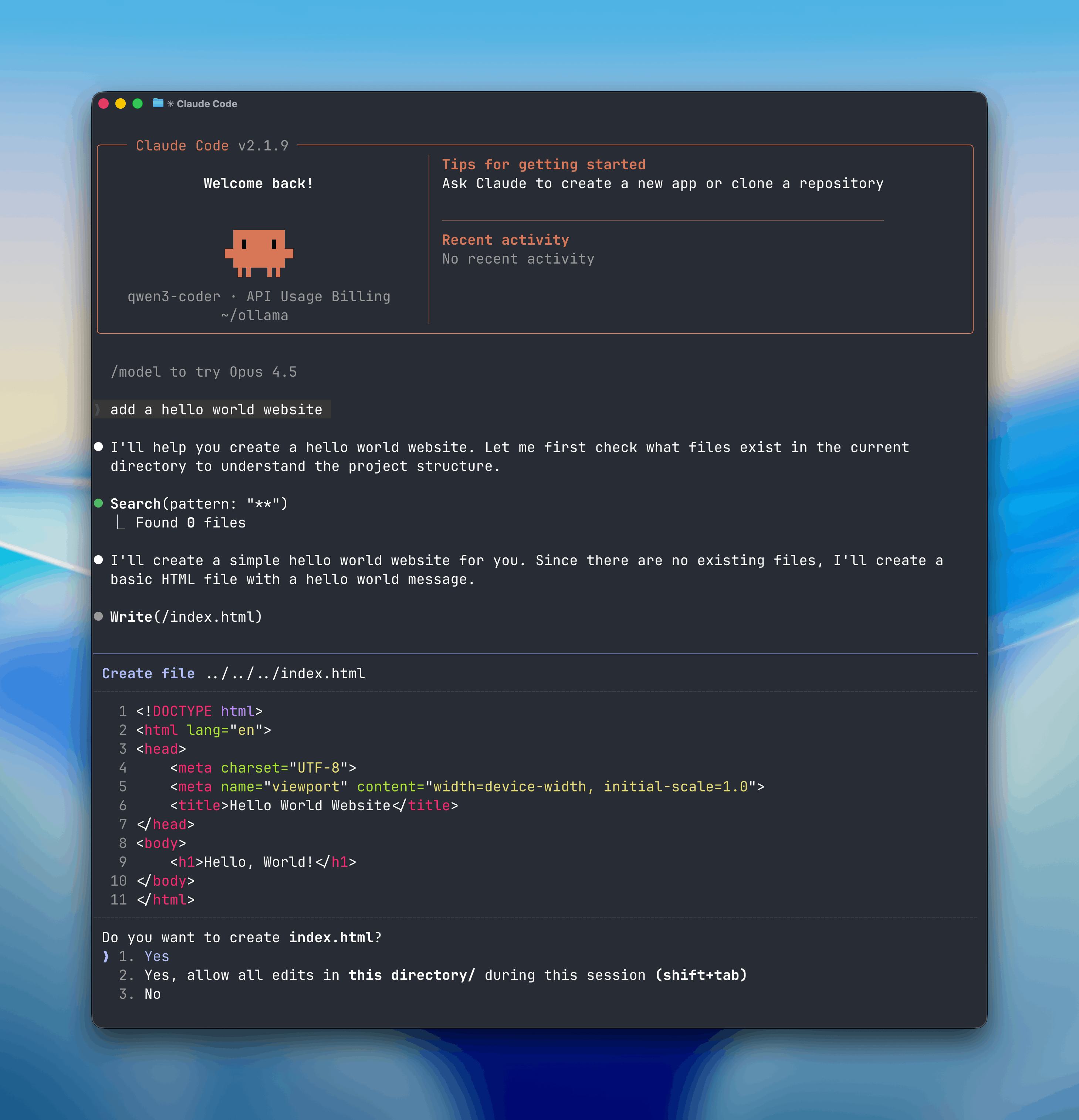
## Install
Install [Claude Code](https://code.claude.com/docs/en/overview):
```shell macOS / Linux theme={"system"}
curl -fsSL https://claude.ai/install.sh | bash
```
```powershell Windows theme={"system"}
irm https://claude.ai/install.ps1 | iex
```
## Usage with Ollama
### Quick setup
```shell theme={"system"}
ollama launch claude
```
### Run directly with a model
```shell theme={"system"}
ollama launch claude --model kimi-k2.5:cloud
```
## Recommended Models
* `kimi-k2.5:cloud`
* `glm-5:cloud`
* `minimax-m2.7:cloud`
* `qwen3.5:cloud`
* `glm-4.7-flash`
* `qwen3.5`
Cloud models are also available at [ollama.com/search?c=cloud](https://ollama.com/search?c=cloud).
## Non-interactive (headless) mode
Run Claude Code without interaction for use in Docker, CI/CD, or scripts:
```shell theme={"system"}
ollama launch claude --model kimi-k2.5:cloud --yes -- -p "how does this repository work?"
```
The `--yes` flag auto-pulls the model, skips selectors, and requires `--model` to be specified. Arguments after `--` are passed directly to Claude Code.
## Web search
Claude Code can search the web through Ollama's web search API. See the [web search documentation](/capabilities/web-search) for setup and usage.
## Scheduled Tasks with `/loop`
The `/loop` command runs a prompt or slash command on a recurring schedule inside Claude Code. This is useful for automating repetitive tasks like checking PRs, running research, or setting reminders.
```
/loop
```
### Examples
**Check in on your PRs**
```
/loop 30m Check my open PRs and summarize their status
```
**Automate research tasks**
```
/loop 1h Research the latest AI news and summarize key developments
```
**Automate bug reporting and triaging**
```
/loop 15m Check for new GitHub issues and triage by priority
```
**Set reminders**
```
/loop 1h Remind me to review the deploy status
```
## Telegram
Chat with Claude Code from Telegram by connecting a bot to your session. Install the [Telegram plugin](https://github.com/anthropics/claude-plugins-official), create a bot via [@BotFather](https://t.me/BotFather), then launch with the channel flag:
```shell theme={"system"}
ollama launch claude -- --channels plugin:telegram@claude-plugins-official
```
Claude Code will prompt for permission on most actions. To allow the bot to work autonomously, configure [permission rules](https://code.claude.com/docs/en/permissions) or pass `--dangerously-skip-permissions` in isolated environments.
See the [plugin README](https://github.com/anthropics/claude-plugins-official/tree/main/external_plugins/telegram) for full setup instructions including pairing and access control.
## Manual setup
Claude Code connects to Ollama using the Anthropic-compatible API.
1. Set the environment variables:
```shell theme={"system"}
export ANTHROPIC_AUTH_TOKEN=ollama
export ANTHROPIC_API_KEY=""
export ANTHROPIC_BASE_URL=http://localhost:11434
```
2. Run Claude Code with an Ollama model:
```shell theme={"system"}
claude --model qwen3.5
```
Or run with environment variables inline:
```shell theme={"system"}
ANTHROPIC_AUTH_TOKEN=ollama ANTHROPIC_BASE_URL=http://localhost:11434 ANTHROPIC_API_KEY="" claude --model glm-5:cloud
```
**Note:** Claude Code requires a large context window. We recommend at least 64k tokens. See the [context length documentation](/context-length) for how to adjust context length in Ollama.
# Cline
Source: https://docs.ollama.com/integrations/cline
## Install
Install [Cline](https://docs.cline.bot/getting-started/installing-cline) in your IDE.
## Usage with Ollama
1. Open Cline settings > `API Configuration` and set `API Provider` to `Ollama`
2. Select a model under `Model` or type one (e.g. `qwen3`)
3. Update the context window to at least 32K tokens under `Context Window`
Coding tools require a larger context window. It is recommended to use a context window of at least 32K tokens. See [Context length](/context-length) for more information.
## Connecting to ollama.com
1. Create an [API key](https://ollama.com/settings/keys) from ollama.com
2. Click on `Use custom base URL` and set it to `https://ollama.com`
3. Enter your **Ollama API Key**
4. Select a model from the list
### Recommended Models
* `qwen3-coder:480b`
* `deepseek-v3.1:671b`
# Codex
Source: https://docs.ollama.com/integrations/codex
## Install
Install the [Codex CLI](https://developers.openai.com/codex/cli/):
```
npm install -g @openai/codex
```
## Usage with Ollama
Codex requires a larger context window. It is recommended to use a context window of at least 64k tokens.
### Quick setup
```
ollama launch codex
```
To configure without launching:
```shell theme={"system"}
ollama launch codex --config
```
### Manual setup
To use `codex` with Ollama, use the `--oss` flag:
```
codex --oss
```
To use a specific model, pass the `-m` flag:
```
codex --oss -m gpt-oss:120b
```
To use a cloud model:
```
codex --oss -m gpt-oss:120b-cloud
```
### Profile-based setup
For a persistent configuration, add an Ollama provider and profiles to `~/.codex/config.toml`:
```toml theme={"system"}
[model_providers.ollama-launch]
name = "Ollama"
base_url = "http://localhost:11434/v1"
[profiles.ollama-launch]
model = "gpt-oss:120b"
model_provider = "ollama-launch"
[profiles.ollama-cloud]
model = "gpt-oss:120b-cloud"
model_provider = "ollama-launch"
```
Then run:
```
codex --profile ollama-launch
codex --profile ollama-cloud
```
# Copilot CLI
Source: https://docs.ollama.com/integrations/copilot-cli
GitHub Copilot CLI is GitHub's AI coding agent for the terminal. It can understand your codebase, make edits, run commands, and help you build software faster.
Open models can be used with Copilot CLI through Ollama, enabling you to use models such as `qwen3.5`, `glm-5.1:cloud`, `kimi-k2.5:cloud`.
## Install
Install [Copilot CLI](https://github.com/features/copilot/cli/):
```shell macOS / Linux (Homebrew) theme={"system"}
brew install copilot-cli
```
```shell npm (all platforms) theme={"system"}
npm install -g @github/copilot
```
```shell macOS / Linux (script) theme={"system"}
curl -fsSL https://gh.io/copilot-install | bash
```
```powershell Windows (WinGet) theme={"system"}
winget install GitHub.Copilot
```
## Usage with Ollama
### Quick setup
```shell theme={"system"}
ollama launch copilot
```
### Run directly with a model
```shell theme={"system"}
ollama launch copilot --model kimi-k2.5:cloud
```
## Recommended Models
* `kimi-k2.5:cloud`
* `glm-5:cloud`
* `minimax-m2.7:cloud`
* `qwen3.5:cloud`
* `glm-4.7-flash`
* `qwen3.5`
Cloud models are also available at [ollama.com/search?c=cloud](https://ollama.com/search?c=cloud).
## Non-interactive (headless) mode
Run Copilot CLI without interaction for use in Docker, CI/CD, or scripts:
```shell theme={"system"}
ollama launch copilot --model kimi-k2.5:cloud --yes -- -p "how does this repository work?"
```
The `--yes` flag auto-pulls the model, skips selectors, and requires `--model` to be specified. Arguments after `--` are passed directly to Copilot CLI.
## Manual setup
Copilot CLI connects to Ollama using the OpenAI-compatible API via environment variables.
1. Set the environment variables:
```shell theme={"system"}
export COPILOT_PROVIDER_BASE_URL=http://localhost:11434/v1
export COPILOT_PROVIDER_API_KEY=
export COPILOT_PROVIDER_WIRE_API=responses
export COPILOT_MODEL=qwen3.5
```
1. Run Copilot CLI:
```shell theme={"system"}
copilot
```
Or run with environment variables inline:
```shell theme={"system"}
COPILOT_PROVIDER_BASE_URL=http://localhost:11434/v1 COPILOT_PROVIDER_API_KEY= COPILOT_PROVIDER_WIRE_API=responses COPILOT_MODEL=glm-5:cloud copilot
```
**Note:** Copilot requires a large context window. We recommend at least 64k tokens. See the [context length documentation](/context-length) for how to adjust context length in Ollama.
# Droid
Source: https://docs.ollama.com/integrations/droid
## Install
Install the [Droid CLI](https://factory.ai/):
```bash theme={"system"}
curl -fsSL https://app.factory.ai/cli | sh
```
Droid requires a larger context window. It is recommended to use a context window of at least 64k tokens. See [Context length](/context-length) for more information.
## Usage with Ollama
### Quick setup
```bash theme={"system"}
ollama launch droid
```
To configure without launching:
```shell theme={"system"}
ollama launch droid --config
```
### Manual setup
Add a local configuration block to `~/.factory/config.json`:
```json theme={"system"}
{
"custom_models": [
{
"model_display_name": "qwen3-coder [Ollama]",
"model": "qwen3-coder",
"base_url": "http://localhost:11434/v1/",
"api_key": "not-needed",
"provider": "generic-chat-completion-api",
"max_tokens": 32000
}
]
}
```
## Cloud Models
`qwen3-coder:480b-cloud` is the recommended model for use with Droid.
Add the cloud configuration block to `~/.factory/config.json`:
```json theme={"system"}
{
"custom_models": [
{
"model_display_name": "qwen3-coder [Ollama Cloud]",
"model": "qwen3-coder:480b-cloud",
"base_url": "http://localhost:11434/v1/",
"api_key": "not-needed",
"provider": "generic-chat-completion-api",
"max_tokens": 128000
}
]
}
```
## Connecting to ollama.com
1. Create an [API key](https://ollama.com/settings/keys) from ollama.com and export it as `OLLAMA_API_KEY`.
2. Add the cloud configuration block to `~/.factory/config.json`:
```json theme={"system"}
{
"custom_models": [
{
"model_display_name": "qwen3-coder [Ollama Cloud]",
"model": "qwen3-coder:480b",
"base_url": "https://ollama.com/v1/",
"api_key": "OLLAMA_API_KEY",
"provider": "generic-chat-completion-api",
"max_tokens": 128000
}
]
}
```
Run `droid` in a new terminal to load the new settings.
# Goose
Source: https://docs.ollama.com/integrations/goose
## Goose Desktop
Install [Goose](https://block.github.io/goose/docs/getting-started/installation/) Desktop.
### Usage with Ollama
1. In Goose, open **Settings** → **Configure Provider**.
2. Find **Ollama**, click **Configure**
3. Confirm **API Host** is `http://localhost:11434` and click Submit
### Connecting to ollama.com
1. Create an [API key](https://ollama.com/settings/keys) on ollama.com and save it in your `.env`
2. In Goose, set **API Host** to `https://ollama.com`
## Goose CLI
Install [Goose](https://block.github.io/goose/docs/getting-started/installation/) CLI
### Usage with Ollama
1. Run `goose configure`
2. Select **Configure Providers** and select **Ollama**
3. Enter model name (e.g `qwen3`)
### Connecting to ollama.com
1. Create an [API key](https://ollama.com/settings/keys) on ollama.com and save it in your `.env`
2. Run `goose configure`
3. Select **Configure Providers** and select **Ollama**
4. Update **OLLAMA\_HOST** to `https://ollama.com`
# Hermes Agent
Source: https://docs.ollama.com/integrations/hermes
Hermes Agent is a self-improving AI agent built by Nous Research. It features automatic skill creation, cross-session memory, and 70+ skills that it ships with by default.
[Ollama](https://ollama.com) is the easiest way to get up and running with large language models such as gpt-oss, Gemma 3, DeepSeek-R1, Qwen3 and more.
Get up and running with your first model or integrate Ollama with your favorite tools
Download Ollama on macOS, Windows or Linux
Ollama's cloud models offer larger models with better performance.
View Ollama's API reference
## Libraries
The official library for using Ollama with Python
The official library for using Ollama with JavaScript or TypeScript.
View a list of 20+ community-supported libraries for Ollama
## Community
Join our Discord community
Join our Reddit community
# Claude Code
Source: https://docs.ollama.com/integrations/claude-code
Claude Code is Anthropic's agentic coding tool that can read, modify, and execute code in your working directory.
Open models can be used with Claude Code through Ollama's Anthropic-compatible API, enabling you to use models such as `qwen3.5`, `glm-5:cloud`, `kimi-k2.5:cloud`.

## Install
Install [Claude Code](https://code.claude.com/docs/en/overview):
```shell macOS / Linux theme={"system"}
curl -fsSL https://claude.ai/install.sh | bash
```
```powershell Windows theme={"system"}
irm https://claude.ai/install.ps1 | iex
```
## Usage with Ollama
### Quick setup
```shell theme={"system"}
ollama launch claude
```
### Run directly with a model
```shell theme={"system"}
ollama launch claude --model kimi-k2.5:cloud
```
## Recommended Models
* `kimi-k2.5:cloud`
* `glm-5:cloud`
* `minimax-m2.7:cloud`
* `qwen3.5:cloud`
* `glm-4.7-flash`
* `qwen3.5`
Cloud models are also available at [ollama.com/search?c=cloud](https://ollama.com/search?c=cloud).
## Non-interactive (headless) mode
Run Claude Code without interaction for use in Docker, CI/CD, or scripts:
```shell theme={"system"}
ollama launch claude --model kimi-k2.5:cloud --yes -- -p "how does this repository work?"
```
The `--yes` flag auto-pulls the model, skips selectors, and requires `--model` to be specified. Arguments after `--` are passed directly to Claude Code.
## Web search
Claude Code can search the web through Ollama's web search API. See the [web search documentation](/capabilities/web-search) for setup and usage.
## Scheduled Tasks with `/loop`
The `/loop` command runs a prompt or slash command on a recurring schedule inside Claude Code. This is useful for automating repetitive tasks like checking PRs, running research, or setting reminders.
```
/loop
```
### Examples
**Check in on your PRs**
```
/loop 30m Check my open PRs and summarize their status
```
**Automate research tasks**
```
/loop 1h Research the latest AI news and summarize key developments
```
**Automate bug reporting and triaging**
```
/loop 15m Check for new GitHub issues and triage by priority
```
**Set reminders**
```
/loop 1h Remind me to review the deploy status
```
## Telegram
Chat with Claude Code from Telegram by connecting a bot to your session. Install the [Telegram plugin](https://github.com/anthropics/claude-plugins-official), create a bot via [@BotFather](https://t.me/BotFather), then launch with the channel flag:
```shell theme={"system"}
ollama launch claude -- --channels plugin:telegram@claude-plugins-official
```
Claude Code will prompt for permission on most actions. To allow the bot to work autonomously, configure [permission rules](https://code.claude.com/docs/en/permissions) or pass `--dangerously-skip-permissions` in isolated environments.
See the [plugin README](https://github.com/anthropics/claude-plugins-official/tree/main/external_plugins/telegram) for full setup instructions including pairing and access control.
## Manual setup
Claude Code connects to Ollama using the Anthropic-compatible API.
1. Set the environment variables:
```shell theme={"system"}
export ANTHROPIC_AUTH_TOKEN=ollama
export ANTHROPIC_API_KEY=""
export ANTHROPIC_BASE_URL=http://localhost:11434
```
2. Run Claude Code with an Ollama model:
```shell theme={"system"}
claude --model qwen3.5
```
Or run with environment variables inline:
```shell theme={"system"}
ANTHROPIC_AUTH_TOKEN=ollama ANTHROPIC_BASE_URL=http://localhost:11434 ANTHROPIC_API_KEY="" claude --model glm-5:cloud
```
**Note:** Claude Code requires a large context window. We recommend at least 64k tokens. See the [context length documentation](/context-length) for how to adjust context length in Ollama.
# Cline
Source: https://docs.ollama.com/integrations/cline
## Install
Install [Cline](https://docs.cline.bot/getting-started/installing-cline) in your IDE.
## Usage with Ollama
1. Open Cline settings > `API Configuration` and set `API Provider` to `Ollama`
2. Select a model under `Model` or type one (e.g. `qwen3`)
3. Update the context window to at least 32K tokens under `Context Window`
Coding tools require a larger context window. It is recommended to use a context window of at least 32K tokens. See [Context length](/context-length) for more information.
## Connecting to ollama.com
1. Create an [API key](https://ollama.com/settings/keys) from ollama.com
2. Click on `Use custom base URL` and set it to `https://ollama.com`
3. Enter your **Ollama API Key**
4. Select a model from the list
### Recommended Models
* `qwen3-coder:480b`
* `deepseek-v3.1:671b`
# Codex
Source: https://docs.ollama.com/integrations/codex
## Install
Install the [Codex CLI](https://developers.openai.com/codex/cli/):
```
npm install -g @openai/codex
```
## Usage with Ollama
Codex requires a larger context window. It is recommended to use a context window of at least 64k tokens.
### Quick setup
```
ollama launch codex
```
To configure without launching:
```shell theme={"system"}
ollama launch codex --config
```
### Manual setup
To use `codex` with Ollama, use the `--oss` flag:
```
codex --oss
```
To use a specific model, pass the `-m` flag:
```
codex --oss -m gpt-oss:120b
```
To use a cloud model:
```
codex --oss -m gpt-oss:120b-cloud
```
### Profile-based setup
For a persistent configuration, add an Ollama provider and profiles to `~/.codex/config.toml`:
```toml theme={"system"}
[model_providers.ollama-launch]
name = "Ollama"
base_url = "http://localhost:11434/v1"
[profiles.ollama-launch]
model = "gpt-oss:120b"
model_provider = "ollama-launch"
[profiles.ollama-cloud]
model = "gpt-oss:120b-cloud"
model_provider = "ollama-launch"
```
Then run:
```
codex --profile ollama-launch
codex --profile ollama-cloud
```
# Copilot CLI
Source: https://docs.ollama.com/integrations/copilot-cli
GitHub Copilot CLI is GitHub's AI coding agent for the terminal. It can understand your codebase, make edits, run commands, and help you build software faster.
Open models can be used with Copilot CLI through Ollama, enabling you to use models such as `qwen3.5`, `glm-5.1:cloud`, `kimi-k2.5:cloud`.
## Install
Install [Copilot CLI](https://github.com/features/copilot/cli/):
```shell macOS / Linux (Homebrew) theme={"system"}
brew install copilot-cli
```
```shell npm (all platforms) theme={"system"}
npm install -g @github/copilot
```
```shell macOS / Linux (script) theme={"system"}
curl -fsSL https://gh.io/copilot-install | bash
```
```powershell Windows (WinGet) theme={"system"}
winget install GitHub.Copilot
```
## Usage with Ollama
### Quick setup
```shell theme={"system"}
ollama launch copilot
```
### Run directly with a model
```shell theme={"system"}
ollama launch copilot --model kimi-k2.5:cloud
```
## Recommended Models
* `kimi-k2.5:cloud`
* `glm-5:cloud`
* `minimax-m2.7:cloud`
* `qwen3.5:cloud`
* `glm-4.7-flash`
* `qwen3.5`
Cloud models are also available at [ollama.com/search?c=cloud](https://ollama.com/search?c=cloud).
## Non-interactive (headless) mode
Run Copilot CLI without interaction for use in Docker, CI/CD, or scripts:
```shell theme={"system"}
ollama launch copilot --model kimi-k2.5:cloud --yes -- -p "how does this repository work?"
```
The `--yes` flag auto-pulls the model, skips selectors, and requires `--model` to be specified. Arguments after `--` are passed directly to Copilot CLI.
## Manual setup
Copilot CLI connects to Ollama using the OpenAI-compatible API via environment variables.
1. Set the environment variables:
```shell theme={"system"}
export COPILOT_PROVIDER_BASE_URL=http://localhost:11434/v1
export COPILOT_PROVIDER_API_KEY=
export COPILOT_PROVIDER_WIRE_API=responses
export COPILOT_MODEL=qwen3.5
```
1. Run Copilot CLI:
```shell theme={"system"}
copilot
```
Or run with environment variables inline:
```shell theme={"system"}
COPILOT_PROVIDER_BASE_URL=http://localhost:11434/v1 COPILOT_PROVIDER_API_KEY= COPILOT_PROVIDER_WIRE_API=responses COPILOT_MODEL=glm-5:cloud copilot
```
**Note:** Copilot requires a large context window. We recommend at least 64k tokens. See the [context length documentation](/context-length) for how to adjust context length in Ollama.
# Droid
Source: https://docs.ollama.com/integrations/droid
## Install
Install the [Droid CLI](https://factory.ai/):
```bash theme={"system"}
curl -fsSL https://app.factory.ai/cli | sh
```
Droid requires a larger context window. It is recommended to use a context window of at least 64k tokens. See [Context length](/context-length) for more information.
## Usage with Ollama
### Quick setup
```bash theme={"system"}
ollama launch droid
```
To configure without launching:
```shell theme={"system"}
ollama launch droid --config
```
### Manual setup
Add a local configuration block to `~/.factory/config.json`:
```json theme={"system"}
{
"custom_models": [
{
"model_display_name": "qwen3-coder [Ollama]",
"model": "qwen3-coder",
"base_url": "http://localhost:11434/v1/",
"api_key": "not-needed",
"provider": "generic-chat-completion-api",
"max_tokens": 32000
}
]
}
```
## Cloud Models
`qwen3-coder:480b-cloud` is the recommended model for use with Droid.
Add the cloud configuration block to `~/.factory/config.json`:
```json theme={"system"}
{
"custom_models": [
{
"model_display_name": "qwen3-coder [Ollama Cloud]",
"model": "qwen3-coder:480b-cloud",
"base_url": "http://localhost:11434/v1/",
"api_key": "not-needed",
"provider": "generic-chat-completion-api",
"max_tokens": 128000
}
]
}
```
## Connecting to ollama.com
1. Create an [API key](https://ollama.com/settings/keys) from ollama.com and export it as `OLLAMA_API_KEY`.
2. Add the cloud configuration block to `~/.factory/config.json`:
```json theme={"system"}
{
"custom_models": [
{
"model_display_name": "qwen3-coder [Ollama Cloud]",
"model": "qwen3-coder:480b",
"base_url": "https://ollama.com/v1/",
"api_key": "OLLAMA_API_KEY",
"provider": "generic-chat-completion-api",
"max_tokens": 128000
}
]
}
```
Run `droid` in a new terminal to load the new settings.
# Goose
Source: https://docs.ollama.com/integrations/goose
## Goose Desktop
Install [Goose](https://block.github.io/goose/docs/getting-started/installation/) Desktop.
### Usage with Ollama
1. In Goose, open **Settings** → **Configure Provider**.
2. Find **Ollama**, click **Configure**
3. Confirm **API Host** is `http://localhost:11434` and click Submit
### Connecting to ollama.com
1. Create an [API key](https://ollama.com/settings/keys) on ollama.com and save it in your `.env`
2. In Goose, set **API Host** to `https://ollama.com`
## Goose CLI
Install [Goose](https://block.github.io/goose/docs/getting-started/installation/) CLI
### Usage with Ollama
1. Run `goose configure`
2. Select **Configure Providers** and select **Ollama**
3. Enter model name (e.g `qwen3`)
### Connecting to ollama.com
1. Create an [API key](https://ollama.com/settings/keys) on ollama.com and save it in your `.env`
2. Run `goose configure`
3. Select **Configure Providers** and select **Ollama**
4. Update **OLLAMA\_HOST** to `https://ollama.com`
# Hermes Agent
Source: https://docs.ollama.com/integrations/hermes
Hermes Agent is a self-improving AI agent built by Nous Research. It features automatic skill creation, cross-session memory, and 70+ skills that it ships with by default.
![Hermes Agent with Ollama]() ## Quick start
```bash theme={"system"}
ollama launch hermes
```
Ollama handles everything automatically:
1. **Install** — If Hermes isn't installed, Ollama prompts to install it via the Nous Research install script
2. **Model** — Pick a model from the selector (local or cloud)
3. **Onboarding** — Ollama configures the Ollama provider, points Hermes at `http://127.0.0.1:11434/v1`, and sets your model as the primary
4. **Gateway** — Optionally connects a messaging platform (Telegram, Discord, Slack, WhatsApp, Signal, Email) and launches the Hermes chat
Hermes on Windows requires WSL2. Install it with `wsl --install` and re-run from inside the WSL shell.
## Recommended models
**Cloud models**:
* `kimi-k2.5:cloud` — Multimodal reasoning with subagents
* `glm-5.1:cloud` — Reasoning and code generation
* `qwen3.5:cloud` — Reasoning, coding, and agentic tool use with vision
* `minimax-m2.7:cloud` — Fast, efficient coding and real-world productivity
**Local models:**
* `gemma4` — Reasoning and code generation locally (\~16 GB VRAM)
* `qwen3.6` — Reasoning, coding, and visual understanding locally (\~24 GB VRAM)
More models at [ollama.com/search](https://ollama.com/search?c=cloud).
## Connect messaging apps
Link Telegram, Discord, Slack, WhatsApp, Signal, or Email to chat with your models from anywhere:
```bash theme={"system"}
hermes gateway setup
```
## Reconfigure
Re-run the full setup wizard at any time:
```bash theme={"system"}
hermes setup
```
## Manual setup
If you'd rather drive Hermes's own wizard instead of `ollama launch hermes`, install it directly:
```bash theme={"system"}
curl -fsSL https://raw.githubusercontent.com/NousResearch/hermes-agent/main/scripts/install.sh | bash
```
Hermes launches the setup wizard automatically. Choose **Quick setup**:
```
How would you like to set up Hermes?
→ Quick setup — provider, model & messaging (recommended)
Full setup — configure everything
```
### Connect to Ollama
1. Select **More providers...**
2. Select **Custom endpoint (enter URL manually)**
3. Set the API base URL to the Ollama OpenAI-compatible endpoint:
```
API base URL [e.g. https://api.example.com/v1]: http://127.0.0.1:11434/v1
```
4. Leave the API key blank (not required for local Ollama):
```
API key [optional]:
```
5. Hermes auto-detects downloaded models, confirm the one you want:
```
Verified endpoint via http://127.0.0.1:11434/v1/models (1 model(s) visible)
Detected model: kimi-k2.5:cloud
Use this model? [Y/n]:
```
6. Leave context length blank to auto-detect:
```
Context length in tokens [leave blank for auto-detect]:
```
### Connect messaging
Optionally connect a messaging platform during setup:
```
Connect a messaging platform? (Telegram, Discord, etc.)
→ Set up messaging now (recommended)
Skip — set up later with 'hermes setup gateway'
```
### Launch
```
Launch hermes chat now? [Y/n]: Y
```
# Overview
Source: https://docs.ollama.com/integrations/index
Ollama integrates with a wide range of tools.
## Coding Agents
Coding assistants that can read, modify, and execute code in your projects.
* [Claude Code](/integrations/claude-code)
* [Codex](/integrations/codex)
* [Copilot CLI](/integrations/copilot-cli)
* [OpenCode](/integrations/opencode)
* [Droid](/integrations/droid)
* [Goose](/integrations/goose)
* [Pi](/integrations/pi)
* [Pool](/integrations/pool)
## Assistants
AI assistants that help with everyday tasks.
* [OpenClaw](/integrations/openclaw)
* [Hermes Agent](/integrations/hermes)
## IDEs & Editors
Native integrations for popular development environments.
* [VS Code](/integrations/vscode)
* [Cline](/integrations/cline)
* [Roo Code](/integrations/roo-code)
* [JetBrains](/integrations/jetbrains)
* [Xcode](/integrations/xcode)
* [Zed](/integrations/zed)
## Chat & RAG
Chat interfaces and retrieval-augmented generation platforms.
* [Onyx](/integrations/onyx)
## Automation
Workflow automation platforms with AI integration.
* [n8n](/integrations/n8n)
## Notebooks
Interactive computing environments with AI capabilities.
* [marimo](/integrations/marimo)
# JetBrains
Source: https://docs.ollama.com/integrations/jetbrains
This example uses **IntelliJ**; same steps apply to other JetBrains IDEs (e.g., PyCharm).
## Install
Install [IntelliJ](https://www.jetbrains.com/idea/).
## Usage with Ollama
To use **Ollama**, you will need a [JetBrains AI Subscription](https://www.jetbrains.com/ai-ides/buy/?section=personal\&billing=yearly).
1. In Intellij, click the **chat icon** located in the right sidebar
2. Select the **current model** in the sidebar, then click **Set up Local Models**
3. Under **Third Party AI Providers**, choose **Ollama**
4. Confirm the **Host URL** is `http://localhost:11434`, then click **Ok**
5. Once connected, select a model under **Local models by Ollama**
# marimo
Source: https://docs.ollama.com/integrations/marimo
## Install
Install [marimo](https://marimo.io). You can use `pip` or `uv` for this. You
can also use `uv` to create a sandboxed environment for marimo by running:
```
uvx marimo edit --sandbox notebook.py
```
## Usage with Ollama
1. In marimo, go to the user settings and go to the AI tab. From here
you can find and configure Ollama as an AI provider. For local use you
would typically point the base url to `http://localhost:11434/v1`.
2. Once the AI provider is set up, you can turn on/off specific AI models you'd like to access.
3. You can also add a model to the list of available models by scrolling to the bottom and using the UI there.
4. Once configured, you can now use Ollama for AI chats in marimo.
4. Alternatively, you can now use Ollama for **inline code completion** in marimo. This can be configured in the "AI Features" tab.
## Connecting to ollama.com
1. Sign in to ollama cloud via `ollama signin`
2. In the ollama model settings add a model that ollama hosts, like `gpt-oss:120b`.
3. You can now refer to this model in marimo!
# n8n
Source: https://docs.ollama.com/integrations/n8n
## Install
Install [n8n](https://docs.n8n.io/choose-n8n/).
## Using Ollama Locally
1. In the top right corner, click the dropdown and select **Create Credential**
2. Under **Add new credential** select **Ollama**
3. Confirm Base URL is set to `http://localhost:11434` if running locally or `http://host.docker.internal:11434` if running through docker and click **Save**
In environments that don't use Docker Desktop (ie, Linux server installations), `host.docker.internal` is not automatically added.
Run n8n in docker with `--add-host=host.docker.internal:host-gateway`
or add the following to a docker compose file:
```yaml theme={"system"}
extra_hosts:
- "host.docker.internal:host-gateway"
```
You should see a `Connection tested successfully` message.
4. When creating a new workflow, select **Add a first step** and select an **Ollama node**
5. Select your model of choice (e.g. `qwen3-coder`)
## Connecting to ollama.com
1. Create an [API key](https://ollama.com/settings/keys) on **ollama.com**.
2. In n8n, click **Create Credential** and select **Ollama**
3. Set the **API URL** to `https://ollama.com`
4. Enter your **API Key** and click **Save**
# NemoClaw
Source: https://docs.ollama.com/integrations/nemoclaw
NemoClaw is NVIDIA's open source security stack for [OpenClaw](/integrations/openclaw). It wraps OpenClaw with the NVIDIA OpenShell runtime to provide kernel-level sandboxing, network policy controls, and audit trails for AI agents.
## Quick start
Pull a model:
```bash theme={"system"}
ollama pull nemotron-3-nano:30b
```
Run the installer:
```bash theme={"system"}
curl -fsSL https://www.nvidia.com/nemoclaw.sh | \
NEMOCLAW_NON_INTERACTIVE=1 \
NEMOCLAW_PROVIDER=ollama \
NEMOCLAW_MODEL=nemotron-3-nano:30b \
bash
```
Connect to your sandbox:
```bash theme={"system"}
nemoclaw my-assistant connect
```
Open the TUI:
```bash theme={"system"}
openclaw tui
```
Ollama support in NemoClaw is still experimental.
## Platform support
| Platform | Runtime | Status |
| --------------------- | ------------------------ | --------- |
| Linux (Ubuntu 22.04+) | Docker | Primary |
| macOS (Apple Silicon) | Colima or Docker Desktop | Supported |
| Windows | WSL2 with Docker Desktop | Supported |
CMD and PowerShell are not supported on Windows — WSL2 is required.
Ollama must be installed and running before the installer runs. When running inside WSL2 or a container, ensure Ollama is reachable from the sandbox (e.g. `OLLAMA_HOST=0.0.0.0`).
## System requirements
* CPU: 4 vCPU minimum
* RAM: 8 GB minimum (16 GB recommended)
* Disk: 20 GB free (40 GB recommended for local models)
* Node.js 20+ and npm 10+
* Container runtime (Docker preferred)
## Recommended models
* `nemotron-3-super:cloud` — Strong reasoning and coding
* `qwen3.5:cloud` — 397B; reasoning and code generation
* `nemotron-3-nano:30b` — Recommended local model; fits in 24 GB VRAM
* `qwen3.5:27b` — Fast local reasoning (\~18 GB VRAM)
* `glm-4.7-flash` — Reasoning and code generation (\~25 GB VRAM)
More models at [ollama.com/search](https://ollama.com/search).
# Onyx
Source: https://docs.ollama.com/integrations/onyx
## Overview
[Onyx](http://onyx.app/) is a self-hostable Chat UI that integrates with all Ollama models. Features include:
* Creating custom Agents
* Web search
* Deep Research
* RAG over uploaded documents and connected apps
* Connectors to applications like Google Drive, Email, Slack, etc.
* MCP and OpenAPI Actions support
* Image generation
* User/Groups management, RBAC, SSO, etc.
Onyx can be deployed for single users or large organizations.
## Install Onyx
Deploy Onyx with the [quickstart guide](https://docs.onyx.app/deployment/getting_started/quickstart).
Resourcing/scaling docs [here](https://docs.onyx.app/deployment/getting_started/resourcing).
## Usage with Ollama
1. Login to your Onyx deployment (create an account first).
2. In the set-up process select `Ollama` as the LLM provider.
3. Provide your **Ollama API URL** and select your models.
If you're running Onyx in Docker, to access your computer's local network use `http://host.docker.internal` instead of `http://127.0.0.1`.
You can also easily connect up Onyx Cloud with the `Ollama Cloud` tab of the setup.
## Send your first query
# OpenClaw
Source: https://docs.ollama.com/integrations/openclaw
OpenClaw is a personal AI assistant that runs on your own devices. It bridges messaging services (WhatsApp, Telegram, Slack, Discord, iMessage, and more) to AI coding agents through a centralized gateway.
## Quick start
```bash theme={"system"}
ollama launch openclaw
```
Ollama handles everything automatically:
1. **Install** — If OpenClaw isn't installed, Ollama prompts to install it via npm
2. **Security** — On the first launch, a security notice explains the risks of tool access
3. **Model** — Pick a model from the selector (local or cloud)
4. **Onboarding** — Ollama configures the provider, installs the gateway daemon, sets your model as the primary, and enables OpenClaw's bundled Ollama web search
5. **Gateway** — Starts in the background and opens the OpenClaw TUI
OpenClaw requires a larger context window. It is recommended to use a context window of at least 64k tokens if using local models. See [Context length](/context-length) for more information.
Previously known as Clawdbot. `ollama launch clawdbot` still works as an alias.
## Web search and fetch
OpenClaw ships with a bundled Ollama `web_search` provider that lets local or cloud-backed Ollama setups search the web through the configured Ollama host.
```bash theme={"system"}
ollama launch openclaw
```
Ollama web search is enabled automatically when launching OpenClaw through Ollama. To configure it manually:
```bash theme={"system"}
openclaw configure --section web
```
Ollama web search for local models requires `ollama signin`.
## Configure without launching
To change the model without starting the gateway and TUI:
```bash theme={"system"}
ollama launch openclaw --config
```
To use a specific model directly:
```bash theme={"system"}
ollama launch openclaw --model kimi-k2.5:cloud
```
If the gateway is already running, it restarts automatically to pick up the new model.
## Recommended models
**Cloud models**:
* `kimi-k2.5:cloud` — Multimodal reasoning with subagents
* `qwen3.5:cloud` — Reasoning, coding, and agentic tool use with vision
* `glm-5.1:cloud` — Reasoning and code generation
* `minimax-m2.7:cloud` — Fast, efficient coding and real-world productivity
**Local models:**
* `gemma4` — Reasoning and code generation locally (\~16 GB VRAM)
* `qwen3.5` — Reasoning, coding, and visual understanding locally (\~11 GB VRAM)
More models at [ollama.com/search](https://ollama.com/search?c=cloud).
## Non-interactive (headless) mode
Run OpenClaw without interaction for use in Docker, CI/CD, or scripts:
```bash theme={"system"}
ollama launch openclaw --model kimi-k2.5:cloud --yes
```
The `--yes` flag auto-pulls the model, skips selectors, and requires `--model` to be specified.
## Connect messaging apps
```bash theme={"system"}
openclaw configure --section channels
```
Link WhatsApp, Telegram, Slack, Discord, or iMessage to chat with your local models from anywhere.
## Stopping the gateway
```bash theme={"system"}
openclaw gateway stop
```
# OpenCode
Source: https://docs.ollama.com/integrations/opencode
OpenCode is an open-source AI coding assistant that runs in your terminal.
## Install
Install the [OpenCode CLI](https://opencode.ai):
```bash theme={"system"}
curl -fsSL https://opencode.ai/install | bash
```
OpenCode requires a larger context window. It is recommended to use a context window of at least 64k tokens. See [Context length](/context-length) for more information.
## Usage with Ollama
### Quick setup
```bash theme={"system"}
ollama launch opencode
```
To configure without launching:
```shell theme={"system"}
ollama launch opencode --config
```
`ollama launch opencode` passes its configuration to OpenCode inline via the `OPENCODE_CONFIG_CONTENT` environment variable. OpenCode deep-merges its config sources on startup, so anything you declare in `~/.config/opencode/opencode.json` is still respected and available inside OpenCode. Models declared only in `opencode.json` won't appear in `ollama launch`'s model-selection menu.
# Pi
Source: https://docs.ollama.com/integrations/pi
Pi is a minimal and extensible coding agent.
## Install
Install [Pi](https://github.com/badlogic/pi-mono):
```bash theme={"system"}
npm install -g @mariozechner/pi-coding-agent
```
## Usage with Ollama
### Quick setup
```bash theme={"system"}
ollama launch pi
```
This installs Pi, configures Ollama as a provider including web tools, and drops you into an interactive session.
To configure without launching:
```shell theme={"system"}
ollama launch pi --config
```
### Run directly with a model
```shell theme={"system"}
ollama launch pi --model qwen3.5:cloud
```
Cloud models are also available at [ollama.com](https://ollama.com/search?c=cloud).
## Extensions
Pi ships with four core tools: `read`, `write`, `edit`, and `bash`. All other capabilities are added through its extension system.
On-demand capability packages invoked via `/skill:name` commands.
Install from npm or git:
```bash theme={"system"}
pi install npm:@foo/some-tools
pi install git:github.com/user/repo@v1
```
See all packages at [pi.dev](https://pi.dev/packages)
### Web search
Pi can use web search and fetch tools via the `@ollama/pi-web-search` package.
When launching Pi through Ollama, package install/update is managed automatically.
To install manually:
```bash theme={"system"}
pi install npm:@ollama/pi-web-search
```
### Autoresearch with `pi-autoresearch`
[pi-autoresearch](https://github.com/davebcn87/pi-autoresearch) brings autonomous experiment loops to Pi. Inspired by Karpathy's autoresearch, it turns any measurable metric into an optimization target: test speed, bundle size, build time, model training loss, Lighthouse scores.
```bash theme={"system"}
pi install https://github.com/davebcn87/pi-autoresearch
```
Tell Pi what to optimize. It runs experiments, benchmarks each one, keeps improvements, reverts regressions, and repeats — all autonomously. A built-in dashboard tracks every run with confidence scoring to distinguish real gains from benchmark noise.
```bash theme={"system"}
/autoresearch optimize unit test runtime
```
Each kept experiment is automatically committed. Each failed one is reverted. When you're done, Pi can group improvements into independent branches for clean review and merge.
## Manual setup
Add a configuration block to `~/.pi/agent/models.json`:
```json theme={"system"}
{
"providers": {
"ollama": {
"baseUrl": "http://localhost:11434/v1",
"api": "openai-completions",
"apiKey": "ollama",
"models": [
{
"id": "qwen3-coder"
}
]
}
}
}
```
Update `~/.pi/agent/settings.json` to set the default provider:
```json theme={"system"}
{
"defaultProvider": "ollama",
"defaultModel": "qwen3-coder"
}
```
# Pool
Source: https://docs.ollama.com/integrations/pool
Pool is Poolside's software agent for the terminal, built for enterprise development workflows.
## Install
Install [Pool](https://github.com/poolsideai/pool):
## Usage with Ollama
### Quick setup
```shell theme={"system"}
ollama launch pool
```
### Run directly with a model
```shell theme={"system"}
ollama launch pool --model kimi-k2.6:cloud
```
### Pass arguments through to Pool
Arguments after `--` are passed directly to Pool:
```shell theme={"system"}
ollama launch pool -- --help
```
## Manual setup
Pool connects to Ollama using the OpenAI-compatible API via environment variables.
1. Set the environment variables:
```shell theme={"system"}
export POOLSIDE_STANDALONE_BASE_URL=http://localhost:11434/v1
export POOLSIDE_API_KEY=ollama
```
2. Run Pool with an Ollama model:
```shell theme={"system"}
pool -m kimi-k2.6:cloud
```
Or run with environment variables inline:
```shell theme={"system"}
POOLSIDE_STANDALONE_BASE_URL=http://localhost:11434/v1 POOLSIDE_API_KEY=ollama pool -m kimi-k2.6:cloud
```
# Roo Code
Source: https://docs.ollama.com/integrations/roo-code
## Install
Install [Roo Code](https://marketplace.visualstudio.com/items?itemName=RooVeterinaryInc.roo-cline) from the VS Code Marketplace.
## Usage with Ollama
1. Open Roo Code in VS Code and click the **gear icon** on the top right corner of the Roo Code window to open **Provider Settings**
2. Set `API Provider` to `Ollama`
3. (Optional) Update `Base URL` if your Ollama instance is running remotely. The default is `http://localhost:11434`
4. Enter a valid `Model ID` (for example `qwen3` or `qwen3-coder:480b-cloud`)
5. Adjust the `Context Window` to at least 32K tokens for coding tasks
Coding tools require a larger context window. It is recommended to use a context window of at least 32K tokens. See [Context length](/context-length) for more information.
## Connecting to ollama.com
1. Create an [API key](https://ollama.com/settings/keys) from ollama.com
2. Enable `Use custom base URL` and set it to `https://ollama.com`
3. Enter your **Ollama API Key**
4. Select a model from the list
### Recommended Models
* `qwen3-coder:480b`
* `deepseek-v3.1:671b`
# VS Code
Source: https://docs.ollama.com/integrations/vscode
VS Code includes built-in AI chat through GitHub Copilot Chat. Ollama models can be used directly in the Copilot Chat model picker.
## Quick start
```bash theme={"system"}
ollama launch hermes
```
Ollama handles everything automatically:
1. **Install** — If Hermes isn't installed, Ollama prompts to install it via the Nous Research install script
2. **Model** — Pick a model from the selector (local or cloud)
3. **Onboarding** — Ollama configures the Ollama provider, points Hermes at `http://127.0.0.1:11434/v1`, and sets your model as the primary
4. **Gateway** — Optionally connects a messaging platform (Telegram, Discord, Slack, WhatsApp, Signal, Email) and launches the Hermes chat
Hermes on Windows requires WSL2. Install it with `wsl --install` and re-run from inside the WSL shell.
## Recommended models
**Cloud models**:
* `kimi-k2.5:cloud` — Multimodal reasoning with subagents
* `glm-5.1:cloud` — Reasoning and code generation
* `qwen3.5:cloud` — Reasoning, coding, and agentic tool use with vision
* `minimax-m2.7:cloud` — Fast, efficient coding and real-world productivity
**Local models:**
* `gemma4` — Reasoning and code generation locally (\~16 GB VRAM)
* `qwen3.6` — Reasoning, coding, and visual understanding locally (\~24 GB VRAM)
More models at [ollama.com/search](https://ollama.com/search?c=cloud).
## Connect messaging apps
Link Telegram, Discord, Slack, WhatsApp, Signal, or Email to chat with your models from anywhere:
```bash theme={"system"}
hermes gateway setup
```
## Reconfigure
Re-run the full setup wizard at any time:
```bash theme={"system"}
hermes setup
```
## Manual setup
If you'd rather drive Hermes's own wizard instead of `ollama launch hermes`, install it directly:
```bash theme={"system"}
curl -fsSL https://raw.githubusercontent.com/NousResearch/hermes-agent/main/scripts/install.sh | bash
```
Hermes launches the setup wizard automatically. Choose **Quick setup**:
```
How would you like to set up Hermes?
→ Quick setup — provider, model & messaging (recommended)
Full setup — configure everything
```
### Connect to Ollama
1. Select **More providers...**
2. Select **Custom endpoint (enter URL manually)**
3. Set the API base URL to the Ollama OpenAI-compatible endpoint:
```
API base URL [e.g. https://api.example.com/v1]: http://127.0.0.1:11434/v1
```
4. Leave the API key blank (not required for local Ollama):
```
API key [optional]:
```
5. Hermes auto-detects downloaded models, confirm the one you want:
```
Verified endpoint via http://127.0.0.1:11434/v1/models (1 model(s) visible)
Detected model: kimi-k2.5:cloud
Use this model? [Y/n]:
```
6. Leave context length blank to auto-detect:
```
Context length in tokens [leave blank for auto-detect]:
```
### Connect messaging
Optionally connect a messaging platform during setup:
```
Connect a messaging platform? (Telegram, Discord, etc.)
→ Set up messaging now (recommended)
Skip — set up later with 'hermes setup gateway'
```
### Launch
```
Launch hermes chat now? [Y/n]: Y
```
# Overview
Source: https://docs.ollama.com/integrations/index
Ollama integrates with a wide range of tools.
## Coding Agents
Coding assistants that can read, modify, and execute code in your projects.
* [Claude Code](/integrations/claude-code)
* [Codex](/integrations/codex)
* [Copilot CLI](/integrations/copilot-cli)
* [OpenCode](/integrations/opencode)
* [Droid](/integrations/droid)
* [Goose](/integrations/goose)
* [Pi](/integrations/pi)
* [Pool](/integrations/pool)
## Assistants
AI assistants that help with everyday tasks.
* [OpenClaw](/integrations/openclaw)
* [Hermes Agent](/integrations/hermes)
## IDEs & Editors
Native integrations for popular development environments.
* [VS Code](/integrations/vscode)
* [Cline](/integrations/cline)
* [Roo Code](/integrations/roo-code)
* [JetBrains](/integrations/jetbrains)
* [Xcode](/integrations/xcode)
* [Zed](/integrations/zed)
## Chat & RAG
Chat interfaces and retrieval-augmented generation platforms.
* [Onyx](/integrations/onyx)
## Automation
Workflow automation platforms with AI integration.
* [n8n](/integrations/n8n)
## Notebooks
Interactive computing environments with AI capabilities.
* [marimo](/integrations/marimo)
# JetBrains
Source: https://docs.ollama.com/integrations/jetbrains
This example uses **IntelliJ**; same steps apply to other JetBrains IDEs (e.g., PyCharm).
## Install
Install [IntelliJ](https://www.jetbrains.com/idea/).
## Usage with Ollama
To use **Ollama**, you will need a [JetBrains AI Subscription](https://www.jetbrains.com/ai-ides/buy/?section=personal\&billing=yearly).
1. In Intellij, click the **chat icon** located in the right sidebar
2. Select the **current model** in the sidebar, then click **Set up Local Models**
3. Under **Third Party AI Providers**, choose **Ollama**
4. Confirm the **Host URL** is `http://localhost:11434`, then click **Ok**
5. Once connected, select a model under **Local models by Ollama**
# marimo
Source: https://docs.ollama.com/integrations/marimo
## Install
Install [marimo](https://marimo.io). You can use `pip` or `uv` for this. You
can also use `uv` to create a sandboxed environment for marimo by running:
```
uvx marimo edit --sandbox notebook.py
```
## Usage with Ollama
1. In marimo, go to the user settings and go to the AI tab. From here
you can find and configure Ollama as an AI provider. For local use you
would typically point the base url to `http://localhost:11434/v1`.
2. Once the AI provider is set up, you can turn on/off specific AI models you'd like to access.
3. You can also add a model to the list of available models by scrolling to the bottom and using the UI there.
4. Once configured, you can now use Ollama for AI chats in marimo.
4. Alternatively, you can now use Ollama for **inline code completion** in marimo. This can be configured in the "AI Features" tab.
## Connecting to ollama.com
1. Sign in to ollama cloud via `ollama signin`
2. In the ollama model settings add a model that ollama hosts, like `gpt-oss:120b`.
3. You can now refer to this model in marimo!
# n8n
Source: https://docs.ollama.com/integrations/n8n
## Install
Install [n8n](https://docs.n8n.io/choose-n8n/).
## Using Ollama Locally
1. In the top right corner, click the dropdown and select **Create Credential**
2. Under **Add new credential** select **Ollama**
3. Confirm Base URL is set to `http://localhost:11434` if running locally or `http://host.docker.internal:11434` if running through docker and click **Save**
In environments that don't use Docker Desktop (ie, Linux server installations), `host.docker.internal` is not automatically added.
Run n8n in docker with `--add-host=host.docker.internal:host-gateway`
or add the following to a docker compose file:
```yaml theme={"system"}
extra_hosts:
- "host.docker.internal:host-gateway"
```
You should see a `Connection tested successfully` message.
4. When creating a new workflow, select **Add a first step** and select an **Ollama node**
5. Select your model of choice (e.g. `qwen3-coder`)
## Connecting to ollama.com
1. Create an [API key](https://ollama.com/settings/keys) on **ollama.com**.
2. In n8n, click **Create Credential** and select **Ollama**
3. Set the **API URL** to `https://ollama.com`
4. Enter your **API Key** and click **Save**
# NemoClaw
Source: https://docs.ollama.com/integrations/nemoclaw
NemoClaw is NVIDIA's open source security stack for [OpenClaw](/integrations/openclaw). It wraps OpenClaw with the NVIDIA OpenShell runtime to provide kernel-level sandboxing, network policy controls, and audit trails for AI agents.
## Quick start
Pull a model:
```bash theme={"system"}
ollama pull nemotron-3-nano:30b
```
Run the installer:
```bash theme={"system"}
curl -fsSL https://www.nvidia.com/nemoclaw.sh | \
NEMOCLAW_NON_INTERACTIVE=1 \
NEMOCLAW_PROVIDER=ollama \
NEMOCLAW_MODEL=nemotron-3-nano:30b \
bash
```
Connect to your sandbox:
```bash theme={"system"}
nemoclaw my-assistant connect
```
Open the TUI:
```bash theme={"system"}
openclaw tui
```
Ollama support in NemoClaw is still experimental.
## Platform support
| Platform | Runtime | Status |
| --------------------- | ------------------------ | --------- |
| Linux (Ubuntu 22.04+) | Docker | Primary |
| macOS (Apple Silicon) | Colima or Docker Desktop | Supported |
| Windows | WSL2 with Docker Desktop | Supported |
CMD and PowerShell are not supported on Windows — WSL2 is required.
Ollama must be installed and running before the installer runs. When running inside WSL2 or a container, ensure Ollama is reachable from the sandbox (e.g. `OLLAMA_HOST=0.0.0.0`).
## System requirements
* CPU: 4 vCPU minimum
* RAM: 8 GB minimum (16 GB recommended)
* Disk: 20 GB free (40 GB recommended for local models)
* Node.js 20+ and npm 10+
* Container runtime (Docker preferred)
## Recommended models
* `nemotron-3-super:cloud` — Strong reasoning and coding
* `qwen3.5:cloud` — 397B; reasoning and code generation
* `nemotron-3-nano:30b` — Recommended local model; fits in 24 GB VRAM
* `qwen3.5:27b` — Fast local reasoning (\~18 GB VRAM)
* `glm-4.7-flash` — Reasoning and code generation (\~25 GB VRAM)
More models at [ollama.com/search](https://ollama.com/search).
# Onyx
Source: https://docs.ollama.com/integrations/onyx
## Overview
[Onyx](http://onyx.app/) is a self-hostable Chat UI that integrates with all Ollama models. Features include:
* Creating custom Agents
* Web search
* Deep Research
* RAG over uploaded documents and connected apps
* Connectors to applications like Google Drive, Email, Slack, etc.
* MCP and OpenAPI Actions support
* Image generation
* User/Groups management, RBAC, SSO, etc.
Onyx can be deployed for single users or large organizations.
## Install Onyx
Deploy Onyx with the [quickstart guide](https://docs.onyx.app/deployment/getting_started/quickstart).
Resourcing/scaling docs [here](https://docs.onyx.app/deployment/getting_started/resourcing).
## Usage with Ollama
1. Login to your Onyx deployment (create an account first).
2. In the set-up process select `Ollama` as the LLM provider.
3. Provide your **Ollama API URL** and select your models.
If you're running Onyx in Docker, to access your computer's local network use `http://host.docker.internal` instead of `http://127.0.0.1`.
You can also easily connect up Onyx Cloud with the `Ollama Cloud` tab of the setup.
## Send your first query
# OpenClaw
Source: https://docs.ollama.com/integrations/openclaw
OpenClaw is a personal AI assistant that runs on your own devices. It bridges messaging services (WhatsApp, Telegram, Slack, Discord, iMessage, and more) to AI coding agents through a centralized gateway.
## Quick start
```bash theme={"system"}
ollama launch openclaw
```
Ollama handles everything automatically:
1. **Install** — If OpenClaw isn't installed, Ollama prompts to install it via npm
2. **Security** — On the first launch, a security notice explains the risks of tool access
3. **Model** — Pick a model from the selector (local or cloud)
4. **Onboarding** — Ollama configures the provider, installs the gateway daemon, sets your model as the primary, and enables OpenClaw's bundled Ollama web search
5. **Gateway** — Starts in the background and opens the OpenClaw TUI
OpenClaw requires a larger context window. It is recommended to use a context window of at least 64k tokens if using local models. See [Context length](/context-length) for more information.
Previously known as Clawdbot. `ollama launch clawdbot` still works as an alias.
## Web search and fetch
OpenClaw ships with a bundled Ollama `web_search` provider that lets local or cloud-backed Ollama setups search the web through the configured Ollama host.
```bash theme={"system"}
ollama launch openclaw
```
Ollama web search is enabled automatically when launching OpenClaw through Ollama. To configure it manually:
```bash theme={"system"}
openclaw configure --section web
```
Ollama web search for local models requires `ollama signin`.
## Configure without launching
To change the model without starting the gateway and TUI:
```bash theme={"system"}
ollama launch openclaw --config
```
To use a specific model directly:
```bash theme={"system"}
ollama launch openclaw --model kimi-k2.5:cloud
```
If the gateway is already running, it restarts automatically to pick up the new model.
## Recommended models
**Cloud models**:
* `kimi-k2.5:cloud` — Multimodal reasoning with subagents
* `qwen3.5:cloud` — Reasoning, coding, and agentic tool use with vision
* `glm-5.1:cloud` — Reasoning and code generation
* `minimax-m2.7:cloud` — Fast, efficient coding and real-world productivity
**Local models:**
* `gemma4` — Reasoning and code generation locally (\~16 GB VRAM)
* `qwen3.5` — Reasoning, coding, and visual understanding locally (\~11 GB VRAM)
More models at [ollama.com/search](https://ollama.com/search?c=cloud).
## Non-interactive (headless) mode
Run OpenClaw without interaction for use in Docker, CI/CD, or scripts:
```bash theme={"system"}
ollama launch openclaw --model kimi-k2.5:cloud --yes
```
The `--yes` flag auto-pulls the model, skips selectors, and requires `--model` to be specified.
## Connect messaging apps
```bash theme={"system"}
openclaw configure --section channels
```
Link WhatsApp, Telegram, Slack, Discord, or iMessage to chat with your local models from anywhere.
## Stopping the gateway
```bash theme={"system"}
openclaw gateway stop
```
# OpenCode
Source: https://docs.ollama.com/integrations/opencode
OpenCode is an open-source AI coding assistant that runs in your terminal.
## Install
Install the [OpenCode CLI](https://opencode.ai):
```bash theme={"system"}
curl -fsSL https://opencode.ai/install | bash
```
OpenCode requires a larger context window. It is recommended to use a context window of at least 64k tokens. See [Context length](/context-length) for more information.
## Usage with Ollama
### Quick setup
```bash theme={"system"}
ollama launch opencode
```
To configure without launching:
```shell theme={"system"}
ollama launch opencode --config
```
`ollama launch opencode` passes its configuration to OpenCode inline via the `OPENCODE_CONFIG_CONTENT` environment variable. OpenCode deep-merges its config sources on startup, so anything you declare in `~/.config/opencode/opencode.json` is still respected and available inside OpenCode. Models declared only in `opencode.json` won't appear in `ollama launch`'s model-selection menu.
# Pi
Source: https://docs.ollama.com/integrations/pi
Pi is a minimal and extensible coding agent.
## Install
Install [Pi](https://github.com/badlogic/pi-mono):
```bash theme={"system"}
npm install -g @mariozechner/pi-coding-agent
```
## Usage with Ollama
### Quick setup
```bash theme={"system"}
ollama launch pi
```
This installs Pi, configures Ollama as a provider including web tools, and drops you into an interactive session.
To configure without launching:
```shell theme={"system"}
ollama launch pi --config
```
### Run directly with a model
```shell theme={"system"}
ollama launch pi --model qwen3.5:cloud
```
Cloud models are also available at [ollama.com](https://ollama.com/search?c=cloud).
## Extensions
Pi ships with four core tools: `read`, `write`, `edit`, and `bash`. All other capabilities are added through its extension system.
On-demand capability packages invoked via `/skill:name` commands.
Install from npm or git:
```bash theme={"system"}
pi install npm:@foo/some-tools
pi install git:github.com/user/repo@v1
```
See all packages at [pi.dev](https://pi.dev/packages)
### Web search
Pi can use web search and fetch tools via the `@ollama/pi-web-search` package.
When launching Pi through Ollama, package install/update is managed automatically.
To install manually:
```bash theme={"system"}
pi install npm:@ollama/pi-web-search
```
### Autoresearch with `pi-autoresearch`
[pi-autoresearch](https://github.com/davebcn87/pi-autoresearch) brings autonomous experiment loops to Pi. Inspired by Karpathy's autoresearch, it turns any measurable metric into an optimization target: test speed, bundle size, build time, model training loss, Lighthouse scores.
```bash theme={"system"}
pi install https://github.com/davebcn87/pi-autoresearch
```
Tell Pi what to optimize. It runs experiments, benchmarks each one, keeps improvements, reverts regressions, and repeats — all autonomously. A built-in dashboard tracks every run with confidence scoring to distinguish real gains from benchmark noise.
```bash theme={"system"}
/autoresearch optimize unit test runtime
```
Each kept experiment is automatically committed. Each failed one is reverted. When you're done, Pi can group improvements into independent branches for clean review and merge.
## Manual setup
Add a configuration block to `~/.pi/agent/models.json`:
```json theme={"system"}
{
"providers": {
"ollama": {
"baseUrl": "http://localhost:11434/v1",
"api": "openai-completions",
"apiKey": "ollama",
"models": [
{
"id": "qwen3-coder"
}
]
}
}
}
```
Update `~/.pi/agent/settings.json` to set the default provider:
```json theme={"system"}
{
"defaultProvider": "ollama",
"defaultModel": "qwen3-coder"
}
```
# Pool
Source: https://docs.ollama.com/integrations/pool
Pool is Poolside's software agent for the terminal, built for enterprise development workflows.
## Install
Install [Pool](https://github.com/poolsideai/pool):
## Usage with Ollama
### Quick setup
```shell theme={"system"}
ollama launch pool
```
### Run directly with a model
```shell theme={"system"}
ollama launch pool --model kimi-k2.6:cloud
```
### Pass arguments through to Pool
Arguments after `--` are passed directly to Pool:
```shell theme={"system"}
ollama launch pool -- --help
```
## Manual setup
Pool connects to Ollama using the OpenAI-compatible API via environment variables.
1. Set the environment variables:
```shell theme={"system"}
export POOLSIDE_STANDALONE_BASE_URL=http://localhost:11434/v1
export POOLSIDE_API_KEY=ollama
```
2. Run Pool with an Ollama model:
```shell theme={"system"}
pool -m kimi-k2.6:cloud
```
Or run with environment variables inline:
```shell theme={"system"}
POOLSIDE_STANDALONE_BASE_URL=http://localhost:11434/v1 POOLSIDE_API_KEY=ollama pool -m kimi-k2.6:cloud
```
# Roo Code
Source: https://docs.ollama.com/integrations/roo-code
## Install
Install [Roo Code](https://marketplace.visualstudio.com/items?itemName=RooVeterinaryInc.roo-cline) from the VS Code Marketplace.
## Usage with Ollama
1. Open Roo Code in VS Code and click the **gear icon** on the top right corner of the Roo Code window to open **Provider Settings**
2. Set `API Provider` to `Ollama`
3. (Optional) Update `Base URL` if your Ollama instance is running remotely. The default is `http://localhost:11434`
4. Enter a valid `Model ID` (for example `qwen3` or `qwen3-coder:480b-cloud`)
5. Adjust the `Context Window` to at least 32K tokens for coding tasks
Coding tools require a larger context window. It is recommended to use a context window of at least 32K tokens. See [Context length](/context-length) for more information.
## Connecting to ollama.com
1. Create an [API key](https://ollama.com/settings/keys) from ollama.com
2. Enable `Use custom base URL` and set it to `https://ollama.com`
3. Enter your **Ollama API Key**
4. Select a model from the list
### Recommended Models
* `qwen3-coder:480b`
* `deepseek-v3.1:671b`
# VS Code
Source: https://docs.ollama.com/integrations/vscode
VS Code includes built-in AI chat through GitHub Copilot Chat. Ollama models can be used directly in the Copilot Chat model picker.
![VS Code with Ollama]() ## Prerequisites
* Ollama v0.18.3+
* [VS Code 1.113+](https://code.visualstudio.com/download)
* [GitHub Copilot Chat extension 0.41.0+](https://marketplace.visualstudio.com/items?itemName=GitHub.copilot-chat)
VS Code requires you to be logged in to use its model selector, even for custom models. This doesn't require a paid GitHub Copilot account; GitHub Copilot Free will enable model selection for custom models.
## Quick setup
```shell theme={"system"}
ollama launch vscode
```
Recommended models will be shown after running the command. See the latest models at [ollama.com](https://ollama.com/search?c=tools).
Make sure **Local** is selected at the bottom of the Copilot Chat panel to use your Ollama models.
## Run directly with a model
```shell theme={"system"}
ollama launch vscode --model qwen3.5:cloud
```
Cloud models are also available at [ollama.com](https://ollama.com/search?c=cloud).
## Manual setup
To configure Ollama manually without `ollama launch`:
1. Open the **Copilot Chat** side bar from the top right corner
2. Click the **settings gear icon** () to bring up the Language Models window
3. Click **Add Models** and select **Ollama** to load all your Ollama models into VS Code
4. Click the **Unhide** button in the model picker to show your Ollama models
# Xcode
Source: https://docs.ollama.com/integrations/xcode
## Install
Install [XCode](https://developer.apple.com/xcode/)
## Usage with Ollama
Ensure Apple Intelligence is setup and the latest XCode version is v26.0
1. Click **XCode** in top left corner > **Settings**
2. Select **Locally Hosted**, enter port **11434** and click **Add**
3. Select the **star icon** on the top left corner and click the **dropdown**
4. Click **My Account** and select your desired model
## Connecting to ollama.com directly
1. Create an [API key](https://ollama.com/settings/keys) from ollama.com
2. Select **Internet Hosted** and enter URL as `https://ollama.com`
3. Enter your **Ollama API Key** and click **Add**
# Zed
Source: https://docs.ollama.com/integrations/zed
## Install
Install [Zed](https://zed.dev/download).
## Usage with Ollama
1. In Zed, click the **star icon** in the bottom-right corner, then select **Configure**.
2. Under **LLM Providers**, choose **Ollama**
3. Confirm the **Host URL** is `http://localhost:11434`, then click **Connect**
4. Once connected, select a model under **Ollama**
## Connecting to ollama.com
1. Create an [API key](https://ollama.com/settings/keys) on **ollama.com**
2. In Zed, open the **star icon** → **Configure**
3. Under **LLM Providers**, select **Ollama**
4. Set the **API URL** to `https://ollama.com`
# Linux
Source: https://docs.ollama.com/linux
## Install
To install Ollama, run the following command:
```shell theme={"system"}
curl -fsSL https://ollama.com/install.sh | sh
```
## Manual install
If you are upgrading from a prior version, you should remove the old libraries
with `sudo rm -rf /usr/lib/ollama` first.
Download and extract the package:
```shell theme={"system"}
curl -fsSL https://ollama.com/download/ollama-linux-amd64.tar.zst \
| sudo tar x -C /usr
```
Start Ollama:
```shell theme={"system"}
ollama serve
```
In another terminal, verify that Ollama is running:
```shell theme={"system"}
ollama -v
```
### AMD GPU install
If you have an AMD GPU, also download and extract the additional ROCm package:
```shell theme={"system"}
curl -fsSL https://ollama.com/download/ollama-linux-amd64-rocm.tar.zst \
| sudo tar x -C /usr
```
### ARM64 install
Download and extract the ARM64-specific package:
```shell theme={"system"}
curl -fsSL https://ollama.com/download/ollama-linux-arm64.tar.zst \
| sudo tar x -C /usr
```
### Adding Ollama as a startup service (recommended)
Create a user and group for Ollama:
```shell theme={"system"}
sudo useradd -r -s /bin/false -U -m -d /usr/share/ollama ollama
sudo usermod -a -G ollama $(whoami)
```
Create a service file in `/etc/systemd/system/ollama.service`:
```ini theme={"system"}
[Unit]
Description=Ollama Service
After=network-online.target
[Service]
ExecStart=/usr/bin/ollama serve
User=ollama
Group=ollama
Restart=always
RestartSec=3
Environment="PATH=$PATH"
[Install]
WantedBy=multi-user.target
```
Then start the service:
```shell theme={"system"}
sudo systemctl daemon-reload
sudo systemctl enable ollama
```
### Install CUDA drivers (optional)
[Download and install](https://developer.nvidia.com/cuda-downloads) CUDA.
Verify that the drivers are installed by running the following command, which should print details about your GPU:
```shell theme={"system"}
nvidia-smi
```
### Install AMD ROCm drivers (optional)
[Download and Install](https://rocm.docs.amd.com/projects/install-on-linux/en/latest/tutorial/quick-start.html) ROCm v7.
### Start Ollama
Start Ollama and verify it is running:
```shell theme={"system"}
sudo systemctl start ollama
sudo systemctl status ollama
```
While AMD has contributed the `amdgpu` driver upstream to the official linux
kernel source, the version is older and may not support all ROCm features. We
recommend you install the latest driver from
[https://www.amd.com/en/support/linux-drivers](https://www.amd.com/en/support/linux-drivers) for best support of your Radeon
GPU.
## Customizing
To customize the installation of Ollama, you can edit the systemd service file or the environment variables by running:
```shell theme={"system"}
sudo systemctl edit ollama
```
Alternatively, create an override file manually in `/etc/systemd/system/ollama.service.d/override.conf`:
```ini theme={"system"}
[Service]
Environment="OLLAMA_DEBUG=1"
```
## Updating
Update Ollama by running the install script again:
```shell theme={"system"}
curl -fsSL https://ollama.com/install.sh | sh
```
Or by re-downloading Ollama:
```shell theme={"system"}
curl -fsSL https://ollama.com/download/ollama-linux-amd64.tar.zst \
| sudo tar x -C /usr
```
## Installing specific versions
Use `OLLAMA_VERSION` environment variable with the install script to install a specific version of Ollama, including pre-releases. You can find the version numbers in the [releases page](https://github.com/ollama/ollama/releases).
For example:
```shell theme={"system"}
curl -fsSL https://ollama.com/install.sh | OLLAMA_VERSION=0.5.7 sh
```
## Viewing logs
To view logs of Ollama running as a startup service, run:
```shell theme={"system"}
journalctl -e -u ollama
```
## Uninstall
Remove the ollama service:
```shell theme={"system"}
sudo systemctl stop ollama
sudo systemctl disable ollama
sudo rm /etc/systemd/system/ollama.service
```
Remove ollama libraries from your lib directory (either `/usr/local/lib`, `/usr/lib`, or `/lib`):
```shell theme={"system"}
sudo rm -r $(which ollama | tr 'bin' 'lib')
```
Remove the ollama binary from your bin directory (either `/usr/local/bin`, `/usr/bin`, or `/bin`):
```shell theme={"system"}
sudo rm $(which ollama)
```
Remove the downloaded models and Ollama service user and group:
```shell theme={"system"}
sudo userdel ollama
sudo groupdel ollama
sudo rm -r /usr/share/ollama
```
# macOS
Source: https://docs.ollama.com/macos
## System Requirements
* MacOS Sonoma (v14) or newer
* Apple M series (CPU and GPU support) or x86 (CPU only)
## Filesystem Requirements
The preferred method of installation is to mount the `ollama.dmg` and drag-and-drop the Ollama application to the system-wide `Applications` folder. Upon startup, the Ollama app will verify the `ollama` CLI is present in your PATH, and if not detected, will prompt for permission to create a link in `/usr/local/bin`
Once you've installed Ollama, you'll need additional space for storing the Large Language models, which can be tens to hundreds of GB in size. If your home directory doesn't have enough space, you can change where the binaries are installed, and where the models are stored.
### Changing Install Location
To install the Ollama application somewhere other than `Applications`, place the Ollama application in the desired location, and ensure the CLI `Ollama.app/Contents/Resources/ollama` or a sym-link to the CLI can be found in your path. Upon first start decline the "Move to Applications?" request.
## Troubleshooting
Ollama on MacOS stores files in a few different locations.
* `~/.ollama` contains models and configuration
* `~/.ollama/logs` contains logs
* *app.log* contains most recent logs from the GUI application
* *server.log* contains the most recent server logs
* `/Ollama.app/Contents/Resources/ollama` the CLI binary
## Uninstall
To fully remove Ollama from your system, remove the following files and folders:
```
sudo rm -rf /Applications/Ollama.app
sudo rm /usr/local/bin/ollama
rm -rf "~/Library/Application Support/Ollama"
rm -rf "~/Library/Saved Application State/com.electron.ollama.savedState"
rm -rf ~/Library/Caches/com.electron.ollama/
rm -rf ~/Library/Caches/ollama
rm -rf ~/Library/WebKit/com.electron.ollama
rm -rf ~/.ollama
```
# Modelfile Reference
Source: https://docs.ollama.com/modelfile
A Modelfile is the blueprint to create and share customized models using Ollama.
## Table of Contents
* [Format](#format)
* [Examples](#examples)
* [Instructions](#instructions)
* [FROM (Required)](#from-required)
* [Build from existing model](#build-from-existing-model)
* [Build from a Safetensors model](#build-from-a-safetensors-model)
* [Build from a GGUF file](#build-from-a-gguf-file)
* [PARAMETER](#parameter)
* [Valid Parameters and Values](#valid-parameters-and-values)
* [TEMPLATE](#template)
* [Template Variables](#template-variables)
* [SYSTEM](#system)
* [ADAPTER](#adapter)
* [LICENSE](#license)
* [MESSAGE](#message)
* [Notes](#notes)
## Format
The format of the `Modelfile`:
```
# comment
INSTRUCTION arguments
```
| Instruction | Description |
| ----------------------------------- | -------------------------------------------------------------- |
| [`FROM`](#from-required) (required) | Defines the base model to use. |
| [`PARAMETER`](#parameter) | Sets the parameters for how Ollama will run the model. |
| [`TEMPLATE`](#template) | The full prompt template to be sent to the model. |
| [`SYSTEM`](#system) | Specifies the system message that will be set in the template. |
| [`ADAPTER`](#adapter) | Defines the (Q)LoRA adapters to apply to the model. |
| [`LICENSE`](#license) | Specifies the legal license. |
| [`MESSAGE`](#message) | Specify message history. |
| [`REQUIRES`](#requires) | Specify the minimum version of Ollama required by the model. |
## Examples
### Basic `Modelfile`
An example of a `Modelfile` creating a mario blueprint:
```
FROM llama3.2
# sets the temperature to 1 [higher is more creative, lower is more coherent]
PARAMETER temperature 1
# sets the context window size to 4096, this controls how many tokens the LLM can use as context to generate the next token
PARAMETER num_ctx 4096
# sets a custom system message to specify the behavior of the chat assistant
SYSTEM You are Mario from super mario bros, acting as an assistant.
```
To use this:
1. Save it as a file (e.g. `Modelfile`)
2. `ollama create choose-a-model-name -f `
3. `ollama run choose-a-model-name`
4. Start using the model!
To view the Modelfile of a given model, use the `ollama show --modelfile` command.
```shell theme={"system"}
ollama show --modelfile llama3.2
```
```
# Modelfile generated by "ollama show"
# To build a new Modelfile based on this one, replace the FROM line with:
# FROM llama3.2:latest
FROM /Users/pdevine/.ollama/models/blobs/sha256-00e1317cbf74d901080d7100f57580ba8dd8de57203072dc6f668324ba545f29
TEMPLATE """{{ if .System }}<|start_header_id|>system<|end_header_id|>
{{ .System }}<|eot_id|>{{ end }}{{ if .Prompt }}<|start_header_id|>user<|end_header_id|>
{{ .Prompt }}<|eot_id|>{{ end }}<|start_header_id|>assistant<|end_header_id|>
{{ .Response }}<|eot_id|>"""
PARAMETER stop "<|start_header_id|>"
PARAMETER stop "<|end_header_id|>"
PARAMETER stop "<|eot_id|>"
PARAMETER stop "<|reserved_special_token"
```
## Instructions
### FROM (Required)
The `FROM` instruction defines the base model to use when creating a model.
```
FROM :
```
#### Build from existing model
```
FROM llama3.2
```
A list of available base models
Additional models can be found at
#### Build from a Safetensors model
```
FROM
```
The model directory should contain the Safetensors weights for a supported architecture.
Currently supported model architectures:
* Llama (including Llama 2, Llama 3, Llama 3.1, and Llama 3.2)
* Mistral (including Mistral 1, Mistral 2, and Mixtral)
* Gemma (including Gemma 1 and Gemma 2)
* Phi3
#### Build from a GGUF file
```
FROM ./ollama-model.gguf
```
The GGUF file location should be specified as an absolute path or relative to the `Modelfile` location.
### PARAMETER
The `PARAMETER` instruction defines a parameter that can be set when the model is run.
```
PARAMETER
```
#### Valid Parameters and Values
| Parameter | Description | Value Type | Example Usage |
| --------------- | ------------------------------------------------------------------------------------------------------------------------------------------------------------------------------------------------------------------------------------------------------------------------------------------------------------------------------------------------------------------------------- | ---------- | -------------------- |
| num\_ctx | Sets the size of the context window used to generate the next token. (Default: 2048) | int | num\_ctx 4096 |
| repeat\_last\_n | Sets how far back for the model to look back to prevent repetition. (Default: 64, 0 = disabled, -1 = num\_ctx) | int | repeat\_last\_n 64 |
| repeat\_penalty | Sets how strongly to penalize repetitions. A higher value (e.g., 1.5) will penalize repetitions more strongly, while a lower value (e.g., 0.9) will be more lenient. (Default: 1.1) | float | repeat\_penalty 1.1 |
| temperature | The temperature of the model. Increasing the temperature will make the model answer more creatively. (Default: 0.8) | float | temperature 0.7 |
| seed | Sets the random number seed to use for generation. Setting this to a specific number will make the model generate the same text for the same prompt. (Default: 0) | int | seed 42 |
| stop | Sets the stop sequences to use. When this pattern is encountered the LLM will stop generating text and return. Multiple stop patterns may be set by specifying multiple separate `stop` parameters in a modelfile. | string | stop "AI assistant:" |
| num\_predict | Maximum number of tokens to predict when generating text. (Default: -1, infinite generation) | int | num\_predict 42 |
| top\_k | Reduces the probability of generating nonsense. A higher value (e.g. 100) will give more diverse answers, while a lower value (e.g. 10) will be more conservative. (Default: 40) | int | top\_k 40 |
| top\_p | Works together with top-k. A higher value (e.g., 0.95) will lead to more diverse text, while a lower value (e.g., 0.5) will generate more focused and conservative text. (Default: 0.9) | float | top\_p 0.9 |
| min\_p | Alternative to the top*p, and aims to ensure a balance of quality and variety. The parameter \_p* represents the minimum probability for a token to be considered, relative to the probability of the most likely token. For example, with *p*=0.05 and the most likely token having a probability of 0.9, logits with a value less than 0.045 are filtered out. (Default: 0.0) | float | min\_p 0.05 |
### TEMPLATE
`TEMPLATE` of the full prompt template to be passed into the model. It may include (optionally) a system message, a user's message and the response from the model. Note: syntax may be model specific. Templates use Go [template syntax](https://pkg.go.dev/text/template).
#### Template Variables
| Variable | Description |
| ----------------- | --------------------------------------------------------------------------------------------- |
| `{{ .System }}` | The system message used to specify custom behavior. |
| `{{ .Prompt }}` | The user prompt message. |
| `{{ .Response }}` | The response from the model. When generating a response, text after this variable is omitted. |
```
TEMPLATE """{{ if .System }}<|im_start|>system
{{ .System }}<|im_end|>
{{ end }}{{ if .Prompt }}<|im_start|>user
{{ .Prompt }}<|im_end|>
{{ end }}<|im_start|>assistant
"""
```
### SYSTEM
The `SYSTEM` instruction specifies the system message to be used in the template, if applicable.
```
SYSTEM """"""
```
### ADAPTER
The `ADAPTER` instruction specifies a fine tuned LoRA adapter that should apply to the base model. The value of the adapter should be an absolute path or a path relative to the Modelfile. The base model should be specified with a `FROM` instruction. If the base model is not the same as the base model that the adapter was tuned from the behaviour will be erratic.
#### Safetensor adapter
```
ADAPTER
```
Currently supported Safetensor adapters:
* Llama (including Llama 2, Llama 3, and Llama 3.1)
* Mistral (including Mistral 1, Mistral 2, and Mixtral)
* Gemma (including Gemma 1 and Gemma 2)
#### GGUF adapter
```
ADAPTER ./ollama-lora.gguf
```
### LICENSE
The `LICENSE` instruction allows you to specify the legal license under which the model used with this Modelfile is shared or distributed.
```
LICENSE """
"""
```
### MESSAGE
The `MESSAGE` instruction allows you to specify a message history for the model to use when responding. Use multiple iterations of the MESSAGE command to build up a conversation which will guide the model to answer in a similar way.
```
MESSAGE
```
#### Valid roles
| Role | Description |
| --------- | ------------------------------------------------------------ |
| system | Alternate way of providing the SYSTEM message for the model. |
| user | An example message of what the user could have asked. |
| assistant | An example message of how the model should respond. |
#### Example conversation
```
MESSAGE user Is Toronto in Canada?
MESSAGE assistant yes
MESSAGE user Is Sacramento in Canada?
MESSAGE assistant no
MESSAGE user Is Ontario in Canada?
MESSAGE assistant yes
```
### REQUIRES
The `REQUIRES` instruction allows you to specify the minimum version of Ollama required by the model.
```
REQUIRES
```
The version should be a valid Ollama version (e.g. 0.14.0).
## Notes
* the **`Modelfile` is not case sensitive**. In the examples, uppercase instructions are used to make it easier to distinguish it from arguments.
* Instructions can be in any order. In the examples, the `FROM` instruction is first to keep it easily readable.
[1]: https://ollama.com/library
# Quickstart
Source: https://docs.ollama.com/quickstart
Ollama is available on macOS, Windows, and Linux.
Download Ollama
## Get Started
Run `ollama` in your terminal to open the interactive menu:
```sh theme={"system"}
ollama
```
Navigate with `↑/↓`, press `enter` to launch, `→` to change model, and `esc` to quit.
The menu provides quick access to:
* **Run a model** - Start an interactive chat
* **Launch tools** - Claude Code, Codex, OpenClaw, and more
* **Additional integrations** - Available under "More..."
## Assistants
Launch [OpenClaw](/integrations/openclaw), a personal AI with 100+ skills:
```sh theme={"system"}
ollama launch openclaw
```
## Coding
Launch [Claude Code](/integrations/claude-code) and other coding tools with Ollama models:
```sh theme={"system"}
ollama launch claude
```
```sh theme={"system"}
ollama launch codex
```
```sh theme={"system"}
ollama launch opencode
```
See [integrations](/integrations) for all supported tools.
## API
Use the [API](/api) to integrate Ollama into your applications:
```sh theme={"system"}
curl http://localhost:11434/api/chat -d '{
"model": "gemma3",
"messages": [{ "role": "user", "content": "Hello!" }]
}'
```
See the [API documentation](/api) for Python, JavaScript, and other integrations.
# Troubleshooting
Source: https://docs.ollama.com/troubleshooting
How to troubleshoot issues encountered with Ollama
Sometimes Ollama may not perform as expected. One of the best ways to figure out what happened is to take a look at the logs. Find the logs on **Mac** by running the command:
```shell theme={"system"}
cat ~/.ollama/logs/server.log
```
On **Linux** systems with systemd, the logs can be found with this command:
```shell theme={"system"}
journalctl -u ollama --no-pager --follow --pager-end
```
When you run Ollama in a **container**, the logs go to stdout/stderr in the container:
```shell theme={"system"}
docker logs
```
(Use `docker ps` to find the container name)
If manually running `ollama serve` in a terminal, the logs will be on that terminal.
When you run Ollama on **Windows**, there are a few different locations. You can view them in the explorer window by hitting `+R` and type in:
* `explorer %LOCALAPPDATA%\Ollama` to view logs. The most recent server logs will be in `server.log` and older logs will be in `server-#.log`
* `explorer %LOCALAPPDATA%\Programs\Ollama` to browse the binaries (The installer adds this to your user PATH)
* `explorer %HOMEPATH%\.ollama` to browse where models and configuration is stored
* `explorer %TEMP%` where temporary executable files are stored in one or more `ollama*` directories
To enable additional debug logging to help troubleshoot problems, first **Quit the running app from the tray menu** then in a powershell terminal
```powershell theme={"system"}
$env:OLLAMA_DEBUG="1"
& "ollama app.exe"
```
Join the [Discord](https://discord.gg/ollama) for help interpreting the logs.
## LLM libraries
Ollama includes multiple LLM libraries compiled for different GPUs and CPU vector features. Ollama tries to pick the best one based on the capabilities of your system. If this autodetection has problems, or you run into other problems (e.g. crashes in your GPU) you can workaround this by forcing a specific LLM library. `cpu_avx2` will perform the best, followed by `cpu_avx` an the slowest but most compatible is `cpu`. Rosetta emulation under MacOS will work with the `cpu` library.
In the server log, you will see a message that looks something like this (varies from release to release):
```
Dynamic LLM libraries [rocm_v6 cpu cpu_avx cpu_avx2 cuda_v11 rocm_v5]
```
**Experimental LLM Library Override**
You can set OLLAMA\_LLM\_LIBRARY to any of the available LLM libraries to bypass autodetection, so for example, if you have a CUDA card, but want to force the CPU LLM library with AVX2 vector support, use:
```shell theme={"system"}
OLLAMA_LLM_LIBRARY="cpu_avx2" ollama serve
```
You can see what features your CPU has with the following.
```shell theme={"system"}
cat /proc/cpuinfo| grep flags | head -1
```
## Installing older or pre-release versions on Linux
If you run into problems on Linux and want to install an older version, or you'd like to try out a pre-release before it's officially released, you can tell the install script which version to install.
```shell theme={"system"}
curl -fsSL https://ollama.com/install.sh | OLLAMA_VERSION=0.5.7 sh
```
## Linux tmp noexec
If your system is configured with the "noexec" flag where Ollama stores its temporary executable files, you can specify an alternate location by setting OLLAMA\_TMPDIR to a location writable by the user ollama runs as. For example OLLAMA\_TMPDIR=/usr/share/ollama/
## Linux docker
If Ollama initially works on the GPU in a docker container, but then switches to running on CPU after some period of time with errors in the server log reporting GPU discovery failures, this can be resolved by disabling systemd cgroup management in Docker. Edit `/etc/docker/daemon.json` on the host and add `"exec-opts": ["native.cgroupdriver=cgroupfs"]` to the docker configuration.
## NVIDIA GPU Discovery
When Ollama starts up, it takes inventory of the GPUs present in the system to determine compatibility and how much VRAM is available. Sometimes this discovery can fail to find your GPUs. In general, running the latest driver will yield the best results.
### Linux NVIDIA Troubleshooting
If you are using a container to run Ollama, make sure you've set up the container runtime first as described in [docker](./docker)
Sometimes the Ollama can have difficulties initializing the GPU. When you check the server logs, this can show up as various error codes, such as "3" (not initialized), "46" (device unavailable), "100" (no device), "999" (unknown), or others. The following troubleshooting techniques may help resolve the problem
* If you are using a container, is the container runtime working? Try `docker run --gpus all ubuntu nvidia-smi` - if this doesn't work, Ollama won't be able to see your NVIDIA GPU.
* Is the uvm driver loaded? `sudo nvidia-modprobe -u`
* Try reloading the nvidia\_uvm driver - `sudo rmmod nvidia_uvm` then `sudo modprobe nvidia_uvm`
* Try rebooting
* Make sure you're running the latest nvidia drivers
If none of those resolve the problem, gather additional information and file an issue:
* Set `CUDA_ERROR_LEVEL=50` and try again to get more diagnostic logs
* Check dmesg for any errors `sudo dmesg | grep -i nvrm` and `sudo dmesg | grep -i nvidia`
## AMD GPU Discovery
On linux, AMD GPU access typically requires `video` and/or `render` group membership to access the `/dev/kfd` device. If permissions are not set up correctly, Ollama will detect this and report an error in the server log.
When running in a container, in some Linux distributions and container runtimes, the ollama process may be unable to access the GPU. Use `ls -lnd /dev/kfd /dev/dri /dev/dri/*` on the host system to determine the **numeric** group IDs on your system, and pass additional `--group-add ...` arguments to the container so it can access the required devices. For example, in the following output `crw-rw---- 1 0 44 226, 0 Sep 16 16:55 /dev/dri/card0` the group ID column is `44`
If you are experiencing problems getting Ollama to correctly discover or use your GPU for inference, the following may help isolate the failure.
* `AMD_LOG_LEVEL=3` Enable info log levels in the AMD HIP/ROCm libraries. This can help show more detailed error codes that can help troubleshoot problems
* `OLLAMA_DEBUG=1` During GPU discovery additional information will be reported
* Check dmesg for any errors from amdgpu or kfd drivers `sudo dmesg | grep -i amdgpu` and `sudo dmesg | grep -i kfd`
### AMD Driver Version Mismatch
If your AMD GPU is not detected on Linux and the server logs contain messages like:
```
msg="failure during GPU discovery" ... error="failed to finish discovery before timeout"
msg="bootstrap discovery took" duration=30s ...
```
This typically means the system's AMD GPU driver is too old. Ollama bundles
ROCm 7 linux libraries which require a compatible ROCm 7 kernel driver. If the
system is running an older driver (ROCm 6.x or earlier), GPU initialization
will hang during device discovery and eventually time out, causing Ollama to
fall back to CPU.
To resolve this, upgrade to the ROCm v7 driver using the `amdgpu-install`
utility from [AMD's ROCm documentation](https://rocm.docs.amd.com/projects/install-on-linux/en/latest/).
After upgrading, reboot and restart Ollama.
## Multiple AMD GPUs
If you experience gibberish responses when models load across multiple AMD GPUs on Linux, see the following guide.
* [https://rocm.docs.amd.com/projects/radeon/en/latest/docs/install/native\_linux/mgpu.html#mgpu-known-issues-and-limitations](https://rocm.docs.amd.com/projects/radeon/en/latest/docs/install/native_linux/mgpu.html#mgpu-known-issues-and-limitations)
## Windows Terminal Errors
Older versions of Windows 10 (e.g., 21H1) are known to have a bug where the standard terminal program does not display control characters correctly. This can result in a long string of strings like `←[?25h←[?25l` being displayed, sometimes erroring with `The parameter is incorrect` To resolve this problem, please update to Win 10 22H1 or newer.
# Windows
Source: https://docs.ollama.com/windows
Ollama runs as a native Windows application, including NVIDIA and AMD Radeon GPU support.
After installing Ollama for Windows, Ollama will run in the background and
the `ollama` command line is available in `cmd`, `powershell` or your favorite
terminal application. As usual the Ollama [API](/api) will be served on
`http://localhost:11434`.
## System Requirements
* Windows 10 22H2 or newer, Home or Pro
* NVIDIA 452.39 or newer Drivers if you have an NVIDIA card
* AMD Radeon Driver [https://www.amd.com/en/support](https://www.amd.com/en/support) if you have a Radeon card
Ollama uses unicode characters for progress indication, which may render as unknown squares in some older terminal fonts in Windows 10. If you see this, try changing your terminal font settings.
## Filesystem Requirements
The Ollama install does not require Administrator, and installs in your home directory by default. You'll need at least 4GB of space for the binary install. Once you've installed Ollama, you'll need additional space for storing the Large Language models, which can be tens to hundreds of GB in size. If your home directory doesn't have enough space, you can change where the binaries are installed, and where the models are stored.
### Changing Install Location
To install the Ollama application in a location different than your home directory, start the installer with the following flag
```powershell theme={"system"}
OllamaSetup.exe /DIR="d:\some\location"
```
### Changing Model Location
To change where Ollama stores the downloaded models instead of using your home directory, set the environment variable `OLLAMA_MODELS` in your user account.
1. Start the Settings (Windows 11) or Control Panel (Windows 10) application and search for *environment variables*.
2. Click on *Edit environment variables for your account*.
3. Edit or create a new variable for your user account for `OLLAMA_MODELS` where you want the models stored
4. Click OK/Apply to save.
If Ollama is already running, Quit the tray application and relaunch it from the Start menu, or a new terminal started after you saved the environment variables.
## API Access
Here's a quick example showing API access from `powershell`
```powershell theme={"system"}
(Invoke-WebRequest -method POST -Body '{"model":"llama3.2", "prompt":"Why is the sky blue?", "stream": false}' -uri http://localhost:11434/api/generate ).Content | ConvertFrom-json
```
## Troubleshooting
Ollama on Windows stores files in a few different locations. You can view them in
the explorer window by hitting `+R` and type in:
* `explorer %LOCALAPPDATA%\Ollama` contains logs, and downloaded updates
* *app.log* contains most resent logs from the GUI application
* *server.log* contains the most recent server logs
* *upgrade.log* contains log output for upgrades
* `explorer %LOCALAPPDATA%\Programs\Ollama` contains the binaries (The installer adds this to your user PATH)
* `explorer %HOMEPATH%\.ollama` contains models and configuration
* `explorer %TEMP%` contains temporary executable files in one or more `ollama*` directories
## Uninstall
The Ollama Windows installer registers an Uninstaller application. Under `Add or remove programs` in Windows Settings, you can uninstall Ollama.
If you have [changed the OLLAMA\_MODELS location](#changing-model-location), the installer will not remove your downloaded models
## Standalone CLI
The easiest way to install Ollama on Windows is to use the `OllamaSetup.exe`
installer. It installs in your account without requiring Administrator rights.
We update Ollama regularly to support the latest models, and this installer will
help you keep up to date.
If you'd like to install or integrate Ollama as a service, a standalone
`ollama-windows-amd64.zip` zip file is available containing only the Ollama CLI
and GPU library dependencies for Nvidia. Depending on your hardware, you may also
need to download and extract additional packages into the same directory:
* **AMD GPU**: `ollama-windows-amd64-rocm.zip`
* **MLX (CUDA)**: `ollama-windows-amd64-mlx.zip`
This allows for embedding Ollama in existing applications, or
running it as a system service via `ollama serve` with tools such as
[NSSM](https://nssm.cc/).
If you are upgrading from a prior version, you should remove the old directories first.
## Prerequisites
* Ollama v0.18.3+
* [VS Code 1.113+](https://code.visualstudio.com/download)
* [GitHub Copilot Chat extension 0.41.0+](https://marketplace.visualstudio.com/items?itemName=GitHub.copilot-chat)
VS Code requires you to be logged in to use its model selector, even for custom models. This doesn't require a paid GitHub Copilot account; GitHub Copilot Free will enable model selection for custom models.
## Quick setup
```shell theme={"system"}
ollama launch vscode
```
Recommended models will be shown after running the command. See the latest models at [ollama.com](https://ollama.com/search?c=tools).
Make sure **Local** is selected at the bottom of the Copilot Chat panel to use your Ollama models.
## Run directly with a model
```shell theme={"system"}
ollama launch vscode --model qwen3.5:cloud
```
Cloud models are also available at [ollama.com](https://ollama.com/search?c=cloud).
## Manual setup
To configure Ollama manually without `ollama launch`:
1. Open the **Copilot Chat** side bar from the top right corner
2. Click the **settings gear icon** () to bring up the Language Models window
3. Click **Add Models** and select **Ollama** to load all your Ollama models into VS Code
4. Click the **Unhide** button in the model picker to show your Ollama models
# Xcode
Source: https://docs.ollama.com/integrations/xcode
## Install
Install [XCode](https://developer.apple.com/xcode/)
## Usage with Ollama
Ensure Apple Intelligence is setup and the latest XCode version is v26.0
1. Click **XCode** in top left corner > **Settings**
2. Select **Locally Hosted**, enter port **11434** and click **Add**
3. Select the **star icon** on the top left corner and click the **dropdown**
4. Click **My Account** and select your desired model
## Connecting to ollama.com directly
1. Create an [API key](https://ollama.com/settings/keys) from ollama.com
2. Select **Internet Hosted** and enter URL as `https://ollama.com`
3. Enter your **Ollama API Key** and click **Add**
# Zed
Source: https://docs.ollama.com/integrations/zed
## Install
Install [Zed](https://zed.dev/download).
## Usage with Ollama
1. In Zed, click the **star icon** in the bottom-right corner, then select **Configure**.
2. Under **LLM Providers**, choose **Ollama**
3. Confirm the **Host URL** is `http://localhost:11434`, then click **Connect**
4. Once connected, select a model under **Ollama**
## Connecting to ollama.com
1. Create an [API key](https://ollama.com/settings/keys) on **ollama.com**
2. In Zed, open the **star icon** → **Configure**
3. Under **LLM Providers**, select **Ollama**
4. Set the **API URL** to `https://ollama.com`
# Linux
Source: https://docs.ollama.com/linux
## Install
To install Ollama, run the following command:
```shell theme={"system"}
curl -fsSL https://ollama.com/install.sh | sh
```
## Manual install
If you are upgrading from a prior version, you should remove the old libraries
with `sudo rm -rf /usr/lib/ollama` first.
Download and extract the package:
```shell theme={"system"}
curl -fsSL https://ollama.com/download/ollama-linux-amd64.tar.zst \
| sudo tar x -C /usr
```
Start Ollama:
```shell theme={"system"}
ollama serve
```
In another terminal, verify that Ollama is running:
```shell theme={"system"}
ollama -v
```
### AMD GPU install
If you have an AMD GPU, also download and extract the additional ROCm package:
```shell theme={"system"}
curl -fsSL https://ollama.com/download/ollama-linux-amd64-rocm.tar.zst \
| sudo tar x -C /usr
```
### ARM64 install
Download and extract the ARM64-specific package:
```shell theme={"system"}
curl -fsSL https://ollama.com/download/ollama-linux-arm64.tar.zst \
| sudo tar x -C /usr
```
### Adding Ollama as a startup service (recommended)
Create a user and group for Ollama:
```shell theme={"system"}
sudo useradd -r -s /bin/false -U -m -d /usr/share/ollama ollama
sudo usermod -a -G ollama $(whoami)
```
Create a service file in `/etc/systemd/system/ollama.service`:
```ini theme={"system"}
[Unit]
Description=Ollama Service
After=network-online.target
[Service]
ExecStart=/usr/bin/ollama serve
User=ollama
Group=ollama
Restart=always
RestartSec=3
Environment="PATH=$PATH"
[Install]
WantedBy=multi-user.target
```
Then start the service:
```shell theme={"system"}
sudo systemctl daemon-reload
sudo systemctl enable ollama
```
### Install CUDA drivers (optional)
[Download and install](https://developer.nvidia.com/cuda-downloads) CUDA.
Verify that the drivers are installed by running the following command, which should print details about your GPU:
```shell theme={"system"}
nvidia-smi
```
### Install AMD ROCm drivers (optional)
[Download and Install](https://rocm.docs.amd.com/projects/install-on-linux/en/latest/tutorial/quick-start.html) ROCm v7.
### Start Ollama
Start Ollama and verify it is running:
```shell theme={"system"}
sudo systemctl start ollama
sudo systemctl status ollama
```
While AMD has contributed the `amdgpu` driver upstream to the official linux
kernel source, the version is older and may not support all ROCm features. We
recommend you install the latest driver from
[https://www.amd.com/en/support/linux-drivers](https://www.amd.com/en/support/linux-drivers) for best support of your Radeon
GPU.
## Customizing
To customize the installation of Ollama, you can edit the systemd service file or the environment variables by running:
```shell theme={"system"}
sudo systemctl edit ollama
```
Alternatively, create an override file manually in `/etc/systemd/system/ollama.service.d/override.conf`:
```ini theme={"system"}
[Service]
Environment="OLLAMA_DEBUG=1"
```
## Updating
Update Ollama by running the install script again:
```shell theme={"system"}
curl -fsSL https://ollama.com/install.sh | sh
```
Or by re-downloading Ollama:
```shell theme={"system"}
curl -fsSL https://ollama.com/download/ollama-linux-amd64.tar.zst \
| sudo tar x -C /usr
```
## Installing specific versions
Use `OLLAMA_VERSION` environment variable with the install script to install a specific version of Ollama, including pre-releases. You can find the version numbers in the [releases page](https://github.com/ollama/ollama/releases).
For example:
```shell theme={"system"}
curl -fsSL https://ollama.com/install.sh | OLLAMA_VERSION=0.5.7 sh
```
## Viewing logs
To view logs of Ollama running as a startup service, run:
```shell theme={"system"}
journalctl -e -u ollama
```
## Uninstall
Remove the ollama service:
```shell theme={"system"}
sudo systemctl stop ollama
sudo systemctl disable ollama
sudo rm /etc/systemd/system/ollama.service
```
Remove ollama libraries from your lib directory (either `/usr/local/lib`, `/usr/lib`, or `/lib`):
```shell theme={"system"}
sudo rm -r $(which ollama | tr 'bin' 'lib')
```
Remove the ollama binary from your bin directory (either `/usr/local/bin`, `/usr/bin`, or `/bin`):
```shell theme={"system"}
sudo rm $(which ollama)
```
Remove the downloaded models and Ollama service user and group:
```shell theme={"system"}
sudo userdel ollama
sudo groupdel ollama
sudo rm -r /usr/share/ollama
```
# macOS
Source: https://docs.ollama.com/macos
## System Requirements
* MacOS Sonoma (v14) or newer
* Apple M series (CPU and GPU support) or x86 (CPU only)
## Filesystem Requirements
The preferred method of installation is to mount the `ollama.dmg` and drag-and-drop the Ollama application to the system-wide `Applications` folder. Upon startup, the Ollama app will verify the `ollama` CLI is present in your PATH, and if not detected, will prompt for permission to create a link in `/usr/local/bin`
Once you've installed Ollama, you'll need additional space for storing the Large Language models, which can be tens to hundreds of GB in size. If your home directory doesn't have enough space, you can change where the binaries are installed, and where the models are stored.
### Changing Install Location
To install the Ollama application somewhere other than `Applications`, place the Ollama application in the desired location, and ensure the CLI `Ollama.app/Contents/Resources/ollama` or a sym-link to the CLI can be found in your path. Upon first start decline the "Move to Applications?" request.
## Troubleshooting
Ollama on MacOS stores files in a few different locations.
* `~/.ollama` contains models and configuration
* `~/.ollama/logs` contains logs
* *app.log* contains most recent logs from the GUI application
* *server.log* contains the most recent server logs
* `/Ollama.app/Contents/Resources/ollama` the CLI binary
## Uninstall
To fully remove Ollama from your system, remove the following files and folders:
```
sudo rm -rf /Applications/Ollama.app
sudo rm /usr/local/bin/ollama
rm -rf "~/Library/Application Support/Ollama"
rm -rf "~/Library/Saved Application State/com.electron.ollama.savedState"
rm -rf ~/Library/Caches/com.electron.ollama/
rm -rf ~/Library/Caches/ollama
rm -rf ~/Library/WebKit/com.electron.ollama
rm -rf ~/.ollama
```
# Modelfile Reference
Source: https://docs.ollama.com/modelfile
A Modelfile is the blueprint to create and share customized models using Ollama.
## Table of Contents
* [Format](#format)
* [Examples](#examples)
* [Instructions](#instructions)
* [FROM (Required)](#from-required)
* [Build from existing model](#build-from-existing-model)
* [Build from a Safetensors model](#build-from-a-safetensors-model)
* [Build from a GGUF file](#build-from-a-gguf-file)
* [PARAMETER](#parameter)
* [Valid Parameters and Values](#valid-parameters-and-values)
* [TEMPLATE](#template)
* [Template Variables](#template-variables)
* [SYSTEM](#system)
* [ADAPTER](#adapter)
* [LICENSE](#license)
* [MESSAGE](#message)
* [Notes](#notes)
## Format
The format of the `Modelfile`:
```
# comment
INSTRUCTION arguments
```
| Instruction | Description |
| ----------------------------------- | -------------------------------------------------------------- |
| [`FROM`](#from-required) (required) | Defines the base model to use. |
| [`PARAMETER`](#parameter) | Sets the parameters for how Ollama will run the model. |
| [`TEMPLATE`](#template) | The full prompt template to be sent to the model. |
| [`SYSTEM`](#system) | Specifies the system message that will be set in the template. |
| [`ADAPTER`](#adapter) | Defines the (Q)LoRA adapters to apply to the model. |
| [`LICENSE`](#license) | Specifies the legal license. |
| [`MESSAGE`](#message) | Specify message history. |
| [`REQUIRES`](#requires) | Specify the minimum version of Ollama required by the model. |
## Examples
### Basic `Modelfile`
An example of a `Modelfile` creating a mario blueprint:
```
FROM llama3.2
# sets the temperature to 1 [higher is more creative, lower is more coherent]
PARAMETER temperature 1
# sets the context window size to 4096, this controls how many tokens the LLM can use as context to generate the next token
PARAMETER num_ctx 4096
# sets a custom system message to specify the behavior of the chat assistant
SYSTEM You are Mario from super mario bros, acting as an assistant.
```
To use this:
1. Save it as a file (e.g. `Modelfile`)
2. `ollama create choose-a-model-name -f `
3. `ollama run choose-a-model-name`
4. Start using the model!
To view the Modelfile of a given model, use the `ollama show --modelfile` command.
```shell theme={"system"}
ollama show --modelfile llama3.2
```
```
# Modelfile generated by "ollama show"
# To build a new Modelfile based on this one, replace the FROM line with:
# FROM llama3.2:latest
FROM /Users/pdevine/.ollama/models/blobs/sha256-00e1317cbf74d901080d7100f57580ba8dd8de57203072dc6f668324ba545f29
TEMPLATE """{{ if .System }}<|start_header_id|>system<|end_header_id|>
{{ .System }}<|eot_id|>{{ end }}{{ if .Prompt }}<|start_header_id|>user<|end_header_id|>
{{ .Prompt }}<|eot_id|>{{ end }}<|start_header_id|>assistant<|end_header_id|>
{{ .Response }}<|eot_id|>"""
PARAMETER stop "<|start_header_id|>"
PARAMETER stop "<|end_header_id|>"
PARAMETER stop "<|eot_id|>"
PARAMETER stop "<|reserved_special_token"
```
## Instructions
### FROM (Required)
The `FROM` instruction defines the base model to use when creating a model.
```
FROM :
```
#### Build from existing model
```
FROM llama3.2
```
A list of available base models
Additional models can be found at
#### Build from a Safetensors model
```
FROM
```
The model directory should contain the Safetensors weights for a supported architecture.
Currently supported model architectures:
* Llama (including Llama 2, Llama 3, Llama 3.1, and Llama 3.2)
* Mistral (including Mistral 1, Mistral 2, and Mixtral)
* Gemma (including Gemma 1 and Gemma 2)
* Phi3
#### Build from a GGUF file
```
FROM ./ollama-model.gguf
```
The GGUF file location should be specified as an absolute path or relative to the `Modelfile` location.
### PARAMETER
The `PARAMETER` instruction defines a parameter that can be set when the model is run.
```
PARAMETER
```
#### Valid Parameters and Values
| Parameter | Description | Value Type | Example Usage |
| --------------- | ------------------------------------------------------------------------------------------------------------------------------------------------------------------------------------------------------------------------------------------------------------------------------------------------------------------------------------------------------------------------------- | ---------- | -------------------- |
| num\_ctx | Sets the size of the context window used to generate the next token. (Default: 2048) | int | num\_ctx 4096 |
| repeat\_last\_n | Sets how far back for the model to look back to prevent repetition. (Default: 64, 0 = disabled, -1 = num\_ctx) | int | repeat\_last\_n 64 |
| repeat\_penalty | Sets how strongly to penalize repetitions. A higher value (e.g., 1.5) will penalize repetitions more strongly, while a lower value (e.g., 0.9) will be more lenient. (Default: 1.1) | float | repeat\_penalty 1.1 |
| temperature | The temperature of the model. Increasing the temperature will make the model answer more creatively. (Default: 0.8) | float | temperature 0.7 |
| seed | Sets the random number seed to use for generation. Setting this to a specific number will make the model generate the same text for the same prompt. (Default: 0) | int | seed 42 |
| stop | Sets the stop sequences to use. When this pattern is encountered the LLM will stop generating text and return. Multiple stop patterns may be set by specifying multiple separate `stop` parameters in a modelfile. | string | stop "AI assistant:" |
| num\_predict | Maximum number of tokens to predict when generating text. (Default: -1, infinite generation) | int | num\_predict 42 |
| top\_k | Reduces the probability of generating nonsense. A higher value (e.g. 100) will give more diverse answers, while a lower value (e.g. 10) will be more conservative. (Default: 40) | int | top\_k 40 |
| top\_p | Works together with top-k. A higher value (e.g., 0.95) will lead to more diverse text, while a lower value (e.g., 0.5) will generate more focused and conservative text. (Default: 0.9) | float | top\_p 0.9 |
| min\_p | Alternative to the top*p, and aims to ensure a balance of quality and variety. The parameter \_p* represents the minimum probability for a token to be considered, relative to the probability of the most likely token. For example, with *p*=0.05 and the most likely token having a probability of 0.9, logits with a value less than 0.045 are filtered out. (Default: 0.0) | float | min\_p 0.05 |
### TEMPLATE
`TEMPLATE` of the full prompt template to be passed into the model. It may include (optionally) a system message, a user's message and the response from the model. Note: syntax may be model specific. Templates use Go [template syntax](https://pkg.go.dev/text/template).
#### Template Variables
| Variable | Description |
| ----------------- | --------------------------------------------------------------------------------------------- |
| `{{ .System }}` | The system message used to specify custom behavior. |
| `{{ .Prompt }}` | The user prompt message. |
| `{{ .Response }}` | The response from the model. When generating a response, text after this variable is omitted. |
```
TEMPLATE """{{ if .System }}<|im_start|>system
{{ .System }}<|im_end|>
{{ end }}{{ if .Prompt }}<|im_start|>user
{{ .Prompt }}<|im_end|>
{{ end }}<|im_start|>assistant
"""
```
### SYSTEM
The `SYSTEM` instruction specifies the system message to be used in the template, if applicable.
```
SYSTEM """"""
```
### ADAPTER
The `ADAPTER` instruction specifies a fine tuned LoRA adapter that should apply to the base model. The value of the adapter should be an absolute path or a path relative to the Modelfile. The base model should be specified with a `FROM` instruction. If the base model is not the same as the base model that the adapter was tuned from the behaviour will be erratic.
#### Safetensor adapter
```
ADAPTER
```
Currently supported Safetensor adapters:
* Llama (including Llama 2, Llama 3, and Llama 3.1)
* Mistral (including Mistral 1, Mistral 2, and Mixtral)
* Gemma (including Gemma 1 and Gemma 2)
#### GGUF adapter
```
ADAPTER ./ollama-lora.gguf
```
### LICENSE
The `LICENSE` instruction allows you to specify the legal license under which the model used with this Modelfile is shared or distributed.
```
LICENSE """
"""
```
### MESSAGE
The `MESSAGE` instruction allows you to specify a message history for the model to use when responding. Use multiple iterations of the MESSAGE command to build up a conversation which will guide the model to answer in a similar way.
```
MESSAGE
```
#### Valid roles
| Role | Description |
| --------- | ------------------------------------------------------------ |
| system | Alternate way of providing the SYSTEM message for the model. |
| user | An example message of what the user could have asked. |
| assistant | An example message of how the model should respond. |
#### Example conversation
```
MESSAGE user Is Toronto in Canada?
MESSAGE assistant yes
MESSAGE user Is Sacramento in Canada?
MESSAGE assistant no
MESSAGE user Is Ontario in Canada?
MESSAGE assistant yes
```
### REQUIRES
The `REQUIRES` instruction allows you to specify the minimum version of Ollama required by the model.
```
REQUIRES
```
The version should be a valid Ollama version (e.g. 0.14.0).
## Notes
* the **`Modelfile` is not case sensitive**. In the examples, uppercase instructions are used to make it easier to distinguish it from arguments.
* Instructions can be in any order. In the examples, the `FROM` instruction is first to keep it easily readable.
[1]: https://ollama.com/library
# Quickstart
Source: https://docs.ollama.com/quickstart
Ollama is available on macOS, Windows, and Linux.
Download Ollama
## Get Started
Run `ollama` in your terminal to open the interactive menu:
```sh theme={"system"}
ollama
```
Navigate with `↑/↓`, press `enter` to launch, `→` to change model, and `esc` to quit.
The menu provides quick access to:
* **Run a model** - Start an interactive chat
* **Launch tools** - Claude Code, Codex, OpenClaw, and more
* **Additional integrations** - Available under "More..."
## Assistants
Launch [OpenClaw](/integrations/openclaw), a personal AI with 100+ skills:
```sh theme={"system"}
ollama launch openclaw
```
## Coding
Launch [Claude Code](/integrations/claude-code) and other coding tools with Ollama models:
```sh theme={"system"}
ollama launch claude
```
```sh theme={"system"}
ollama launch codex
```
```sh theme={"system"}
ollama launch opencode
```
See [integrations](/integrations) for all supported tools.
## API
Use the [API](/api) to integrate Ollama into your applications:
```sh theme={"system"}
curl http://localhost:11434/api/chat -d '{
"model": "gemma3",
"messages": [{ "role": "user", "content": "Hello!" }]
}'
```
See the [API documentation](/api) for Python, JavaScript, and other integrations.
# Troubleshooting
Source: https://docs.ollama.com/troubleshooting
How to troubleshoot issues encountered with Ollama
Sometimes Ollama may not perform as expected. One of the best ways to figure out what happened is to take a look at the logs. Find the logs on **Mac** by running the command:
```shell theme={"system"}
cat ~/.ollama/logs/server.log
```
On **Linux** systems with systemd, the logs can be found with this command:
```shell theme={"system"}
journalctl -u ollama --no-pager --follow --pager-end
```
When you run Ollama in a **container**, the logs go to stdout/stderr in the container:
```shell theme={"system"}
docker logs
```
(Use `docker ps` to find the container name)
If manually running `ollama serve` in a terminal, the logs will be on that terminal.
When you run Ollama on **Windows**, there are a few different locations. You can view them in the explorer window by hitting `+R` and type in:
* `explorer %LOCALAPPDATA%\Ollama` to view logs. The most recent server logs will be in `server.log` and older logs will be in `server-#.log`
* `explorer %LOCALAPPDATA%\Programs\Ollama` to browse the binaries (The installer adds this to your user PATH)
* `explorer %HOMEPATH%\.ollama` to browse where models and configuration is stored
* `explorer %TEMP%` where temporary executable files are stored in one or more `ollama*` directories
To enable additional debug logging to help troubleshoot problems, first **Quit the running app from the tray menu** then in a powershell terminal
```powershell theme={"system"}
$env:OLLAMA_DEBUG="1"
& "ollama app.exe"
```
Join the [Discord](https://discord.gg/ollama) for help interpreting the logs.
## LLM libraries
Ollama includes multiple LLM libraries compiled for different GPUs and CPU vector features. Ollama tries to pick the best one based on the capabilities of your system. If this autodetection has problems, or you run into other problems (e.g. crashes in your GPU) you can workaround this by forcing a specific LLM library. `cpu_avx2` will perform the best, followed by `cpu_avx` an the slowest but most compatible is `cpu`. Rosetta emulation under MacOS will work with the `cpu` library.
In the server log, you will see a message that looks something like this (varies from release to release):
```
Dynamic LLM libraries [rocm_v6 cpu cpu_avx cpu_avx2 cuda_v11 rocm_v5]
```
**Experimental LLM Library Override**
You can set OLLAMA\_LLM\_LIBRARY to any of the available LLM libraries to bypass autodetection, so for example, if you have a CUDA card, but want to force the CPU LLM library with AVX2 vector support, use:
```shell theme={"system"}
OLLAMA_LLM_LIBRARY="cpu_avx2" ollama serve
```
You can see what features your CPU has with the following.
```shell theme={"system"}
cat /proc/cpuinfo| grep flags | head -1
```
## Installing older or pre-release versions on Linux
If you run into problems on Linux and want to install an older version, or you'd like to try out a pre-release before it's officially released, you can tell the install script which version to install.
```shell theme={"system"}
curl -fsSL https://ollama.com/install.sh | OLLAMA_VERSION=0.5.7 sh
```
## Linux tmp noexec
If your system is configured with the "noexec" flag where Ollama stores its temporary executable files, you can specify an alternate location by setting OLLAMA\_TMPDIR to a location writable by the user ollama runs as. For example OLLAMA\_TMPDIR=/usr/share/ollama/
## Linux docker
If Ollama initially works on the GPU in a docker container, but then switches to running on CPU after some period of time with errors in the server log reporting GPU discovery failures, this can be resolved by disabling systemd cgroup management in Docker. Edit `/etc/docker/daemon.json` on the host and add `"exec-opts": ["native.cgroupdriver=cgroupfs"]` to the docker configuration.
## NVIDIA GPU Discovery
When Ollama starts up, it takes inventory of the GPUs present in the system to determine compatibility and how much VRAM is available. Sometimes this discovery can fail to find your GPUs. In general, running the latest driver will yield the best results.
### Linux NVIDIA Troubleshooting
If you are using a container to run Ollama, make sure you've set up the container runtime first as described in [docker](./docker)
Sometimes the Ollama can have difficulties initializing the GPU. When you check the server logs, this can show up as various error codes, such as "3" (not initialized), "46" (device unavailable), "100" (no device), "999" (unknown), or others. The following troubleshooting techniques may help resolve the problem
* If you are using a container, is the container runtime working? Try `docker run --gpus all ubuntu nvidia-smi` - if this doesn't work, Ollama won't be able to see your NVIDIA GPU.
* Is the uvm driver loaded? `sudo nvidia-modprobe -u`
* Try reloading the nvidia\_uvm driver - `sudo rmmod nvidia_uvm` then `sudo modprobe nvidia_uvm`
* Try rebooting
* Make sure you're running the latest nvidia drivers
If none of those resolve the problem, gather additional information and file an issue:
* Set `CUDA_ERROR_LEVEL=50` and try again to get more diagnostic logs
* Check dmesg for any errors `sudo dmesg | grep -i nvrm` and `sudo dmesg | grep -i nvidia`
## AMD GPU Discovery
On linux, AMD GPU access typically requires `video` and/or `render` group membership to access the `/dev/kfd` device. If permissions are not set up correctly, Ollama will detect this and report an error in the server log.
When running in a container, in some Linux distributions and container runtimes, the ollama process may be unable to access the GPU. Use `ls -lnd /dev/kfd /dev/dri /dev/dri/*` on the host system to determine the **numeric** group IDs on your system, and pass additional `--group-add ...` arguments to the container so it can access the required devices. For example, in the following output `crw-rw---- 1 0 44 226, 0 Sep 16 16:55 /dev/dri/card0` the group ID column is `44`
If you are experiencing problems getting Ollama to correctly discover or use your GPU for inference, the following may help isolate the failure.
* `AMD_LOG_LEVEL=3` Enable info log levels in the AMD HIP/ROCm libraries. This can help show more detailed error codes that can help troubleshoot problems
* `OLLAMA_DEBUG=1` During GPU discovery additional information will be reported
* Check dmesg for any errors from amdgpu or kfd drivers `sudo dmesg | grep -i amdgpu` and `sudo dmesg | grep -i kfd`
### AMD Driver Version Mismatch
If your AMD GPU is not detected on Linux and the server logs contain messages like:
```
msg="failure during GPU discovery" ... error="failed to finish discovery before timeout"
msg="bootstrap discovery took" duration=30s ...
```
This typically means the system's AMD GPU driver is too old. Ollama bundles
ROCm 7 linux libraries which require a compatible ROCm 7 kernel driver. If the
system is running an older driver (ROCm 6.x or earlier), GPU initialization
will hang during device discovery and eventually time out, causing Ollama to
fall back to CPU.
To resolve this, upgrade to the ROCm v7 driver using the `amdgpu-install`
utility from [AMD's ROCm documentation](https://rocm.docs.amd.com/projects/install-on-linux/en/latest/).
After upgrading, reboot and restart Ollama.
## Multiple AMD GPUs
If you experience gibberish responses when models load across multiple AMD GPUs on Linux, see the following guide.
* [https://rocm.docs.amd.com/projects/radeon/en/latest/docs/install/native\_linux/mgpu.html#mgpu-known-issues-and-limitations](https://rocm.docs.amd.com/projects/radeon/en/latest/docs/install/native_linux/mgpu.html#mgpu-known-issues-and-limitations)
## Windows Terminal Errors
Older versions of Windows 10 (e.g., 21H1) are known to have a bug where the standard terminal program does not display control characters correctly. This can result in a long string of strings like `←[?25h←[?25l` being displayed, sometimes erroring with `The parameter is incorrect` To resolve this problem, please update to Win 10 22H1 or newer.
# Windows
Source: https://docs.ollama.com/windows
Ollama runs as a native Windows application, including NVIDIA and AMD Radeon GPU support.
After installing Ollama for Windows, Ollama will run in the background and
the `ollama` command line is available in `cmd`, `powershell` or your favorite
terminal application. As usual the Ollama [API](/api) will be served on
`http://localhost:11434`.
## System Requirements
* Windows 10 22H2 or newer, Home or Pro
* NVIDIA 452.39 or newer Drivers if you have an NVIDIA card
* AMD Radeon Driver [https://www.amd.com/en/support](https://www.amd.com/en/support) if you have a Radeon card
Ollama uses unicode characters for progress indication, which may render as unknown squares in some older terminal fonts in Windows 10. If you see this, try changing your terminal font settings.
## Filesystem Requirements
The Ollama install does not require Administrator, and installs in your home directory by default. You'll need at least 4GB of space for the binary install. Once you've installed Ollama, you'll need additional space for storing the Large Language models, which can be tens to hundreds of GB in size. If your home directory doesn't have enough space, you can change where the binaries are installed, and where the models are stored.
### Changing Install Location
To install the Ollama application in a location different than your home directory, start the installer with the following flag
```powershell theme={"system"}
OllamaSetup.exe /DIR="d:\some\location"
```
### Changing Model Location
To change where Ollama stores the downloaded models instead of using your home directory, set the environment variable `OLLAMA_MODELS` in your user account.
1. Start the Settings (Windows 11) or Control Panel (Windows 10) application and search for *environment variables*.
2. Click on *Edit environment variables for your account*.
3. Edit or create a new variable for your user account for `OLLAMA_MODELS` where you want the models stored
4. Click OK/Apply to save.
If Ollama is already running, Quit the tray application and relaunch it from the Start menu, or a new terminal started after you saved the environment variables.
## API Access
Here's a quick example showing API access from `powershell`
```powershell theme={"system"}
(Invoke-WebRequest -method POST -Body '{"model":"llama3.2", "prompt":"Why is the sky blue?", "stream": false}' -uri http://localhost:11434/api/generate ).Content | ConvertFrom-json
```
## Troubleshooting
Ollama on Windows stores files in a few different locations. You can view them in
the explorer window by hitting `+R` and type in:
* `explorer %LOCALAPPDATA%\Ollama` contains logs, and downloaded updates
* *app.log* contains most resent logs from the GUI application
* *server.log* contains the most recent server logs
* *upgrade.log* contains log output for upgrades
* `explorer %LOCALAPPDATA%\Programs\Ollama` contains the binaries (The installer adds this to your user PATH)
* `explorer %HOMEPATH%\.ollama` contains models and configuration
* `explorer %TEMP%` contains temporary executable files in one or more `ollama*` directories
## Uninstall
The Ollama Windows installer registers an Uninstaller application. Under `Add or remove programs` in Windows Settings, you can uninstall Ollama.
If you have [changed the OLLAMA\_MODELS location](#changing-model-location), the installer will not remove your downloaded models
## Standalone CLI
The easiest way to install Ollama on Windows is to use the `OllamaSetup.exe`
installer. It installs in your account without requiring Administrator rights.
We update Ollama regularly to support the latest models, and this installer will
help you keep up to date.
If you'd like to install or integrate Ollama as a service, a standalone
`ollama-windows-amd64.zip` zip file is available containing only the Ollama CLI
and GPU library dependencies for Nvidia. Depending on your hardware, you may also
need to download and extract additional packages into the same directory:
* **AMD GPU**: `ollama-windows-amd64-rocm.zip`
* **MLX (CUDA)**: `ollama-windows-amd64-mlx.zip`
This allows for embedding Ollama in existing applications, or
running it as a system service via `ollama serve` with tools such as
[NSSM](https://nssm.cc/).
If you are upgrading from a prior version, you should remove the old directories first.