> ## Documentation Index
> Fetch the complete documentation index at: https://docs.ollama.com/llms.txt
> Use this file to discover all available pages before exploring further.

# Zed

## Install

Install [Zed](https://zed.dev/download).

## Usage with Ollama

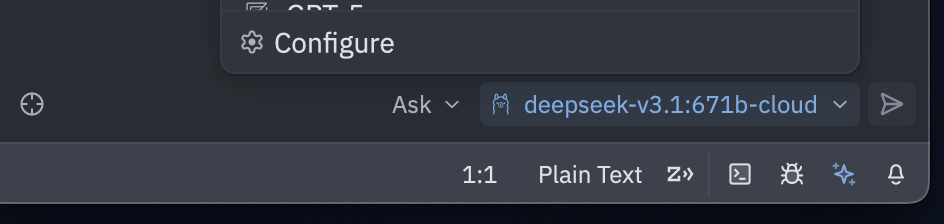
1. In Zed, click the **star icon** in the bottom-right corner, then select **Configure**.

<div style={{ display: 'flex', justifyContent: 'center' }}>
  <img src="https://mintcdn.com/ollama-9269c548/qP80N64oeC4tOgE5/images/zed-settings.png?fit=max&auto=format&n=qP80N64oeC4tOgE5&q=85&s=0a63b1359b1472dde2cdf6c37e314e22" alt="Zed star icon in bottom right corner" width="50%" data-path="images/zed-settings.png" />
</div>

2. Under **LLM Providers**, choose **Ollama**
3. Confirm the **Host URL** is `http://localhost:11434`, then click **Connect**
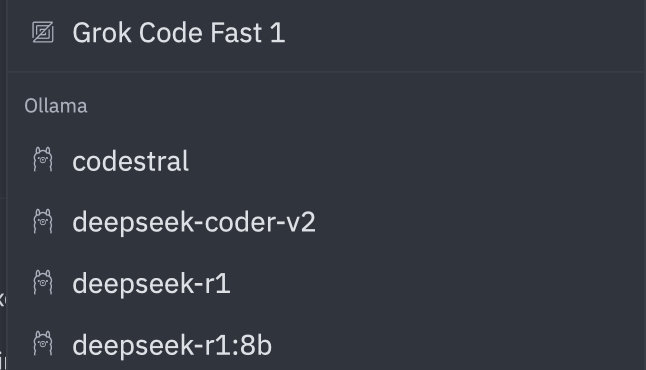
4. Once connected, select a model under **Ollama**

<div style={{ display: 'flex', justifyContent: 'center' }}>
  <img src="https://mintcdn.com/ollama-9269c548/qP80N64oeC4tOgE5/images/zed-ollama-dropdown.png?fit=max&auto=format&n=qP80N64oeC4tOgE5&q=85&s=722c315dcb2563079865eccae2e0c56d" alt="Zed star icon in bottom right corner" width="50%" data-path="images/zed-ollama-dropdown.png" />
</div>

## Connecting to ollama.com

1. Create an [API key](https://ollama.com/settings/keys) on **ollama.com**
2. In Zed, open the **star icon** → **Configure**
3. Under **LLM Providers**, select **Ollama**
4. Set the **API URL** to `https://ollama.com`