> ## Documentation Index
> Fetch the complete documentation index at: https://docs.ollama.com/llms.txt
> Use this file to discover all available pages before exploring further.

# Xcode

## Install

Install [XCode](https://developer.apple.com/xcode/)

## Usage with Ollama

<Note> Ensure Apple Intelligence is setup and the latest XCode version is v26.0 </Note>

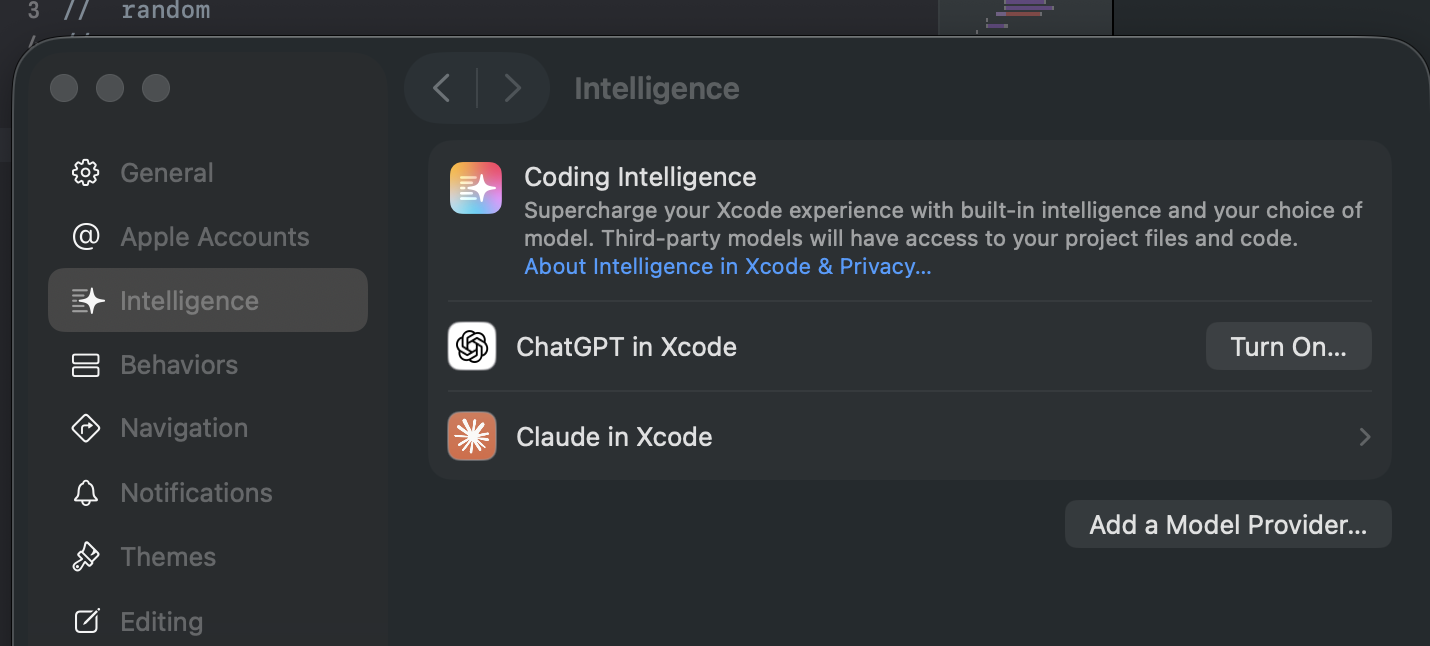
1. Click **XCode** in top left corner > **Settings**

<div style={{ display: 'flex', justifyContent: 'center' }}>
  <img src="https://mintcdn.com/ollama-9269c548/ibktA29M6ZTyqWFA/images/xcode-intelligence-window.png?fit=max&auto=format&n=ibktA29M6ZTyqWFA&q=85&s=61d8115b15ca2e451d99a66dd30df4e0" alt="Xcode Intelligence window" width="50%" data-path="images/xcode-intelligence-window.png" />
</div>

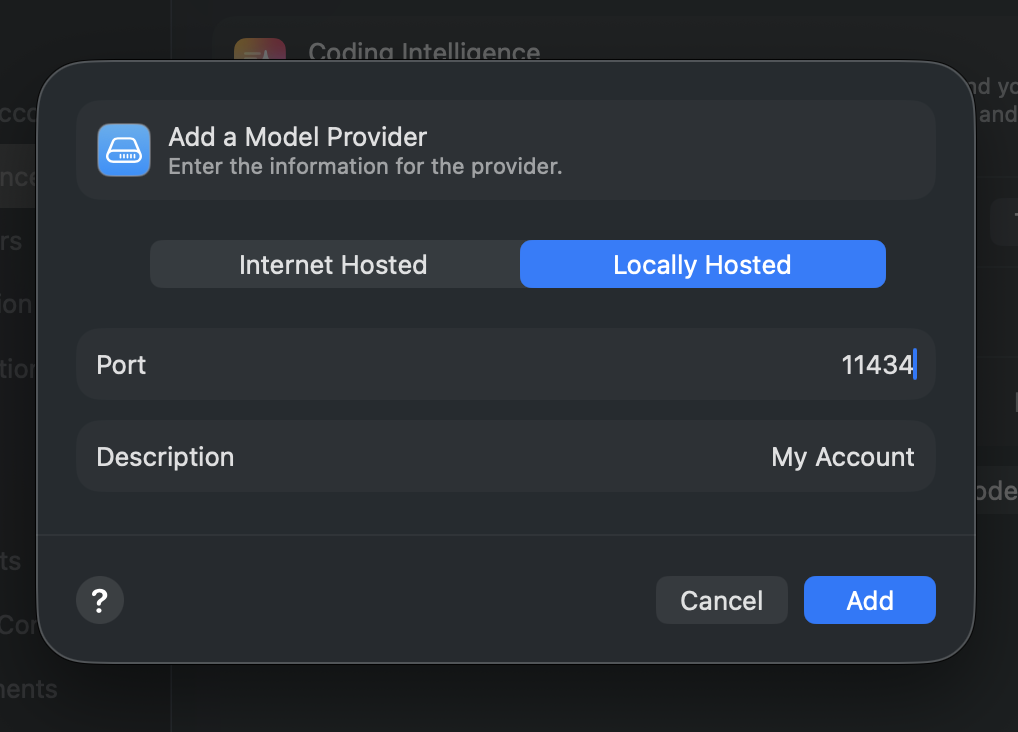
2. Select **Locally Hosted**, enter port **11434** and click **Add**

<div style={{ display: 'flex', justifyContent: 'center' }}>
  <img src="https://mintcdn.com/ollama-9269c548/ibktA29M6ZTyqWFA/images/xcode-locally-hosted.png?fit=max&auto=format&n=ibktA29M6ZTyqWFA&q=85&s=05886457701f4809015cbdfe9da765a2" alt="Xcode settings" width="50%" data-path="images/xcode-locally-hosted.png" />
</div>

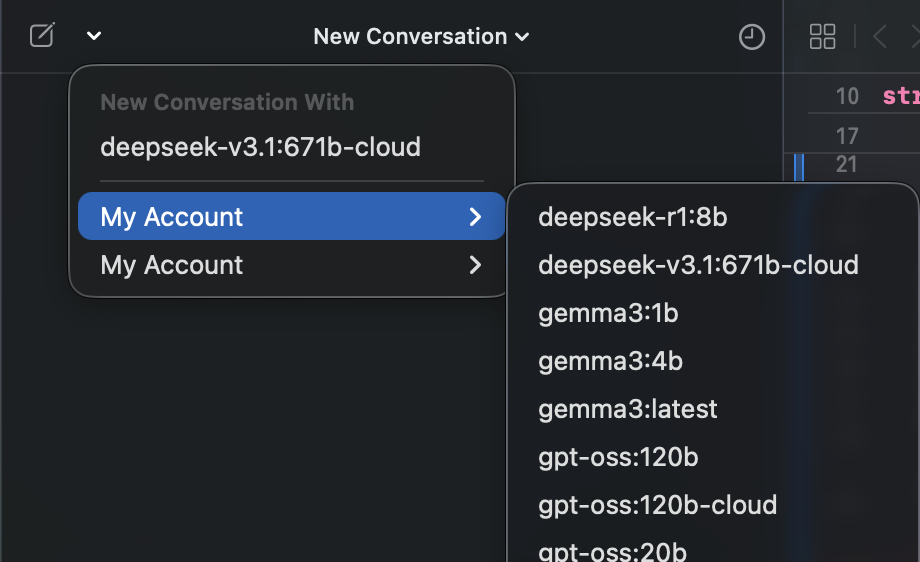
3. Select the **star icon** on the top left corner and click the **dropdown**

<div style={{ display: 'flex', justifyContent: 'center' }}>
  <img src="https://mintcdn.com/ollama-9269c548/ibktA29M6ZTyqWFA/images/xcode-chat-icon.png?fit=max&auto=format&n=ibktA29M6ZTyqWFA&q=85&s=b4e39af73fd7e80ac04f8211cd25c844" alt="Xcode settings" width="50%" data-path="images/xcode-chat-icon.png" />
</div>

4. Click **My Account** and select your desired model

## Connecting to ollama.com directly

1. Create an [API key](https://ollama.com/settings/keys) from ollama.com
2. Select **Internet Hosted** and enter URL as `https://ollama.com`
3. Enter your **Ollama API Key** and click **Add**