> ## Documentation Index
> Fetch the complete documentation index at: https://docs.ollama.com/llms.txt
> Use this file to discover all available pages before exploring further.

# VS Code

VS Code includes built-in AI chat through GitHub Copilot Chat. Ollama models can be used directly in the Copilot Chat model picker.

<img src="https://mintcdn.com/ollama-9269c548/jdSqBzVzS-lQuH5E/images/vscode.png?fit=max&auto=format&n=jdSqBzVzS-lQuH5E&q=85&s=e72a727f4c3f5c8faec452e7ba25af64" alt="VS Code with Ollama" width="3870" height="2566" data-path="images/vscode.png" />

## Prerequisites

* Ollama v0.18.3+
* [VS Code 1.113+](https://code.visualstudio.com/download)
* [GitHub Copilot Chat extension 0.41.0+](https://marketplace.visualstudio.com/items?itemName=GitHub.copilot-chat)

<Note> VS Code requires you to be logged in to use its model selector, even for custom models. This doesn't require a paid GitHub Copilot account; GitHub Copilot Free will enable model selection for custom models.</Note>

## Quick setup

```shell theme={"system"}
ollama launch vscode
```

Recommended models will be shown after running the command. See the latest models at [ollama.com](https://ollama.com/search?c=tools).

Make sure **Local** is selected at the bottom of the Copilot Chat panel to use your Ollama models.

<div style={{ display: "flex", justifyContent: "center" }}>
  <img src="https://mintcdn.com/ollama-9269c548/jdSqBzVzS-lQuH5E/images/local.png?fit=max&auto=format&n=jdSqBzVzS-lQuH5E&q=85&s=bf599505988dd4f3e4ae3cec721aa092" alt="Ollama Local Models" width="60%" style={{ borderRadius: "4px", marginTop: "10px", marginBottom: "10px" }} data-path="images/local.png" />
</div>

## Run directly with a model

```shell theme={"system"}
ollama launch vscode --model qwen3.5:cloud
```

Cloud models are also available at [ollama.com](https://ollama.com/search?c=cloud).

## Manual setup

To configure Ollama manually without `ollama launch`:

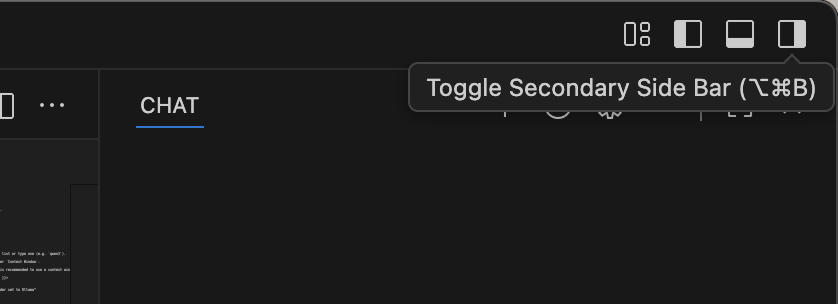
1. Open the **Copilot Chat** side bar from the top right corner
   <div style={{ display: "flex", justifyContent: "center" }}>
     <img src="https://mintcdn.com/ollama-9269c548/Q0hzAGiFk9hDuXaH/images/vscode-sidebar.png?fit=max&auto=format&n=Q0hzAGiFk9hDuXaH&q=85&s=8d841164c3a8c2e6cb502f9dece6079c" alt="VS Code chat Sidebar" width="75%" style={{ borderRadius: "4px" }} data-path="images/vscode-sidebar.png" />
   </div>

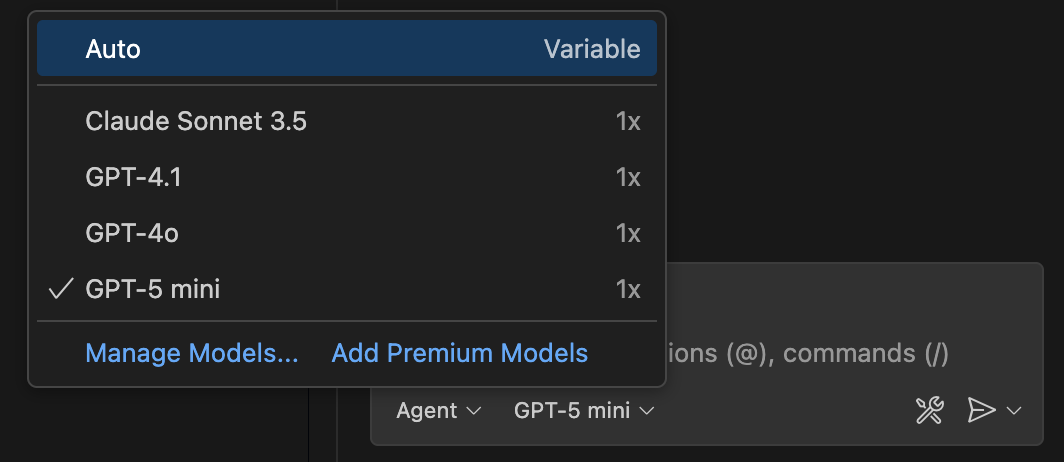
2. Click the **settings gear icon** (<Icon icon="gear" />) to bring up the Language Models window
   <div style={{ display: "flex", justifyContent: "center" }}>
     <img src="https://mintcdn.com/ollama-9269c548/jdSqBzVzS-lQuH5E/images/vscode-other-models.png?fit=max&auto=format&n=jdSqBzVzS-lQuH5E&q=85&s=4aae9afd6de7d53914e1bdf5cf1f546f" alt="VS Code model picker" width="75%" style={{ borderRadius: "4px" }} data-path="images/vscode-other-models.png" />
   </div>

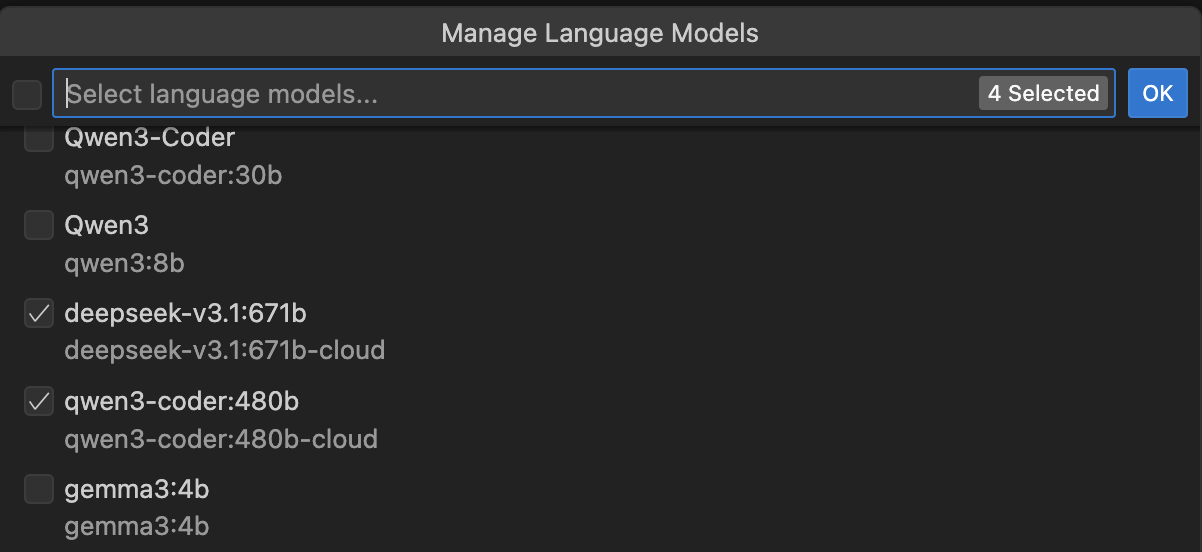
3. Click **Add Models** and select **Ollama** to load all your Ollama models into VS Code
   <div style={{ display: "flex", justifyContent: "center" }}>
     <img src="https://mintcdn.com/ollama-9269c548/jdSqBzVzS-lQuH5E/images/vscode-add-ollama.png?fit=max&auto=format&n=jdSqBzVzS-lQuH5E&q=85&s=f00620d7683947a367b9215955d56b22" alt="VS Code model options dropdown to add ollama models" width="75%" style={{ borderRadius: "4px" }} data-path="images/vscode-add-ollama.png" />
   </div>

4. Click the **Unhide** button in the model picker to show your Ollama models
   <div style={{ display: "flex", justifyContent: "center" }}>
     <img src="https://mintcdn.com/ollama-9269c548/jdSqBzVzS-lQuH5E/images/vscode-unhide.png?fit=max&auto=format&n=jdSqBzVzS-lQuH5E&q=85&s=a4f35501c31ab9bac46541b4c11b6dec" alt="VS Code unhide models button" width="75%" style={{ borderRadius: "4px" }} data-path="images/vscode-unhide.png" />
   </div>