> ## Documentation Index
> Fetch the complete documentation index at: https://docs.ollama.com/llms.txt
> Use this file to discover all available pages before exploring further.

# Onyx

## Overview

[Onyx](http://onyx.app/) is a self-hostable Chat UI that integrates with all Ollama models. Features include:

* Creating custom Agents
* Web search
* Deep Research
* RAG over uploaded documents and connected apps
* Connectors to applications like Google Drive, Email, Slack, etc.
* MCP and OpenAPI Actions support
* Image generation
* User/Groups management, RBAC, SSO, etc.

Onyx can be deployed for single users or large organizations.

## Install Onyx

Deploy Onyx with the [quickstart guide](https://docs.onyx.app/deployment/getting_started/quickstart).

<Info>
  Resourcing/scaling docs [here](https://docs.onyx.app/deployment/getting_started/resourcing).
</Info>

## Usage with Ollama

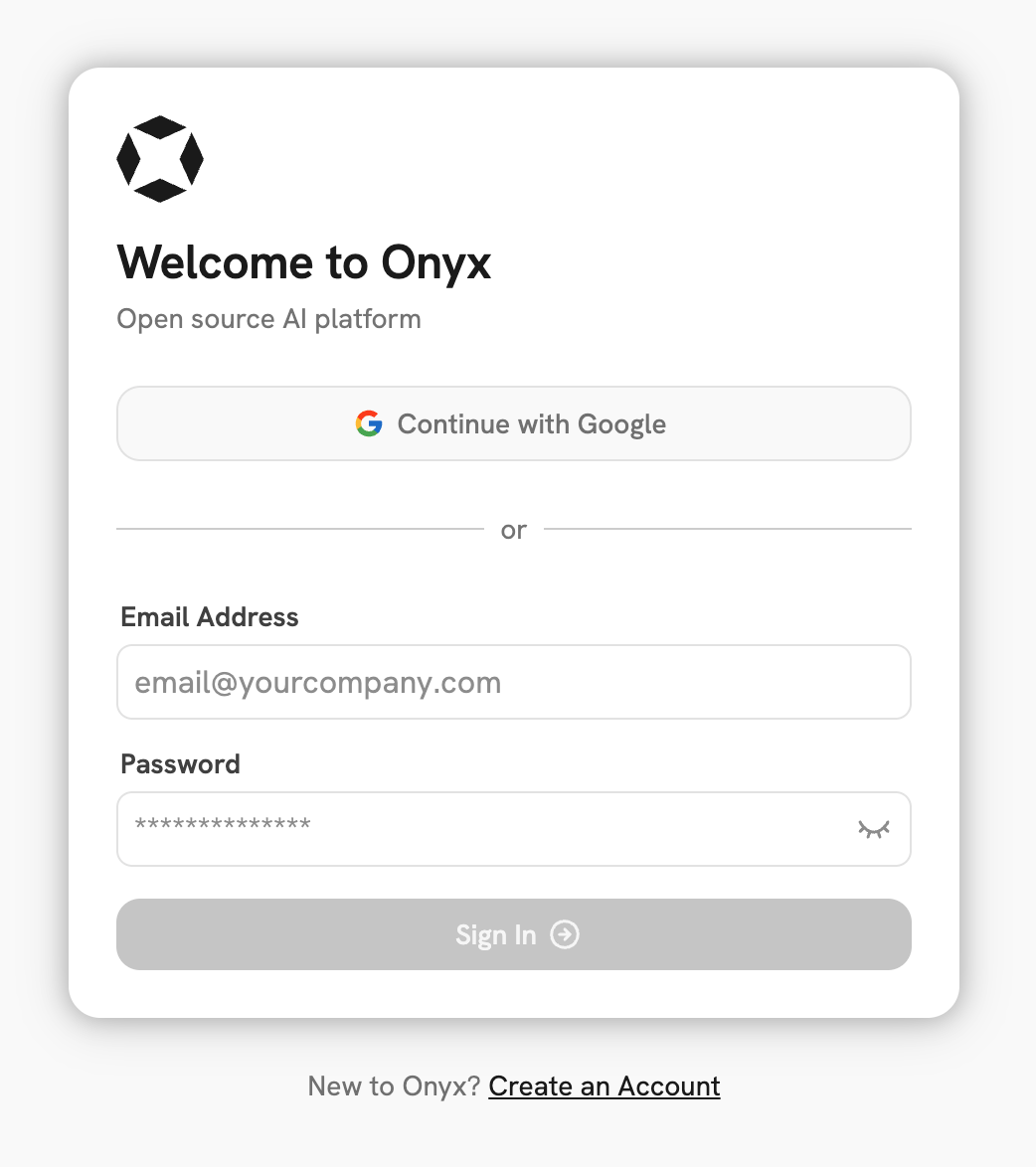
1. Login to your Onyx deployment (create an account first).

<div style={{ display: 'flex', justifyContent: 'center' }}>
  <img src="https://mintcdn.com/ollama-9269c548/rqi257JWXmZRsZn4/images/onyx-login.png?fit=max&auto=format&n=rqi257JWXmZRsZn4&q=85&s=5850db0abbfca50c1b6eb5029648ae89" alt="Onyx Login Page" width="75%" data-path="images/onyx-login.png" />
</div>

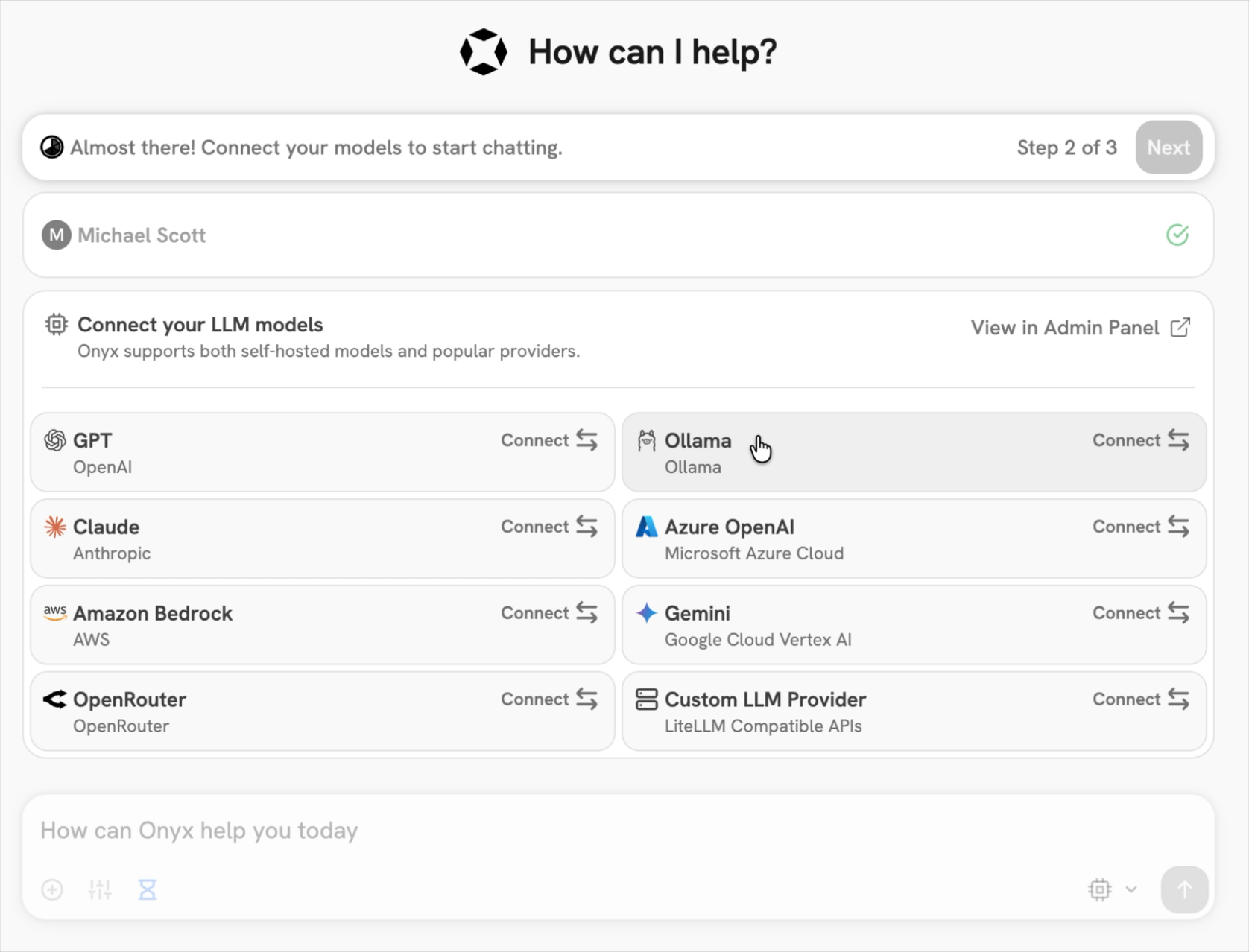
2. In the set-up process select `Ollama` as the LLM provider.

<div style={{ display: 'flex', justifyContent: 'center' }}>
  <img src="https://mintcdn.com/ollama-9269c548/rqi257JWXmZRsZn4/images/onyx-ollama-llm.png?fit=max&auto=format&n=rqi257JWXmZRsZn4&q=85&s=399b5938d0d0d18b359845529dd9408b" alt="Onyx Set Up Form" width="75%" data-path="images/onyx-ollama-llm.png" />
</div>

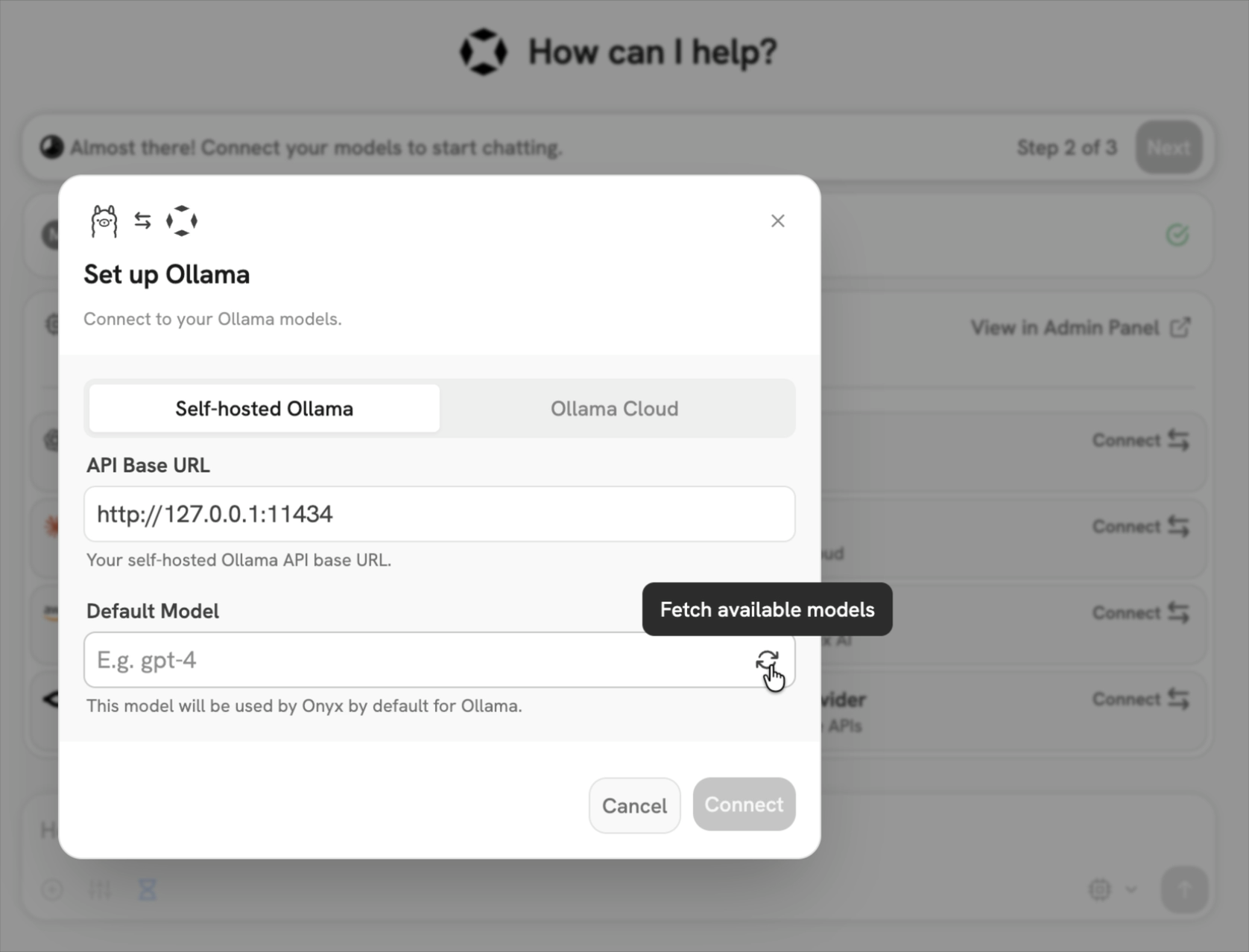
3. Provide your **Ollama API URL** and select your models.
   <Note>If you're running Onyx in Docker, to access your computer's local network use `http://host.docker.internal` instead of `http://127.0.0.1`.</Note>

<div style={{ display: 'flex', justifyContent: 'center' }}>
  <img src="https://mintcdn.com/ollama-9269c548/rqi257JWXmZRsZn4/images/onyx-ollama-form.png?fit=max&auto=format&n=rqi257JWXmZRsZn4&q=85&s=f675da3f8a399614b549f72d6adaa798" alt="Selecting Ollama Models" width="75%" data-path="images/onyx-ollama-form.png" />
</div>

You can also easily connect up Onyx Cloud with the `Ollama Cloud` tab of the setup.

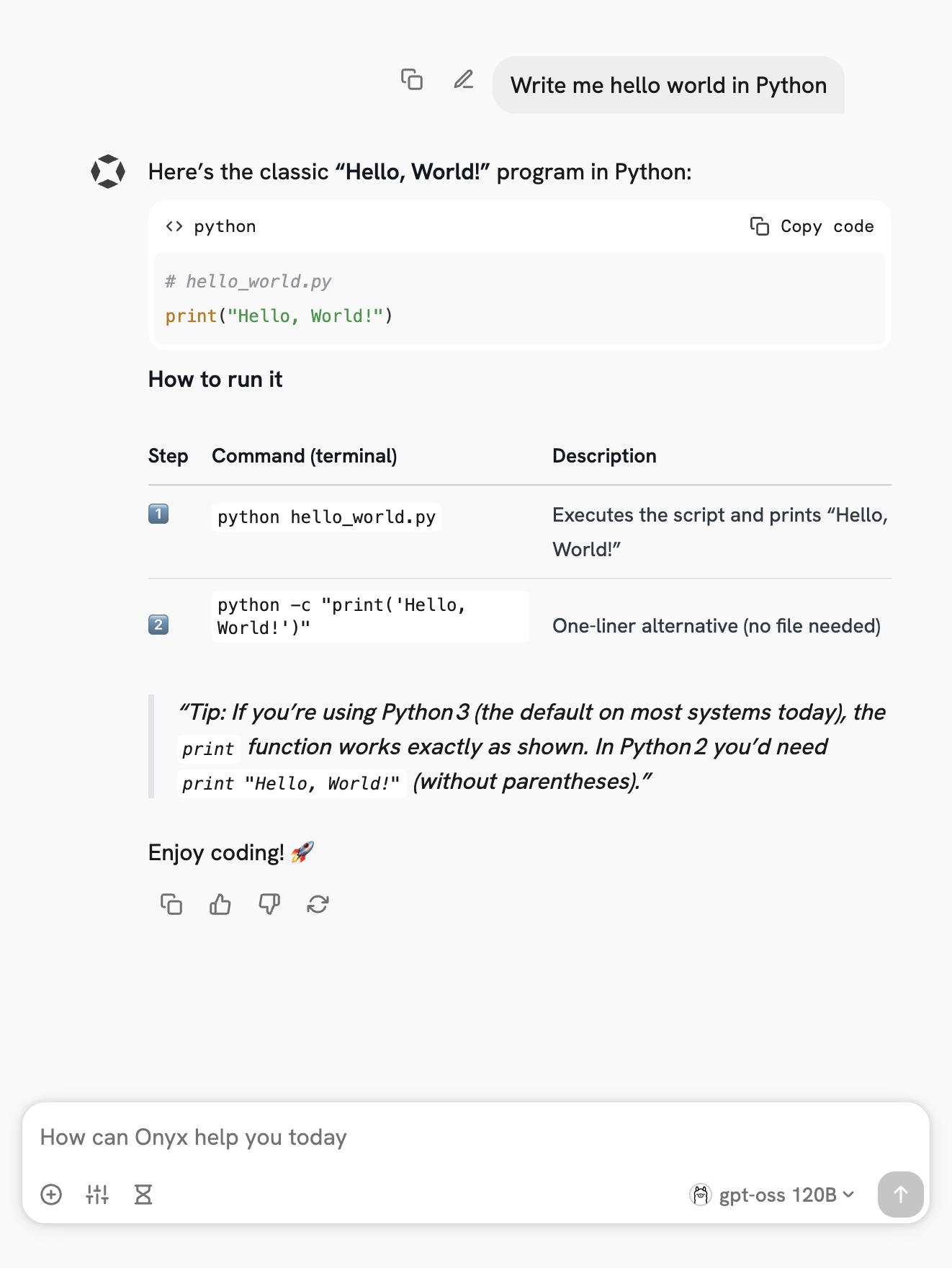
## Send your first query
<div style={{ display: 'flex', justifyContent: 'center' }}>
  <img src="https://mintcdn.com/ollama-9269c548/rqi257JWXmZRsZn4/images/onyx-query.png?fit=max&auto=format&n=rqi257JWXmZRsZn4&q=85&s=3e7b6e38fb14b288d72bcd828cdd91d9" alt="Onyx Query Example" width="75%" data-path="images/onyx-query.png" />
</div>