> ## Documentation Index
> Fetch the complete documentation index at: https://docs.ollama.com/llms.txt
> Use this file to discover all available pages before exploring further.

# n8n

## Install

Install [n8n](https://docs.n8n.io/choose-n8n/).

## Using Ollama Locally

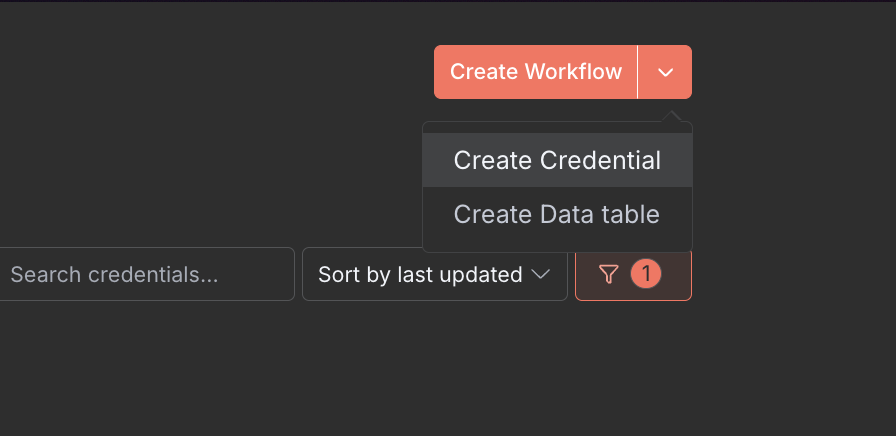
1. In the top right corner, click the dropdown and select **Create Credential**

<div style={{ display: 'flex', justifyContent: 'center' }}>
  <img src="https://mintcdn.com/ollama-9269c548/AZjkMSgDaM1B-WFi/images/n8n-credential-creation.png?fit=max&auto=format&n=AZjkMSgDaM1B-WFi&q=85&s=5b7f955f792e8b9899f3b0b3a1846d06" alt="Create a n8n Credential" width="75%" data-path="images/n8n-credential-creation.png" />
</div>

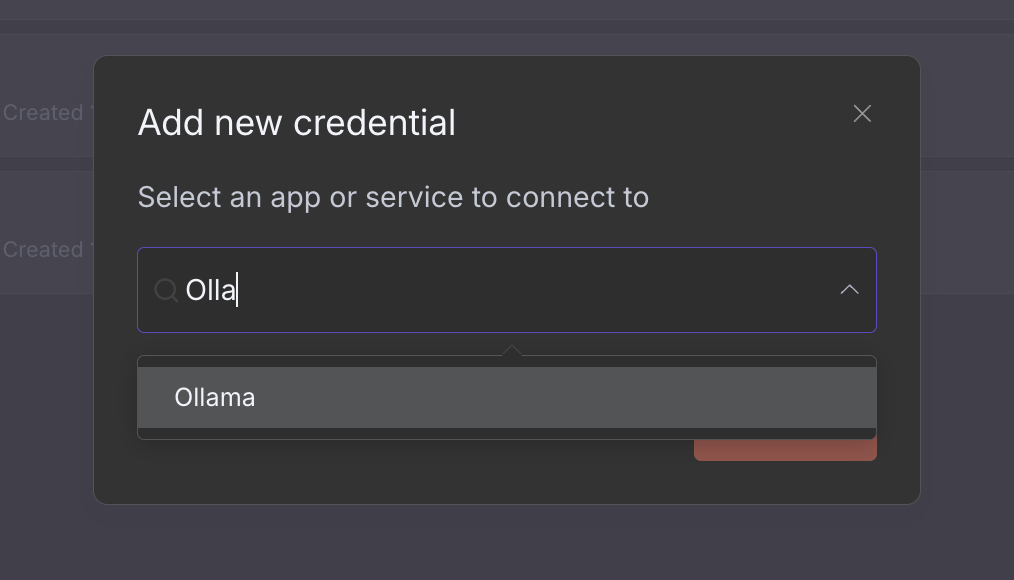
2. Under **Add new credential** select **Ollama**

<div style={{ display: 'flex', justifyContent: 'center' }}>
  <img src="https://mintcdn.com/ollama-9269c548/AZjkMSgDaM1B-WFi/images/n8n-ollama-form.png?fit=max&auto=format&n=AZjkMSgDaM1B-WFi&q=85&s=46c5ec6678b7323405a1ca98d9f88af0" alt="Select Ollama under Credential" width="75%" data-path="images/n8n-ollama-form.png" />
</div>

3. Confirm Base URL is set to `http://localhost:11434` if running locally or `http://host.docker.internal:11434` if running through docker and click **Save**

<Note>
  In environments that don't use Docker Desktop (ie, Linux server installations), `host.docker.internal` is not automatically added.

  Run n8n in docker with `--add-host=host.docker.internal:host-gateway`

  or add the following to a docker compose file:

  ```yaml theme={"system"}
  extra_hosts:
    - "host.docker.internal:host-gateway"
  ```
</Note>

You should see a `Connection tested successfully` message.

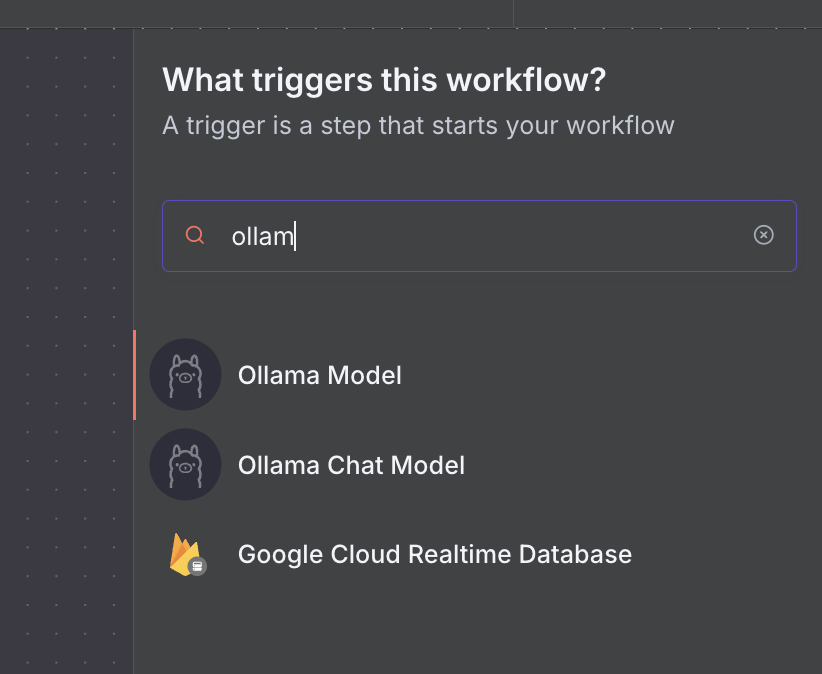
4. When creating a new workflow, select **Add a first step** and select an **Ollama node**

<div style={{ display: 'flex', justifyContent: 'center' }}>
  <img src="https://mintcdn.com/ollama-9269c548/AZjkMSgDaM1B-WFi/images/n8n-chat-node.png?fit=max&auto=format&n=AZjkMSgDaM1B-WFi&q=85&s=78c15518fa96d509096af63307063ae6" alt="Add a first step with Ollama node" width="75%" data-path="images/n8n-chat-node.png" />
</div>

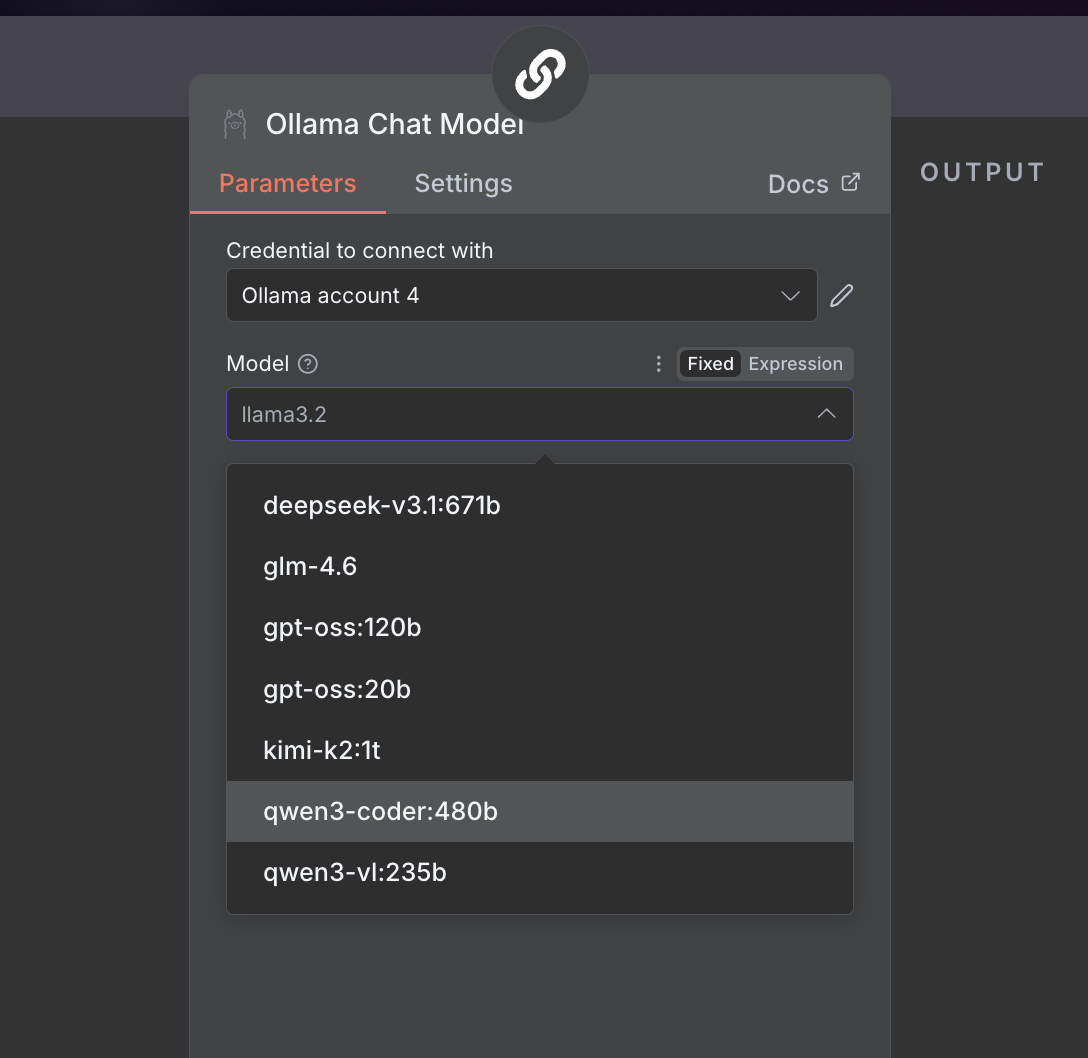
5. Select your model of choice (e.g. `qwen3-coder`)

<div style={{ display: 'flex', justifyContent: 'center' }}>
  <img src="https://mintcdn.com/ollama-9269c548/AZjkMSgDaM1B-WFi/images/n8n-models.png?fit=max&auto=format&n=AZjkMSgDaM1B-WFi&q=85&s=45e705696dc7c8f40112e1c6dbee0e7e" alt="Set up Ollama credentials" width="75%" data-path="images/n8n-models.png" />
</div>

## Connecting to ollama.com

1. Create an [API key](https://ollama.com/settings/keys) on **ollama.com**.
2. In n8n, click **Create Credential** and select **Ollama**
3. Set the **API URL** to `https://ollama.com`
4. Enter your **API Key** and click **Save**