> ## Documentation Index
> Fetch the complete documentation index at: https://docs.ollama.com/llms.txt
> Use this file to discover all available pages before exploring further.

# JetBrains

<Note>This example uses **IntelliJ**; same steps apply to other JetBrains IDEs (e.g., PyCharm).</Note>

## Install

Install [IntelliJ](https://www.jetbrains.com/idea/).

## Usage with Ollama

<Note>
  To use **Ollama**,  you will need a [JetBrains AI Subscription](https://www.jetbrains.com/ai-ides/buy/?section=personal\&billing=yearly).
</Note>

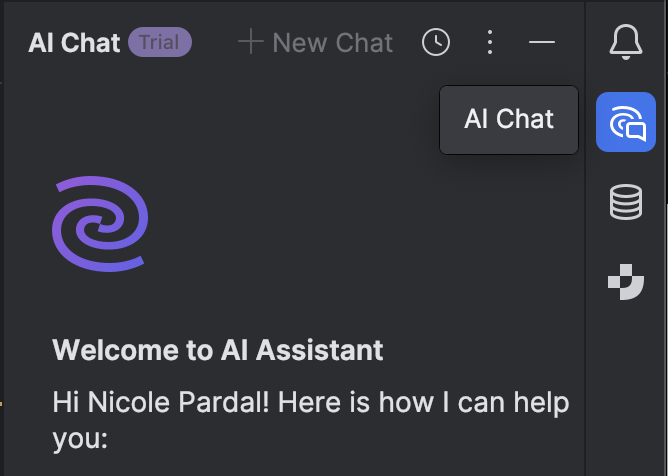
1. In Intellij, click the **chat icon** located in the right sidebar

<div style={{ display: 'flex', justifyContent: 'center' }}>
  <img src="https://mintcdn.com/ollama-9269c548/YbLeuKjU_QVFWOuC/images/intellij-chat-sidebar.png?fit=max&auto=format&n=YbLeuKjU_QVFWOuC&q=85&s=3744faa4bdfb6e817ad68d7da792bf18" alt="Intellij Sidebar Chat" width="50%" data-path="images/intellij-chat-sidebar.png" />
</div>

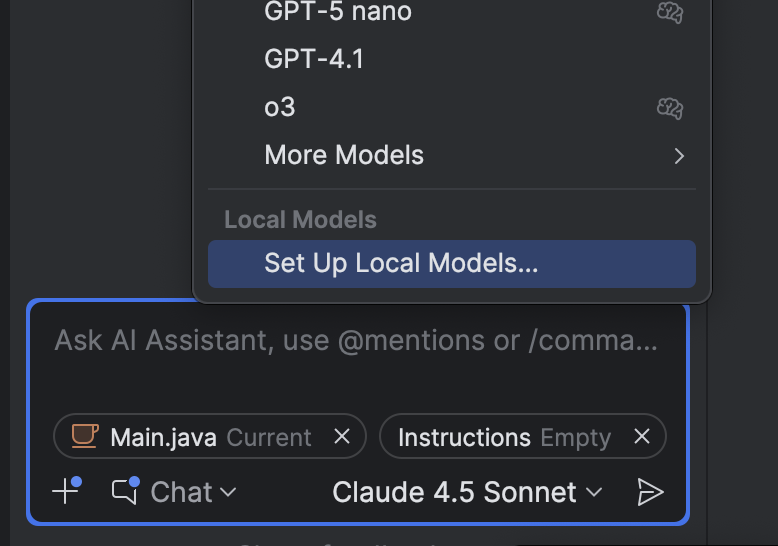
2. Select the **current model** in the sidebar, then click **Set up Local Models**

<div style={{ display: 'flex', justifyContent: 'center' }}>
  <img src="https://mintcdn.com/ollama-9269c548/YbLeuKjU_QVFWOuC/images/intellij-current-model.png?fit=max&auto=format&n=YbLeuKjU_QVFWOuC&q=85&s=cc42c11b23f4a9b57b3e7c69ae42b60b" alt="Intellij model bottom right corner" width="50%" data-path="images/intellij-current-model.png" />
</div>

3. Under **Third Party AI Providers**, choose **Ollama**
4. Confirm the **Host URL** is `http://localhost:11434`, then click **Ok**
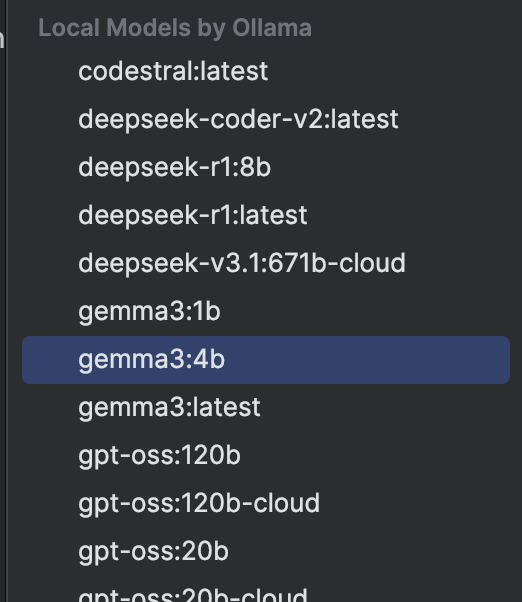
5. Once connected, select a model under **Local models by Ollama**

<div style={{ display: 'flex', justifyContent: 'center' }}>
  <img src="https://mintcdn.com/ollama-9269c548/YbLeuKjU_QVFWOuC/images/intellij-local-models.png?fit=max&auto=format&n=YbLeuKjU_QVFWOuC&q=85&s=0cc866166e1d6af65b3d8a16c3f396f5" alt="Zed star icon in bottom right corner" width="50%" data-path="images/intellij-local-models.png" />
</div>