# Goose
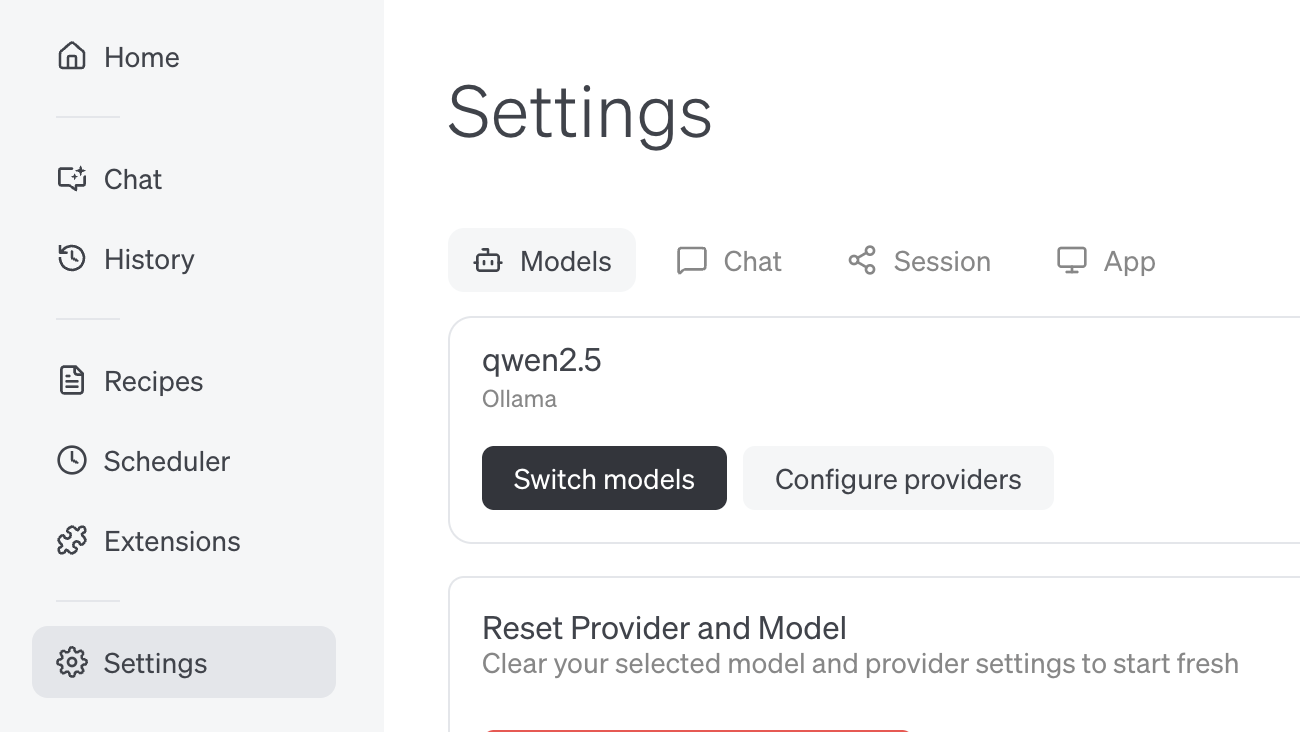
## Goose Desktop
Install [Goose](https://block.github.io/goose/docs/getting-started/installation/) Desktop.
### Usage with Ollama
1. In Goose, open **Settings** → **Configure Provider**.
2. Find **Ollama**, click **Configure**
3. Confirm **API Host** is `http://localhost:11434` and click Submit
### Connecting to ollama.com
1. Create an [API key](https://ollama.com/settings/keys) on ollama.com and save it in your `.env`
2. In Goose, set **API Host** to `https://ollama.com`
## Goose CLI
Install [Goose](https://block.github.io/goose/docs/getting-started/installation/) CLI
### Usage with Ollama
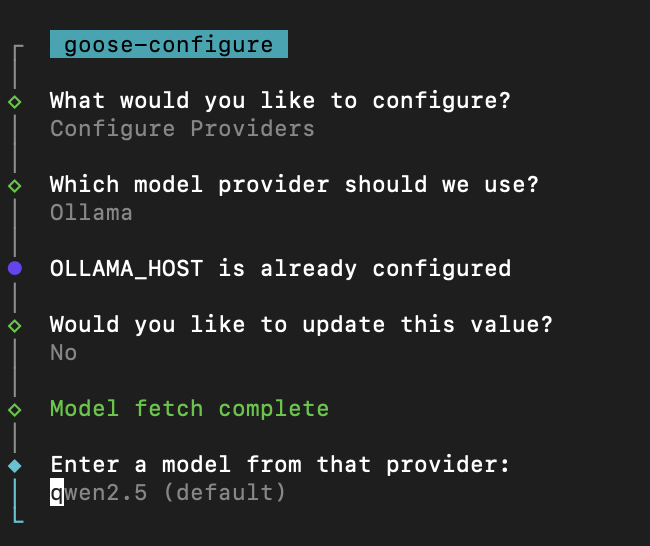
1. Run `goose configure`
2. Select **Configure Providers** and select **Ollama**
3. Enter model name (e.g `qwen3`)
### Connecting to ollama.com
1. Create an [API key](https://ollama.com/settings/keys) on ollama.com and save it in your `.env`
2. Run `goose configure`
3. Select **Configure Providers** and select **Ollama**
4. Update **OLLAMA\_HOST** to `https://ollama.com`
---
> To find navigation and other pages in this documentation, fetch the llms.txt file at: https://docs.ollama.com/llms.txt